
Visit photos and gallery
Find and place photos from a property visit, then share the photo gallery.
Open Jobs and choose the property visit.
| Where | Open |
|---|---|
| Web | Open the report in Edit, then select Photos beside Pages. |
| App | Select Photos on the visit. The row shows the total count. |
Find a photo
| Filter | Shows |
|---|---|
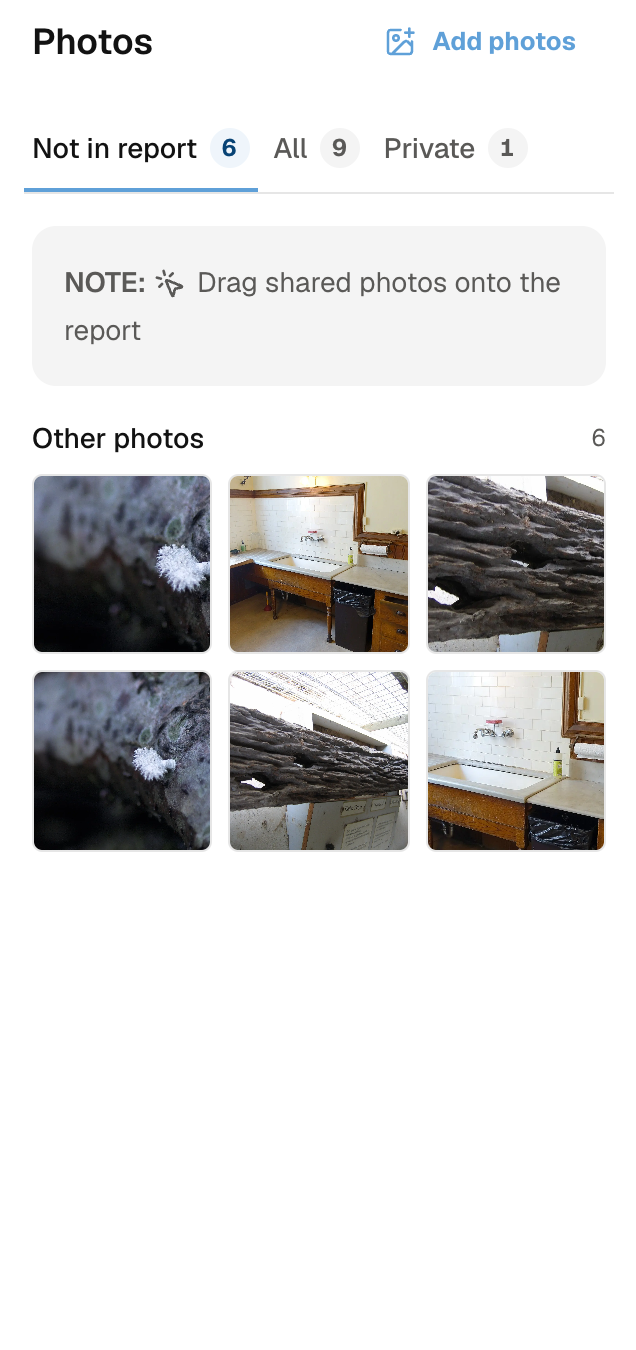
| Not in report | Shared photos that the report pages do not use. Web opens here. |
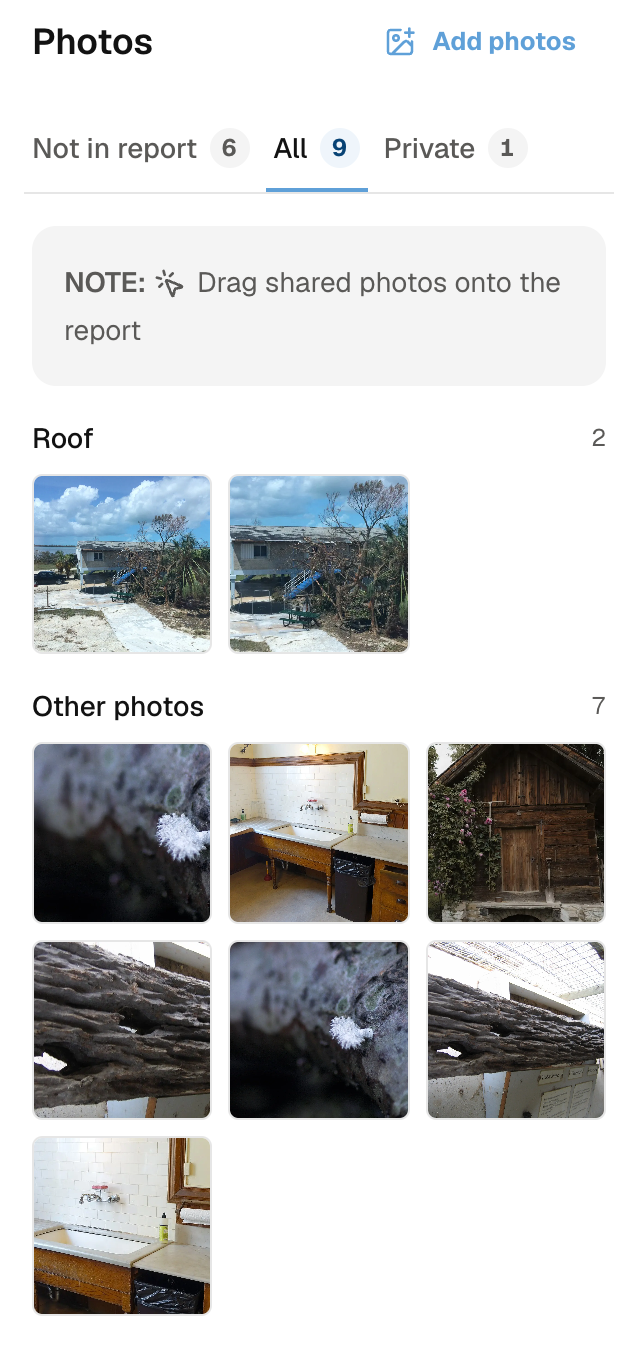
| All | Every visit photo. The app opens here. |
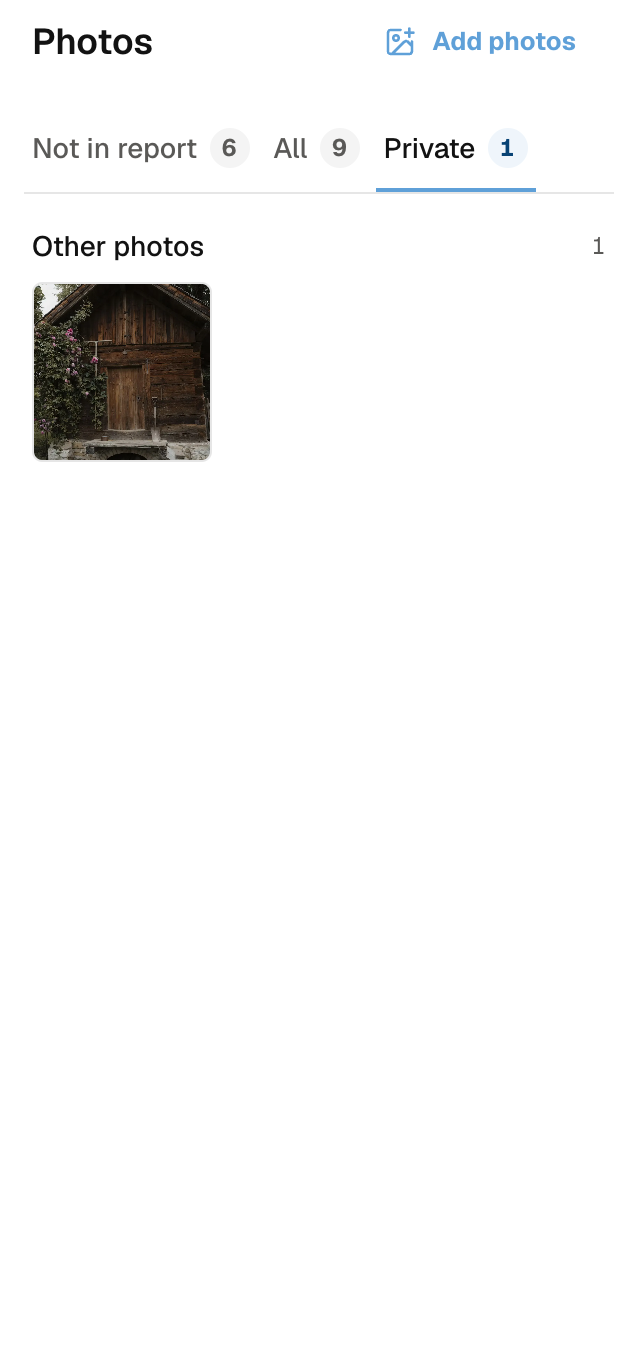
| Private | Photos kept for your team. See Private photos. |
Photos on findings sit in their area. Noma sorts loose photos by area after you add them and checks again when fieldwork ends. Photos with no area go under Other photos. Equipment can have its own group.
Work with photos
| Task | Steps |
|---|---|
| Add photos | Select Add photos and choose files. See upload limits. |
| Put a photo in the report | Drag a shared loose photo onto a finding or equipment unit. Undo takes it off that row. |
| Edit a photo | Select it. The arrows step through the open filter. See Mark up photos. |
| Delete a photo | Point to it, select the trash button, then Delete. Use Undo to bring it back. |
Select Camera or Import to add photos. Select a photo to edit it. To work on several, select Select or press and hold a photo. Drag sideways to pick a range. Start on a selected photo to clear a range.
| Task | Steps |
|---|---|
| Move to a finding | Open ... → Move. Open the area and section, then choose a saved finding. If all the photos were loose, Undo is available for six seconds. |
| Copy photos | Open ... → Duplicate. See what each copy keeps. |
| Delete photos | Select the trash button, then Delete. |
| Clear your picks | Select Done. |
To place a loose photo in a different area, add it to a finding there. To change who can see a photo, use Private photos.
Photo gallery
Open the report's Photo gallery tab. It shows shared visit photos once each. Groups follow the report order, with Other photos last. Shared equipment photos that the report leaves out can still appear in the gallery.
| Control | Effect |
|---|---|
| Include this document on web, or Include in report in the app | Adds the gallery to the next publish. If it is on, you need at least one shared photo to publish. |
| Show captions | Adds captions. If a photo on a finding or equipment has no caption, its name can print in that spot. |
| Photos in the app | Opens the visit's photos. Drag the handle up to find this row. |
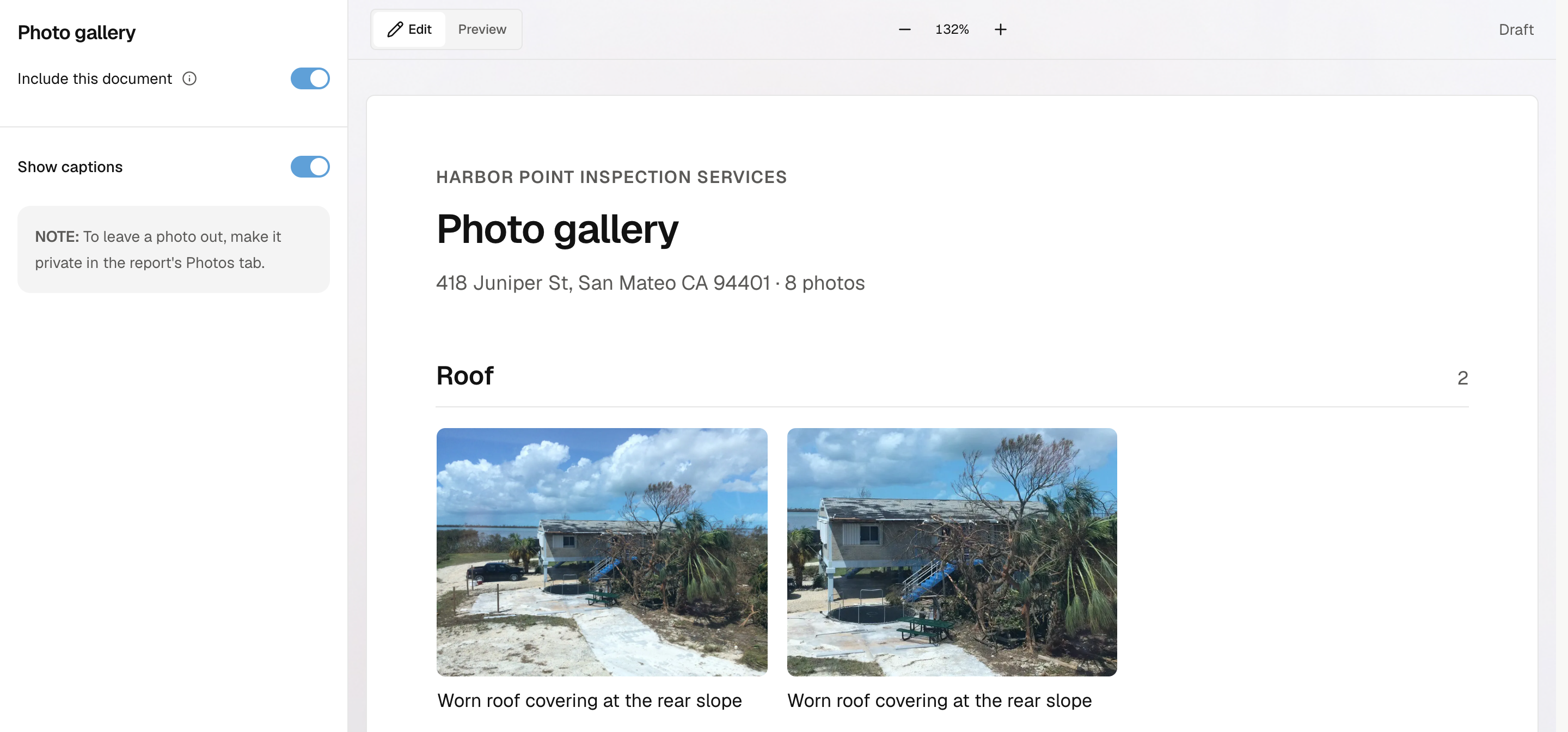
After you publish, clients open Photo gallery. Select Download photos to save a ZIP with JPG files in numbered folders by group.
Download report and photos
After you publish, open the visit menu on web and select Download report and photos. The ZIP holds the latest report PDF and all saved visit photos in numbered folders. If there are no photos, Noma shows This visit has no photos.
This ZIP includes private photos
For a client copy, use Download photos from the published gallery.