
Finish and send reports
Review the final pages, choose email delivery, and share the report.
Choose your inspector type
Open the visit from Jobs. Finish fieldwork before publishing the final report.
Finish fieldwork
Check that the inspector's phone changes have uploaded. Open the visit's report, select Finish fieldwork, then confirm. Wait for report preparation, then review the draft.
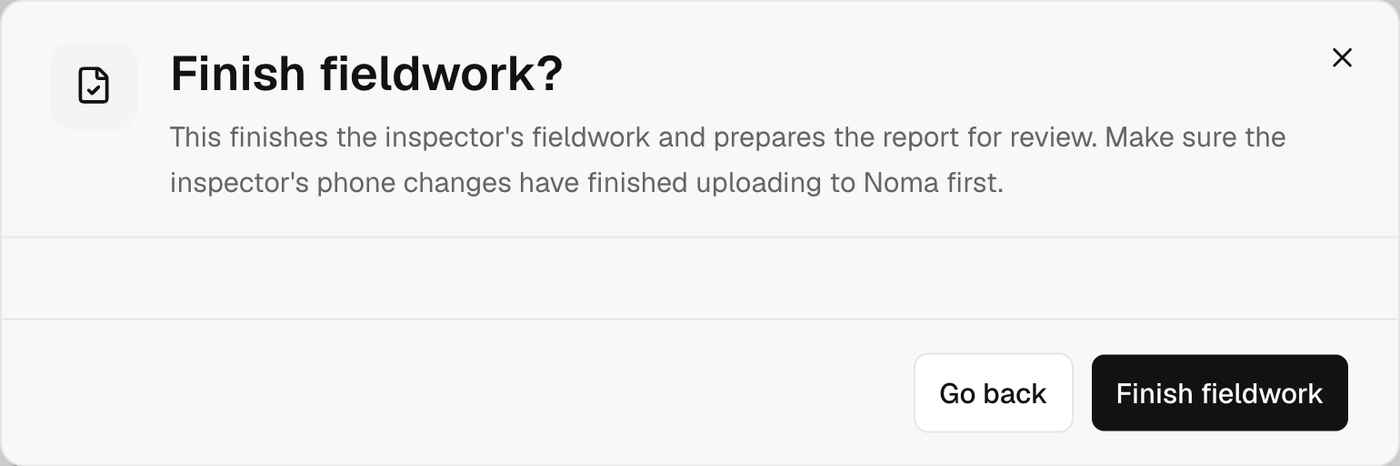
Select Finish fieldwork on the visit. For a termite inspection, review General description, Pests & conditions, Inspection tags, Chemical notice, and Pre/post notes, then use Review and finish.
Tap a review row to change it. Back and Continue move through the form. Finish waits for local edits to save; uploads and report preparation may still be running.
Use Open report in browser for final review and publishing.
Check every page
Use Preview and the zoom controls. Check the cover, findings, photos, diagram, and any included documents.
Preparation can clean report wording and fill missing property finding titles. Review those results before publishing.
The finish action shows how many issues remain, such as Fix 1 issue. Select it to open the field or setting that needs attention. Check the inspector's report profile and saved signature. Company details belong in Settings.
Choose delivery
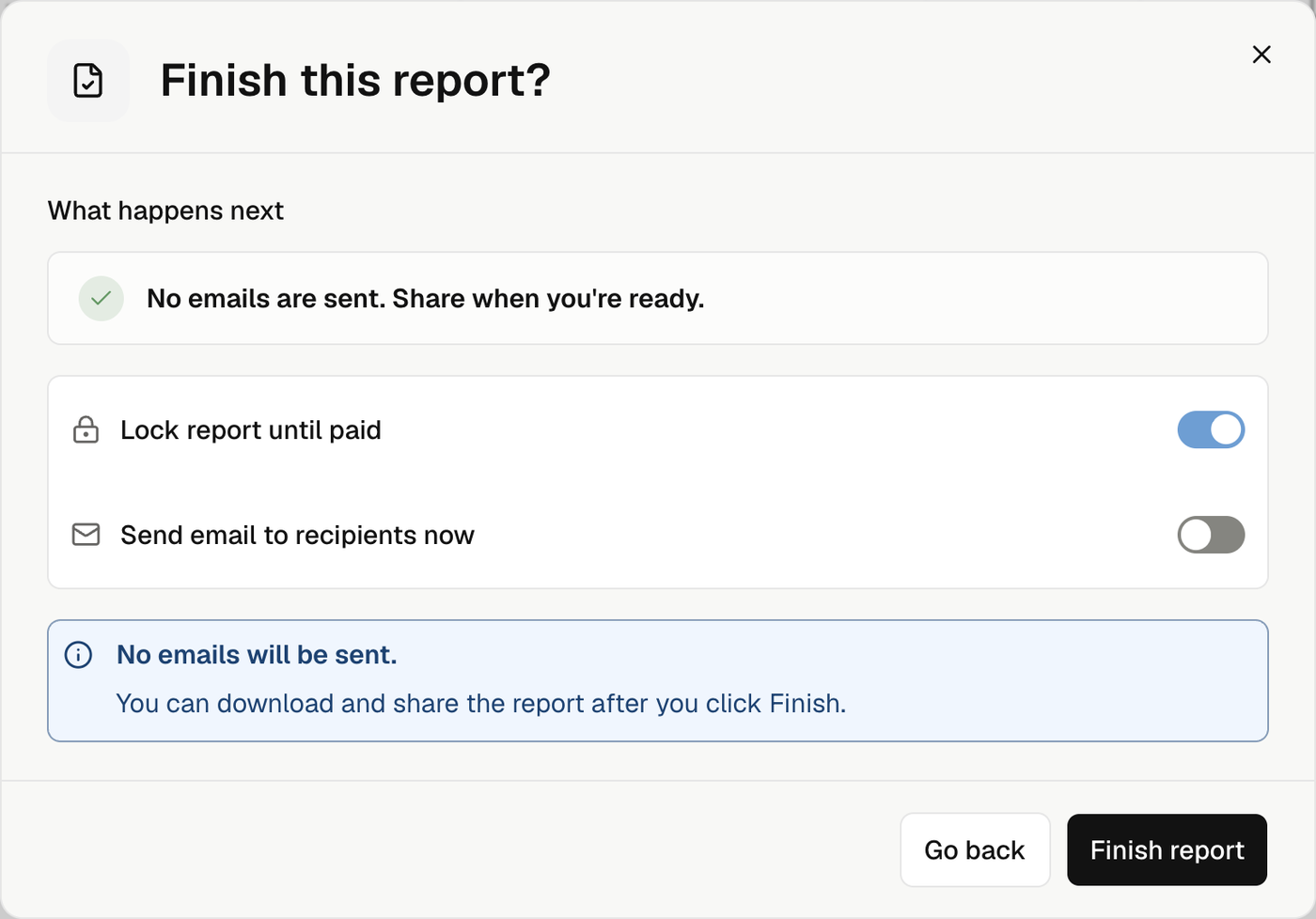
Select Finish report, or Finish revision for a revised copy.
| Control | Result |
|---|---|
| Lock report until paid | Apply the visit's payment-access rule. Other report locks still apply. |
| Send email to recipients now | Send when the report is ready. Turn it off to finish without email. |
| To and Cc | Choose contacts or enter email addresses for this send. At least one To recipient is required. |
| Subject | Select Edit subject, enter the subject, then press Enter. |
| Include receipt | Add receipt links to this email. It starts on when available. |
To, Cc, and subject edits apply only to this send. They do not change saved contacts or names printed on the report. Replies go to the company email when it is set. See Choose email recipients.
The receipt choice appears when all active inspection invoices are paid and at least one has a positive total. It excludes voided invoices and authorized-work invoices. Pending bank payments do not qualify. Each receipt is a link, not a PDF attachment.
Select Finish & send when email is on. Otherwise select Finish report or Finish revision.
The finished report gets a fixed PDF and public link. Turning email off does not turn off payment or contract access rules.
Send or download later
Open the current issued report's menu. Use Resend report to review a new email, or copy its public link, print, or download it.
Property reports also show Download report and photos. It is available when that issued copy has unused photos. This downloads a ZIP with the report PDF and unused photos. Download report PDF saves the PDF alone.
Sending again uses the same issued copy. To change report content, create a revision.
Open the job's Emails to track delivery or retry a failed message. A failed email does not undo the finished report.