
Lock reports until paid
Choose whether unpaid invoices block client report access.
Set the company default
An Admin or Billing manager opens Settings → Reports. Under Default report access, set Lock report until paid, then select Save changes.

New visits use this default. Existing visits keep their own settings.
Change one visit
Open the visit's actions menu → Visit settings, set Lock report until paid, then select Save.

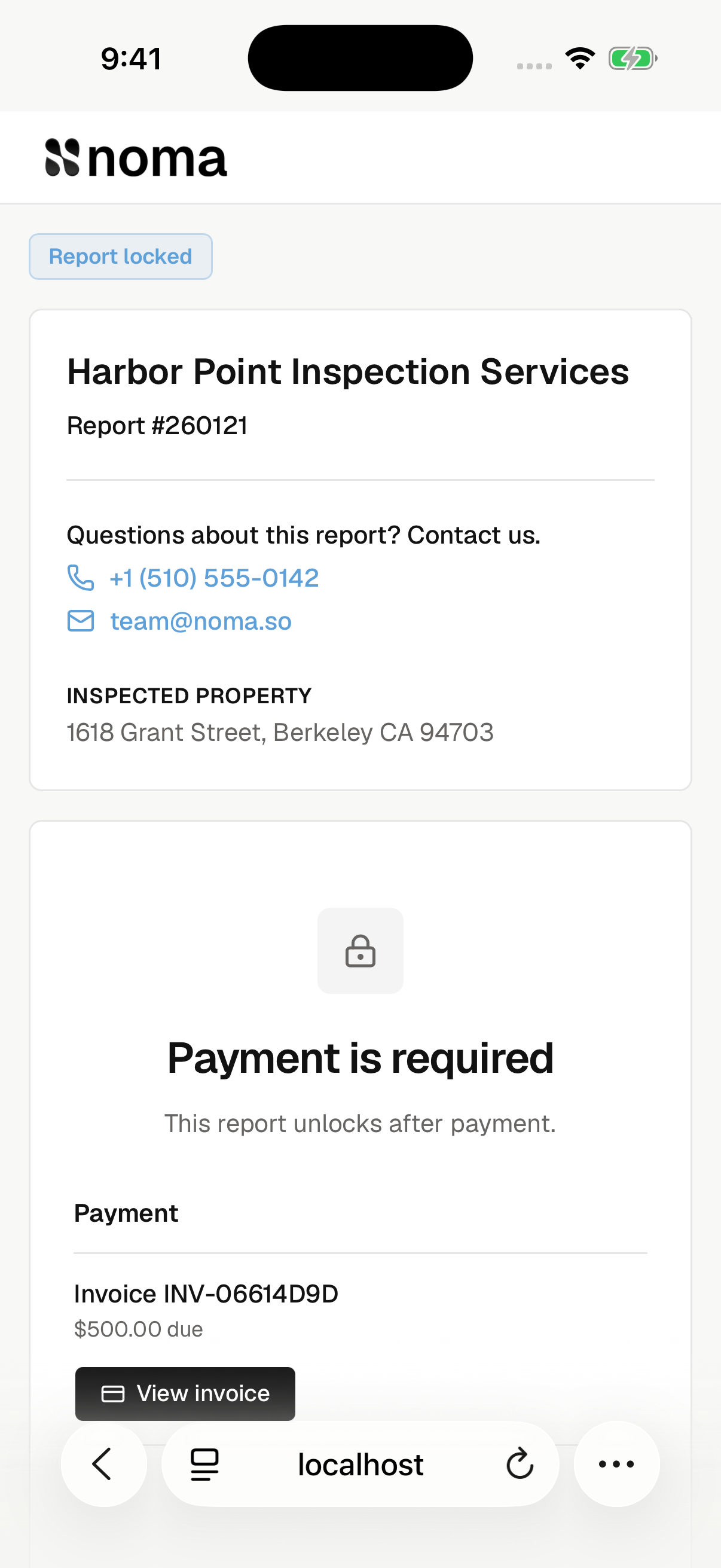
The payment lock applies to property and termite inspection reports.
On the web, you can also set Lock report until paid in an inspection invoice's Review and send or Review replacement step. It saves with the invoice. An open invoice's detail page has the same switch; changes there save automatically. These controls change the visit's setting, so they affect all its inspection invoices.
What blocks access
| Invoice state | Effect when the payment lock is on |
|---|---|
| Open, including partly paid | Blocks access for that inspection. |
| Accepted ACH payment processing | Allows temporary access while payment is confirmed. |
| Bank payment failed or reversed | Blocks future access until another payment is submitted. |
| Paid or voided | That invoice no longer blocks access. |
| No inspection invoice | No payment block. |
Pending unbilled items and authorized-work invoices do not add an inspection payment block.

Report readiness still applies. Property reports can also require contract signatures.