
Void an invoice
Stop collecting an unpaid invoice.
Open Jobs, select the job, open Billing, and select the invoice.
On mobile, open the job's payment badge, select the invoice, then open its top actions menu.
Void the invoice
- On the web, open Invoice actions → Void invoice. On mobile, select Void invoice in the top actions menu.
- Check the invoice and amount due. Add an optional Internal note.
- Leave Send cancellation email on to notify the invoice's customer and saved additional recipients, or turn it off to void without email. The shown To and Subject cannot be edited here.
- Select Void & send or Void invoice.
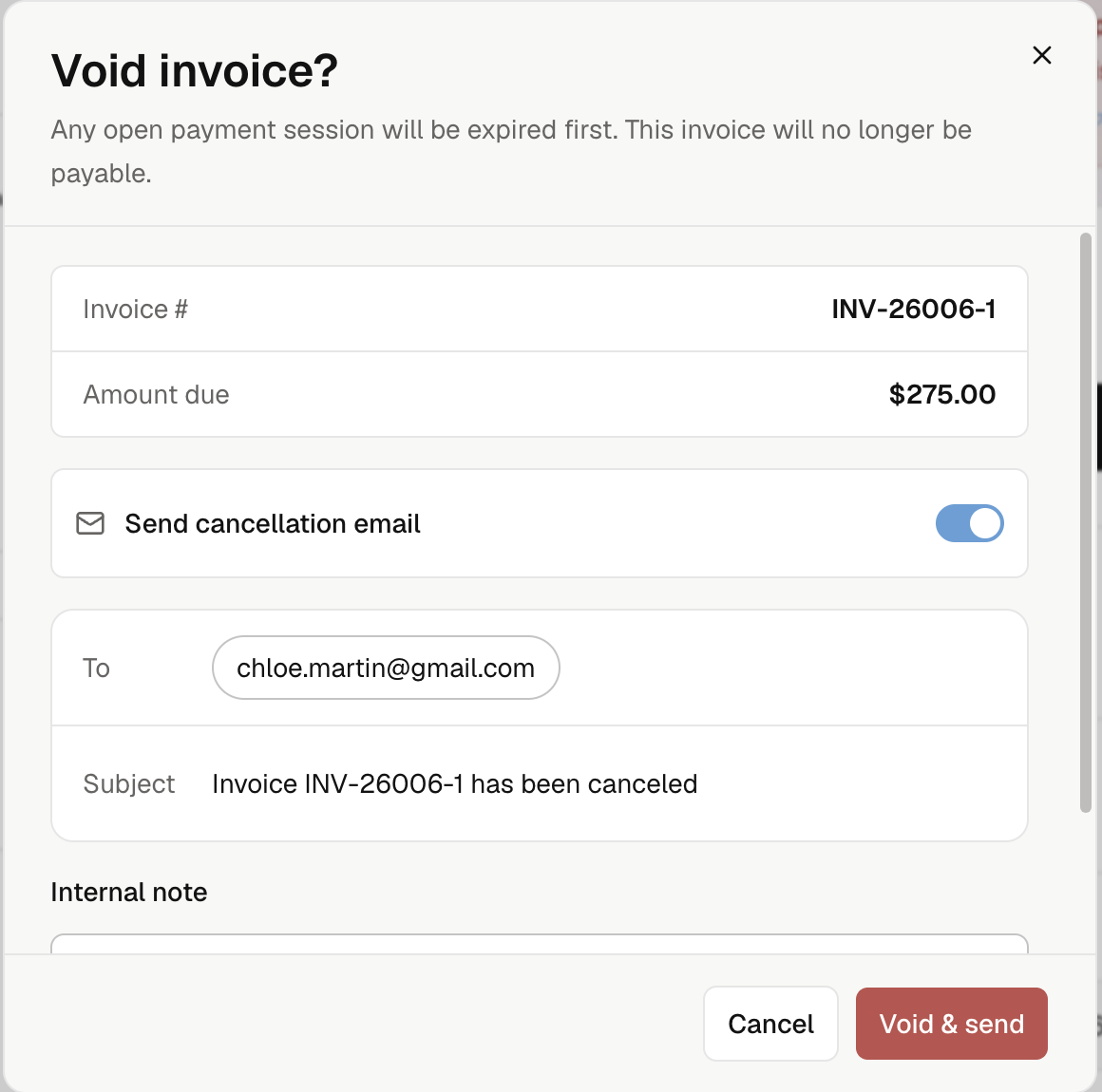
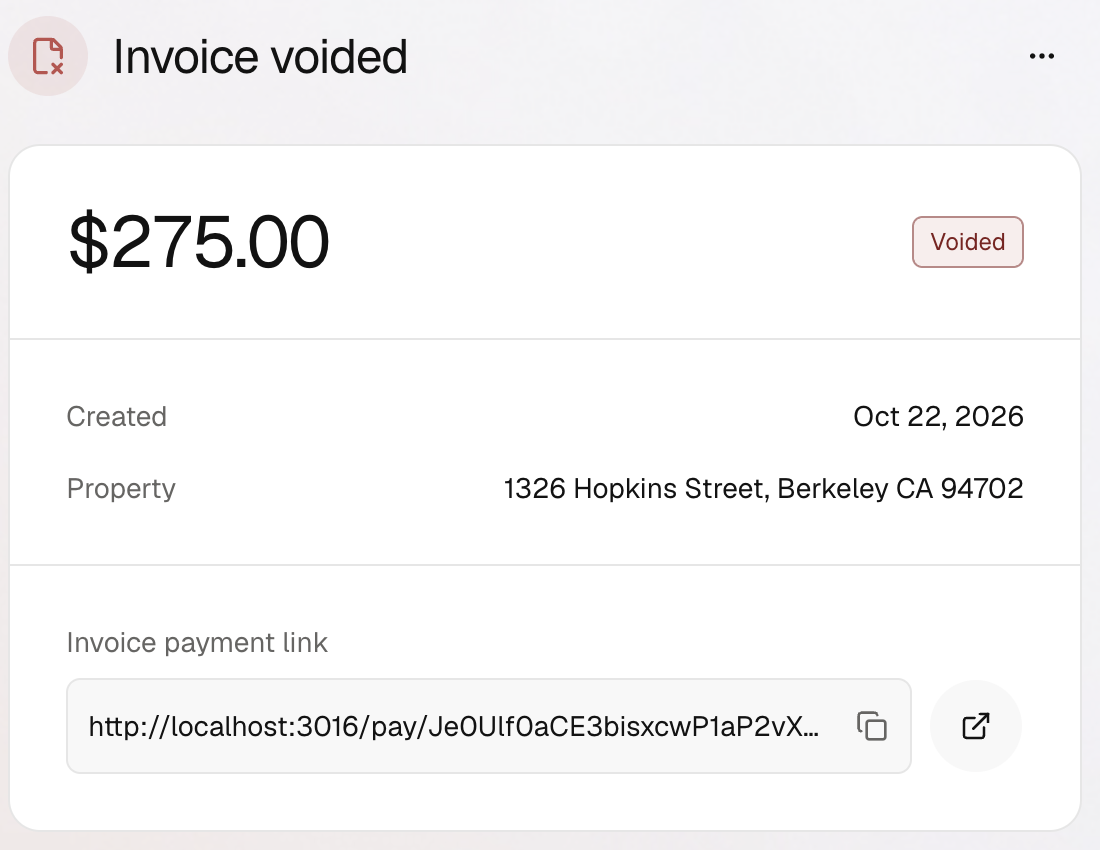
The invoice stops accepting payment and leaves invoiced totals. Open checkout sessions close first. The cancellation audience is unchanged by later invoice emails. Notices can be sent even if the invoice was never emailed. Failed notices can be retried. Internal notes stay private.
Voiding is not a refund
A payment still applied to the invoice blocks voiding, including a partial payment. A processing payment must finish first. For a wrongly recorded outside payment, void that payment before correcting the invoice.
Correct an invoice
Replace an unpaid invoice to correct its amounts or Customer in one save. To change only who receives the email, send the invoice to the right audience. Voiding alone does not make booked inspection items available to invoice again.
For signed termite work, voiding can reopen an invoicing completion decision. Review the remaining amount in authorized work.