
Create an invoice
Review job charges and save a client invoice.
Create the invoice
Choose what to bill
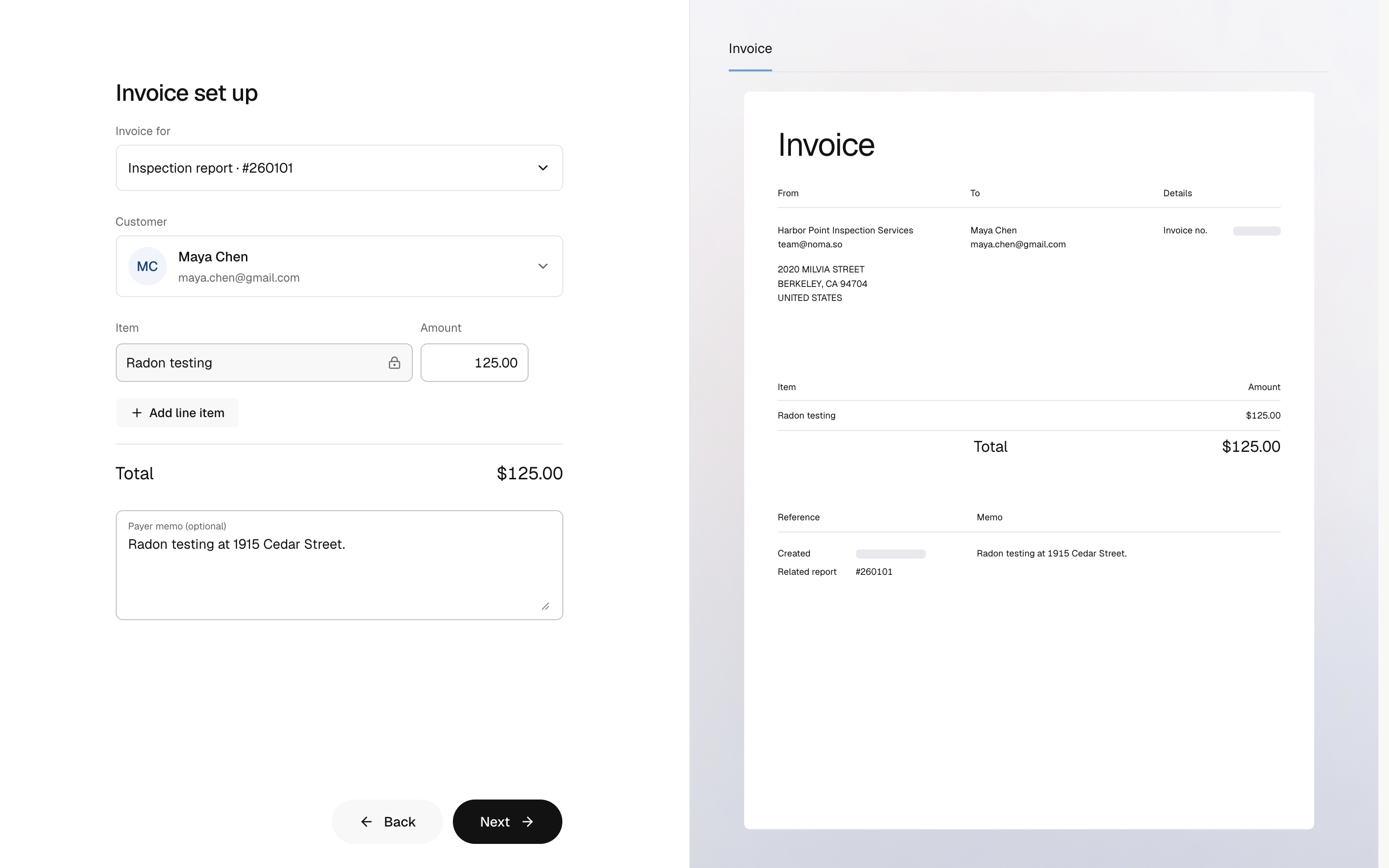
Open Jobs, select the job, and open Billing. Select Create new invoice. Under Invoice for, choose the Inspection report by its visit number.
Choose a contact and email under Customer. This starts from the visit's billing choice. Use New contact if needed.
For signed termite work, use the authorization guide.
Open the job, select its payment badge, and select Create invoice. If the price keypad opens, enter the inspection amount and select Next. Add-ons are separate from this amount.
Review the items
Include every pending booked item for the inspection. Booked names stay fixed; you can change amounts. Enter any missing prices. The invoice total must be above $0.
Use Add line item for an extra charge with a name and positive amount. Add a Payer memo (optional) for text the client should see. Check the invoice preview, then select Next.
In Review invoice, check Add-ons, Custom item, and Bill to. Enter any missing prices. Use Custom item for an extra charge with a name and positive amount.
Review and save
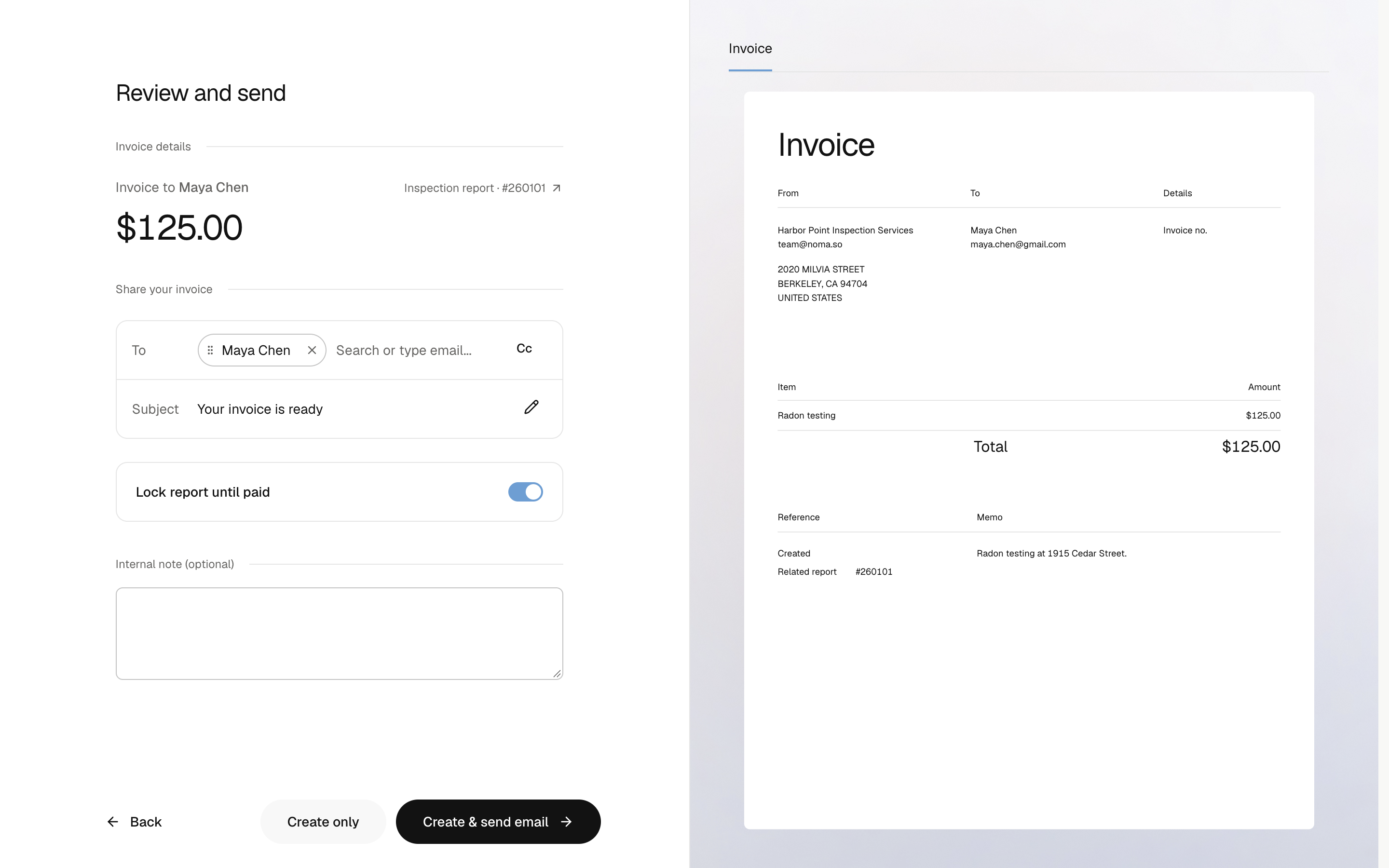
In Review and send, check To, Cc, and Subject. Choose Lock report until paid for the inspection and add an Internal note (optional) for your team.
Select Create only to save without sending, or Create & send email to save and email the invoice.
To starts with the selected customer. Email recipient changes affect this send, not the invoice's billed party. The payer memo appears on the invoice; the internal note stays private.
Check Bill to. Turn Email invoice now on to send it, and choose Send a copy recipients if needed. Leave it off to save without email. Select Create invoice and check the saved invoice.
Mobile creates inspection invoices. Use the web for authorized work or invoice replacement. You need an internet connection to save.
Saved items, customer details, payer memo, and payment rates stay fixed. Replace an unpaid invoice to correct them. Later edits to a contact or your company do not change the saved invoice.
Inspection invoices save the visit's assigned inspectors. Later team changes affect future invoices. Payments reports split collected inspection revenue equally among the saved team.
Leave an item unbilled
On the web, under Needs invoice, choose Do not invoice this item, add an optional note, and confirm Do not invoice. The item moves to Not invoiced and leaves the Job total. No payment is recorded.
Choose Make available to invoice, then Make available to return an unbilled item.
Each booked inspection item is invoiced once. Replacing its invoice keeps those items linked. Voiding alone does not make them available again.
If saving is uncertain
On the web, select Retry save to check the same invoice before making changes. On mobile, select Retry create invoice. Review updated items if another person changed Billing while the editor was open.