Publish and send work notices
Share work notices and publish fixes or withdrawals from the same page.
Choose your inspector type
Open Jobs on web. Select the job, then open the notice under Documents. Any company member can publish and send work notices. Archived jobs let you open saved files. To change or send a notice, the job must be active.
Publish a version
Choose the notices
A work visit can hold one notice of work complete and one after-treatment notice. Keep them together if they cover the same work. For later work, use Create document from the job again. Each work visit has one client link.
Turn on Include this document for each notice to share. Select Fix issues if a notice needs more work. If one notice is ready, leave the other out and share it when it is ready.
Review the version
Select Publish documents for the first share or Publish updates after that. Open This packet includes. A packet is the set of notices your client gets in one version. Select a row to change what goes in.
| Row label | What the client gets |
|---|---|
| Included | A notice in the first share. |
| Updated | The new copy of a notice. |
| Not changed | The last published copy. |
| Required | The only active notice. It must stay in. |
| Not included | The notice is left out of this version. Its draft and history stay saved. |
| Withdrawn | A note that the notice was withdrawn. |
Choose when to email
| Send email to recipients now | What to do |
|---|---|
| On | Check To, Cc, and Subject. Select Publish & send. |
| Off | Select Publish customer version. Use Resend email to send it later. |
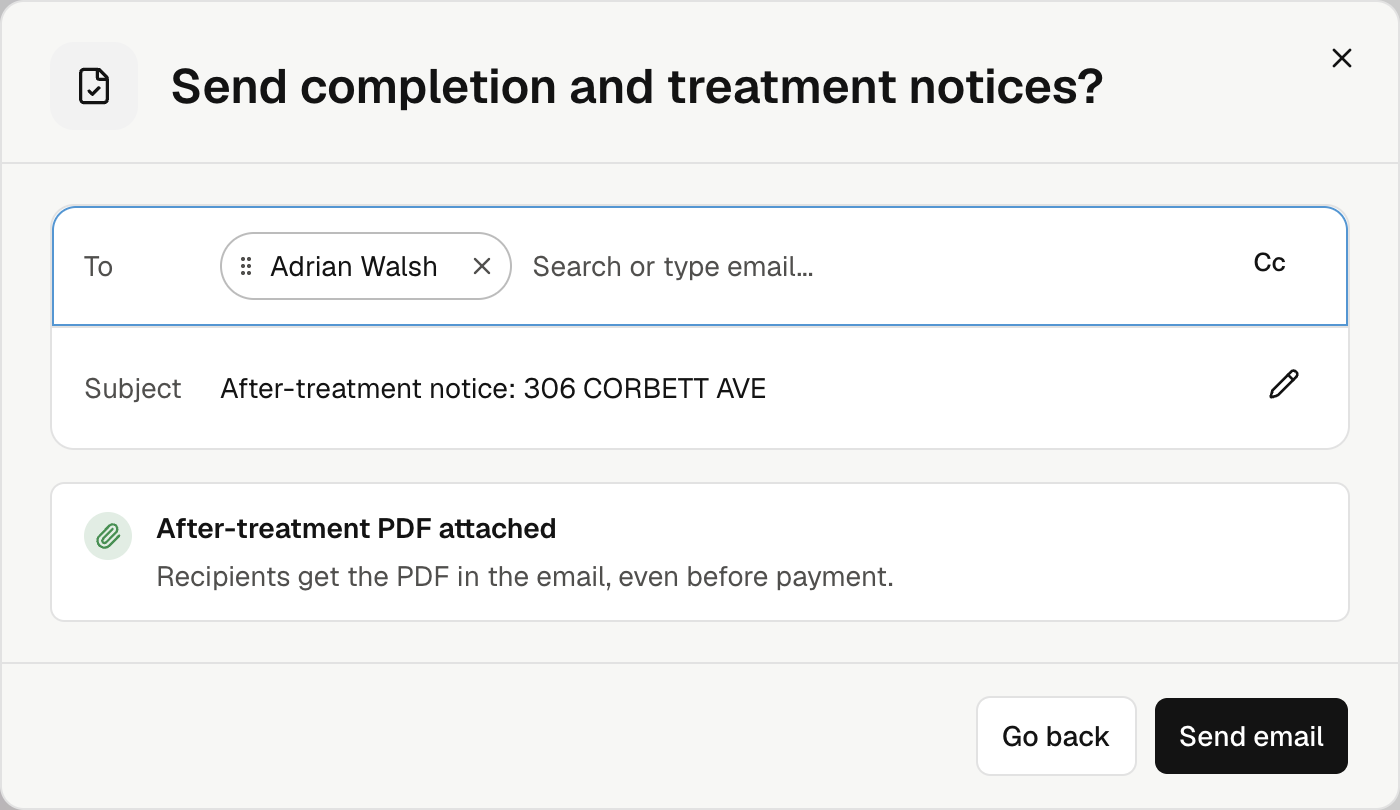
The email button says View documents. When you publish a new or fixed after-treatment notice, the first email for that version includes its PDF. This also applies if you publish with email off and send that version later. On later sends, use Attach after-treatment PDF to add it again.
If the files fail to build, the last published version stays live. Select Retry to try the same changes again.
Check what the client sees
Select View customer page, or use Copy customer link in the menu. The link opens the latest version. It stays the same when you publish updates.
Clients can pick an earlier version and use Download for the file on screen. Each version keeps the copies shared at the time. Drafts and withdrawal reasons stay private.
After-treatment notices stay open even when a payment lock holds the other files. If the client page shows View inspection report, it opens the report copy the notice came from.
Fix a published notice
- Open the notice's tab and choose its latest copy. Select Create revision to make a new draft.
- Make the change. For a notice of work complete, add a fresh company signature.
- Select Publish updates. The new copy goes live once the files are ready.
Clients keep seeing the saved copy while you edit. Use Discard draft to drop the edits. The notice's own picker shows Draft, Original, and each Revision. Old copies keep their signed files.
For a California job, a new copy of the notice of work complete adds a Corrected notice row to the WDO log. Use this to fix the same visit. To record work from a later visit, create a new notice.
Withdraw a notice
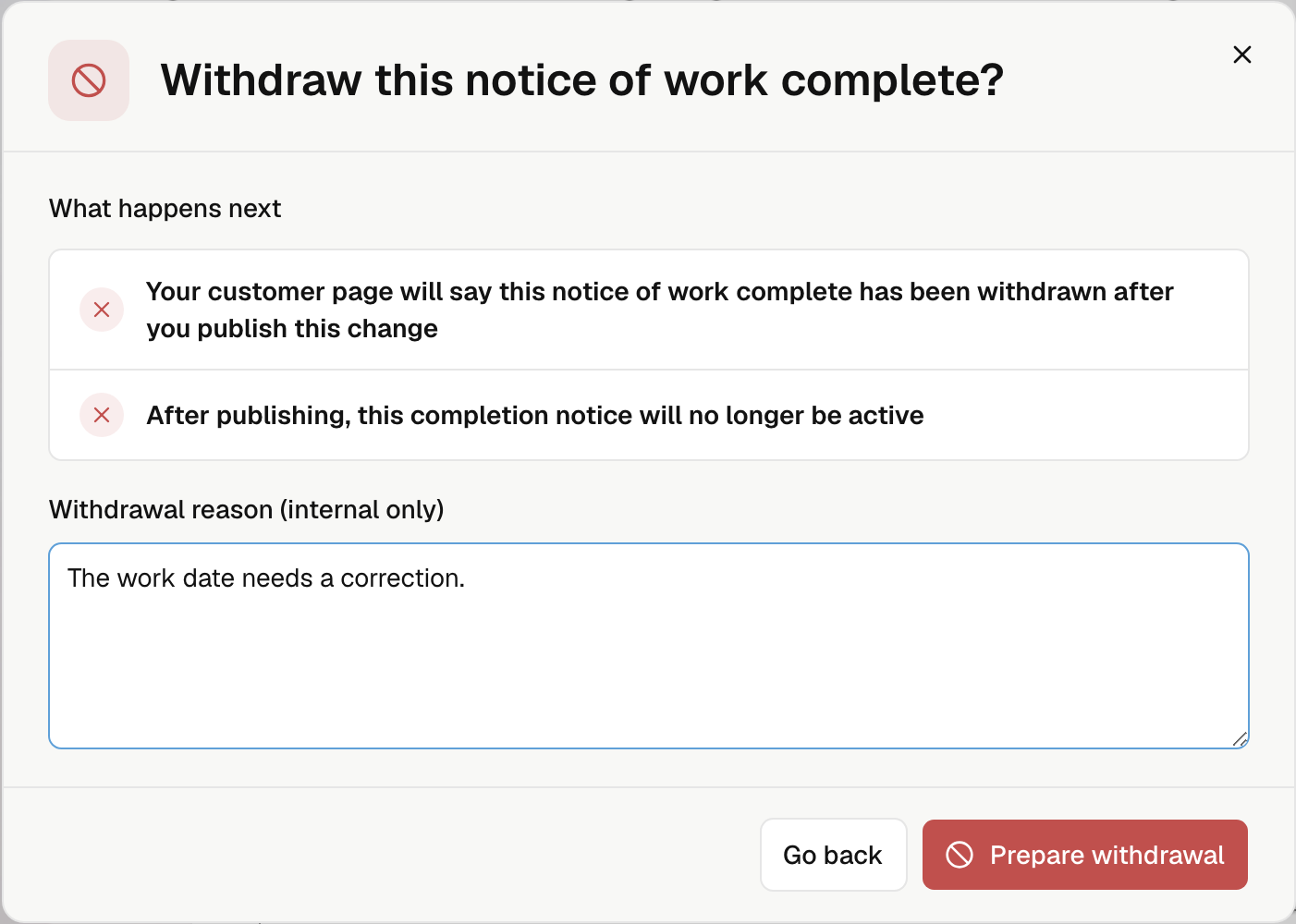
You can withdraw a published notice of work complete even if it was signed. You can also withdraw a published after-treatment notice. The last copy stays in history, and a withdrawal message takes its place on the latest client page.
If you signed a draft and have yet to publish it, delete or discard the draft.
- Open the notice's tab. If you had left it out, turn on Include this document. Select Document actions (⋯) beside Create revision or Discard draft. Then select Withdraw notice of work complete or Withdraw after-treatment notice.
- Fill Withdrawal reason (internal only). Select Prepare withdrawal. This drops any open draft for that notice.
- Select Publish updates, then Publish & send or Publish customer version. Before you publish, use Discard withdrawal if you change your mind.
If you email the update, View customer page opens the latest version. The email asks the client to stop using the old copy.
To share a replacement, select Create revision. Add a fresh company signature to a new notice of work complete, then publish it. If the work authorization is still active, the job can show that the notice is still due.
Withdraw linked work in order
Publish the completion notice withdrawal before you withdraw the work authorization it came from. A published notice still blocks withdrawal if you leave it out of the packet or discard its new draft. See Clear withdrawal blocks for open drafts and invoices.
Delete a draft
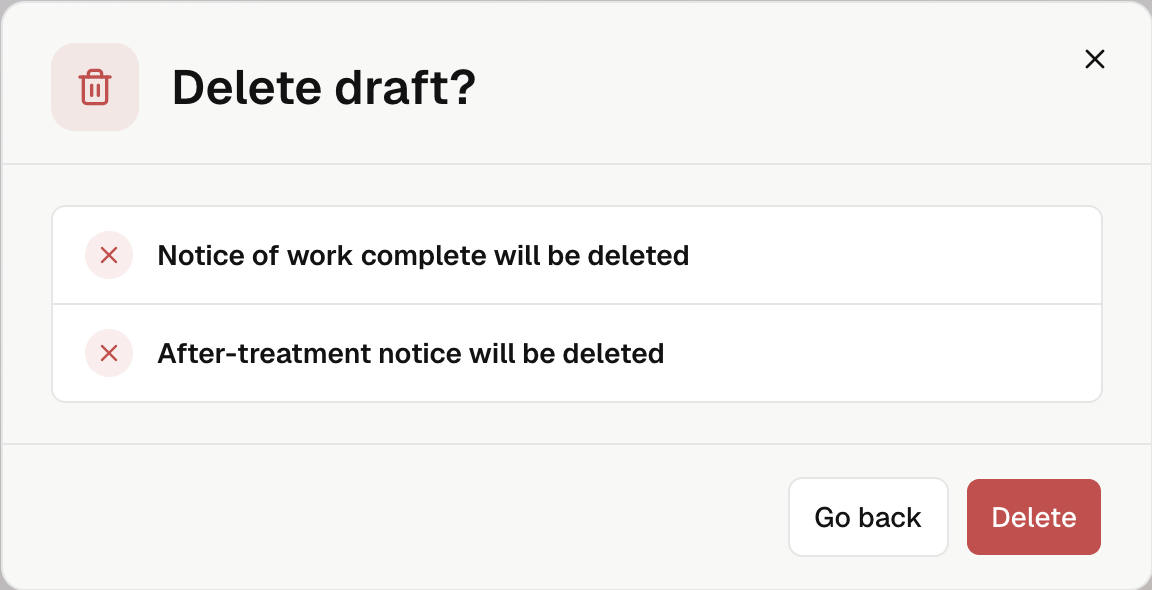
Use Delete draft in the notice menu before you try to publish or the work visit goes into a log. It removes both drafts on that visit. Check the list and select Delete.
If you select Discard draft on the only notice of a new visit, the same dialog opens. Use withdrawal once there is a published copy.
Print, download, or resend
Open the notice menu.
| Action | What to pick |
|---|---|
| Print or Download | Pick a notice from the latest published version. When both are live, use Full packet for both. |
| Resend email | Check To, Cc, and Subject. Select Send email. |
Open Activity on a notice to see events such as publishing, sending, and client opens. Check delivery or retry a failed send in Job emails.
Select Retry save if a draft fails to save. If the page says a newer copy was saved, reload before making more changes.