
Reschedule visits
Change a visit's time or inspector team from the calendar.
Edit a visit
- Open Calendar, select the visit, then Edit.
- Under Visit details, change the date, times, or inspector selection. You can choose several inspectors.
- Review any schedule warnings, then select Save.
Keep at least one inspector. Removing one leaves the other assignments in place.
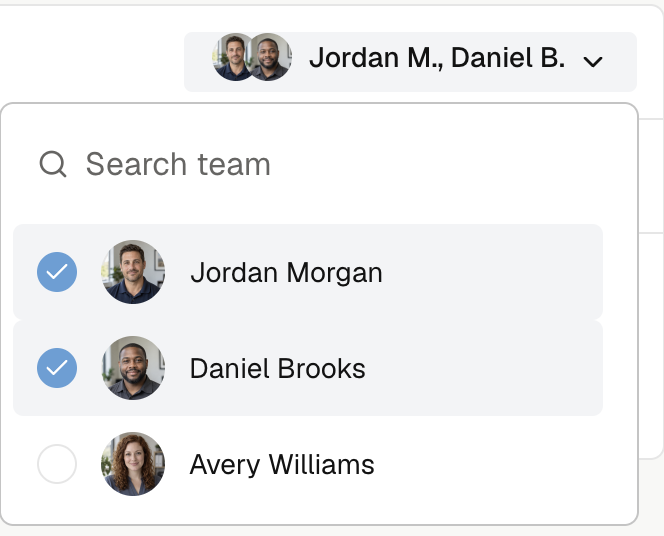
Open the visit → Visit settings. Change the date, times, or Inspector selection, review any warning, then select Save visit.
In Day or Week, drag a visit to open Visit settings with the proposed time. In Month, press and hold the visit to open its settings. Dragging alone does not save a change.
Drag a visit
On the web:
| Change | Gesture | Assigned inspectors |
|---|---|---|
| Time or date | Drag the card. | Keeps the full team. |
| Visit length | Drag the top or bottom edge in Week or Day. | Keeps the full team. |
| Inspector | Drag into another inspector's Day column. | Replaces the inspector from the starting column. |
If that inspector is already assigned, Noma removes the inspector you dragged.
Review a conflict
While a visit is scheduled or fieldwork is active, Noma checks the full visit against every assigned inspector's schedule. A clear time saves after the check. If Schedule conflict appears, choose a suggested time, Use this time anyway when available, or Cancel to keep the saved schedule.
After a drag or resize saves, select Done, or Undo to restore the earlier schedule. Noma checks that time again.
During report review or after completion, time and team corrections save without booking checks or appointment notices. They do not change the saved report or reopen fieldwork.
Canceled visits and archived jobs cannot be edited. For client changes through a booking link, see Reschedule or cancel a booking.