
Use the calendar
View schedules, find jobs, and choose which inspectors to show.
To schedule an inspection, create a job or add a visit to an existing job.
Choose a view
Open Calendar.
| View | Shows |
|---|---|
| Month | Visits and blocks across the month. Select a date or + more to open that day. |
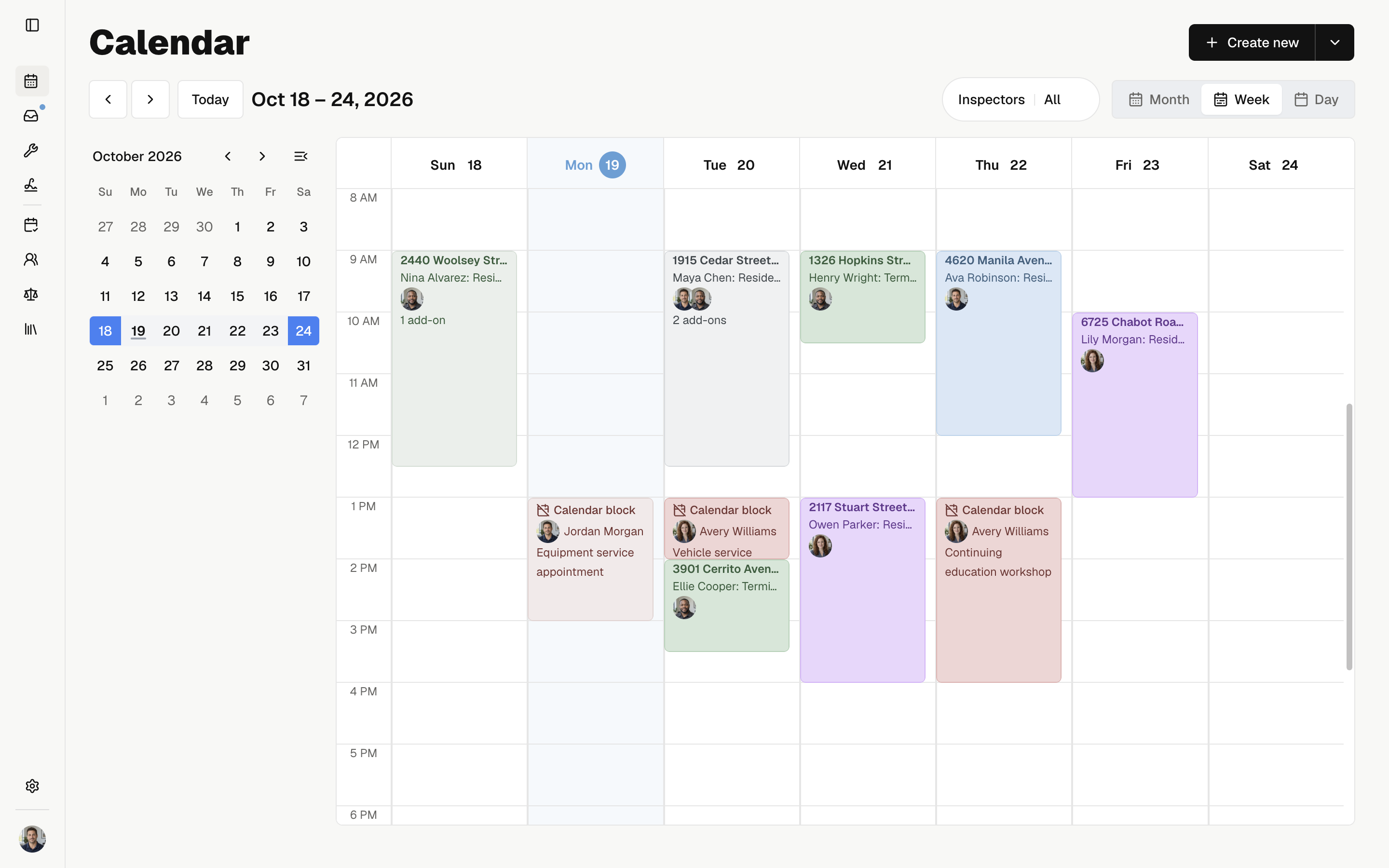
| Week | Each day's visits on a time grid. |
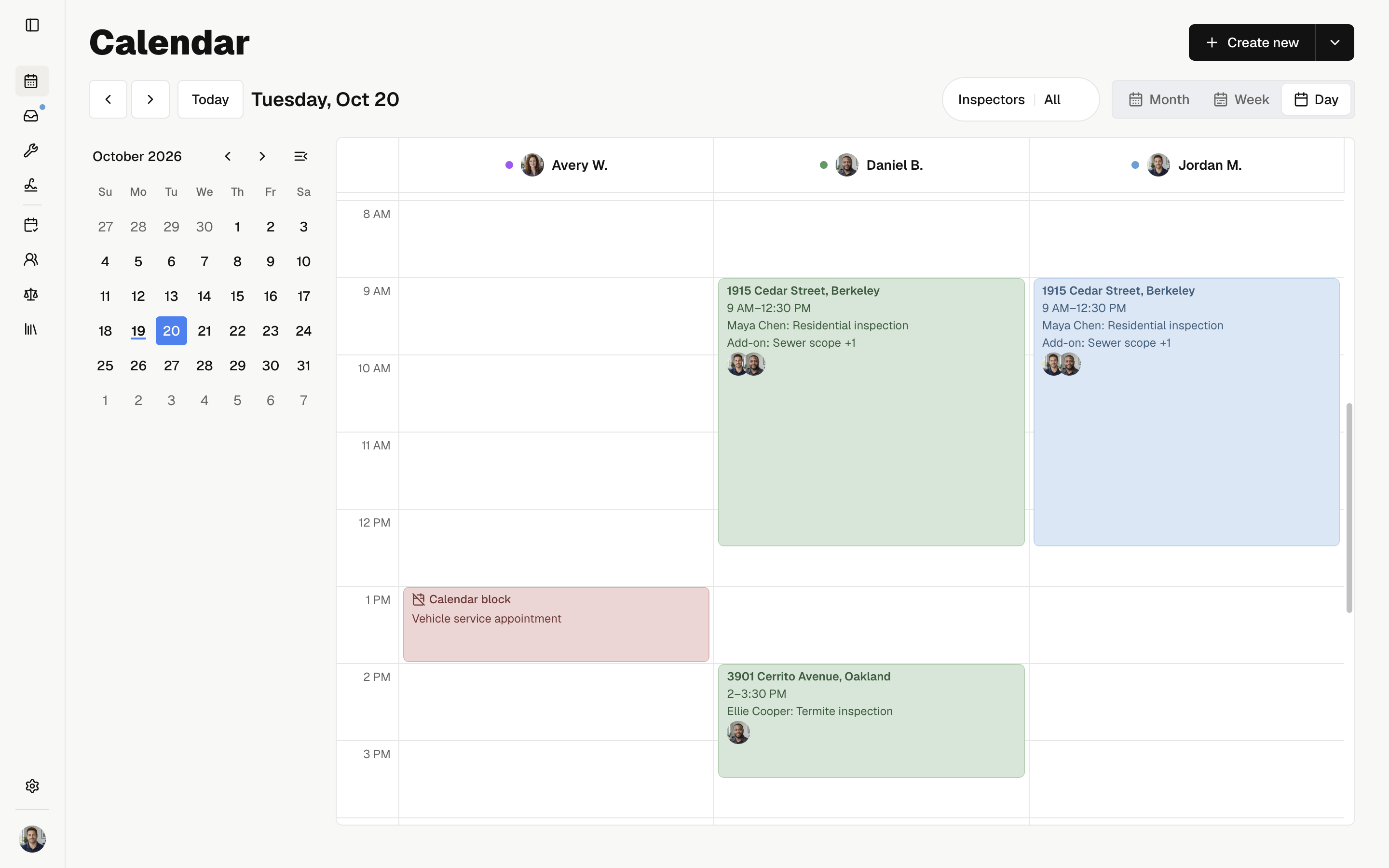
| Day | A vertical schedule for each selected inspector. Scroll sideways to see more inspectors. |
A shared visit appears once in Month and Week, and in each assigned inspector's Day column.
Use the arrows to move one period. Select Today to return to today. Calendar times use your browser's time zone.
Home has a calendar and a job list. Use the calendar and list buttons at the bottom to switch views.
Select D, W, or M for Day, Week, or Month. Times use your phone's time zone and clock format.
For a wider Week view, select your profile photo → Calendar → Days in week view. Choose three to seven days.
Jump to a date
In Week or Day, select a date in the small month calendar. Week opens that date's week; Day opens that date.
The small calendar's arrows browse months without moving the schedule. Use Collapse to make more room, or Expand to show it again.
Swipe to move through dates; Today returns to today. Select a date in Month to open its Day view.
Filter inspectors
Open Inspectors:
- Select names to show their schedules.
- All shows everyone.
- None hides all schedules.
Your choice stays saved for this company.
Select your profile photo → Calendar → Only show my jobs. Turn it on for your assigned visits, or off for the team's schedule.
This choice stays saved and applies to Calendar and the job list. Inspector names are hidden when it is on.
Open a visit
Select a visit to open its preview. In Week and Day:
| Select | To |
|---|---|
| Booker name, email, or phone | Copy it. |
| Add-on count | Expand the full list. |
| Edit | Open Visit settings. |
| Open job | Open the job. |
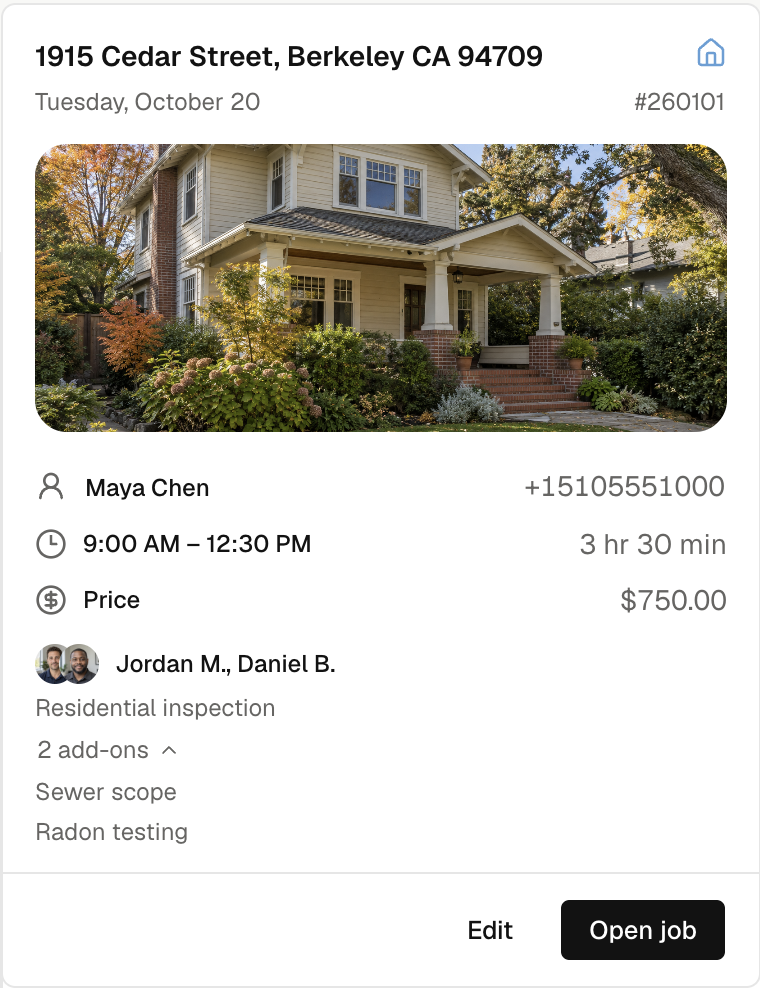
Select a visit to open its job.
To create a visit at a chosen time, press and hold empty time, drag the range, then select New job. To move a visit, drag it to the new time, review Visit settings, and save. Dragging alone does not change the saved schedule.
Find a job
In the mobile app, open the job list, then select or swipe between:
| Tab | Shows |
|---|---|
| Upcoming | Scheduled visits and active fieldwork. Overdue scheduled visits stay under Past due. |
| Previous | Visits beyond fieldwork and canceled visits. Search by address, booker, or contact name. |
On Previous, use Search jobs. The control beside search opens Job list or Calendar. On Upcoming, New job opens creation.
Select a card to open its visit. The work label and payment or signature badges describe different parts of the job.
Pull down to refresh. Saved schedules remain visible offline; starting a new job needs a connection.
Change an inspector's color
Use the member's Calendar color setting. Everyone in the company sees the saved color.
In Day, visit cards use the column inspector's color. In Month and Week, visits with several inspectors use a neutral color. Calendar blocks stay red.
Select your profile photo → Calendar → My calendar color. This changes your inspector color for everyone in the company.
To change a schedule, reschedule a visit or block time.