
Create a job
Set up the property, people, price, and first visit.
Choose your inspector type
A job keeps one address and inspection type. For another inspection at that job, add a visit.
Start the job
Open New job, or Jobs → New job.
You can also select empty time in Calendar → New job, or New job from a contact. These start with the chosen time or booker.
On Home, select the job-list button, then Upcoming → New job.
In Calendar, press and hold empty time, drag to set a range, then select New job. The form keeps that time.
Use Next and Back to move through the three steps without losing choices.
Choose the address and people
Choose the service address, booker and email, and their role: Property owner, Buyer, Agent, or Other. The contact's mailing address is separate.
Report recipients starts with the booker. Add or remove recipients as needed. This list does not change billing or booking access.
Under Job details, set Service address, Booked by, and Role.
Bill to starts with the booker. Choose another person or email for the invoice. This leaves the booker and report recipients unchanged.
- New service address → Add property saves another address.
- New contact → Save contact saves a name and email.
- Add recipient → New recipient adds someone outside the saved list.
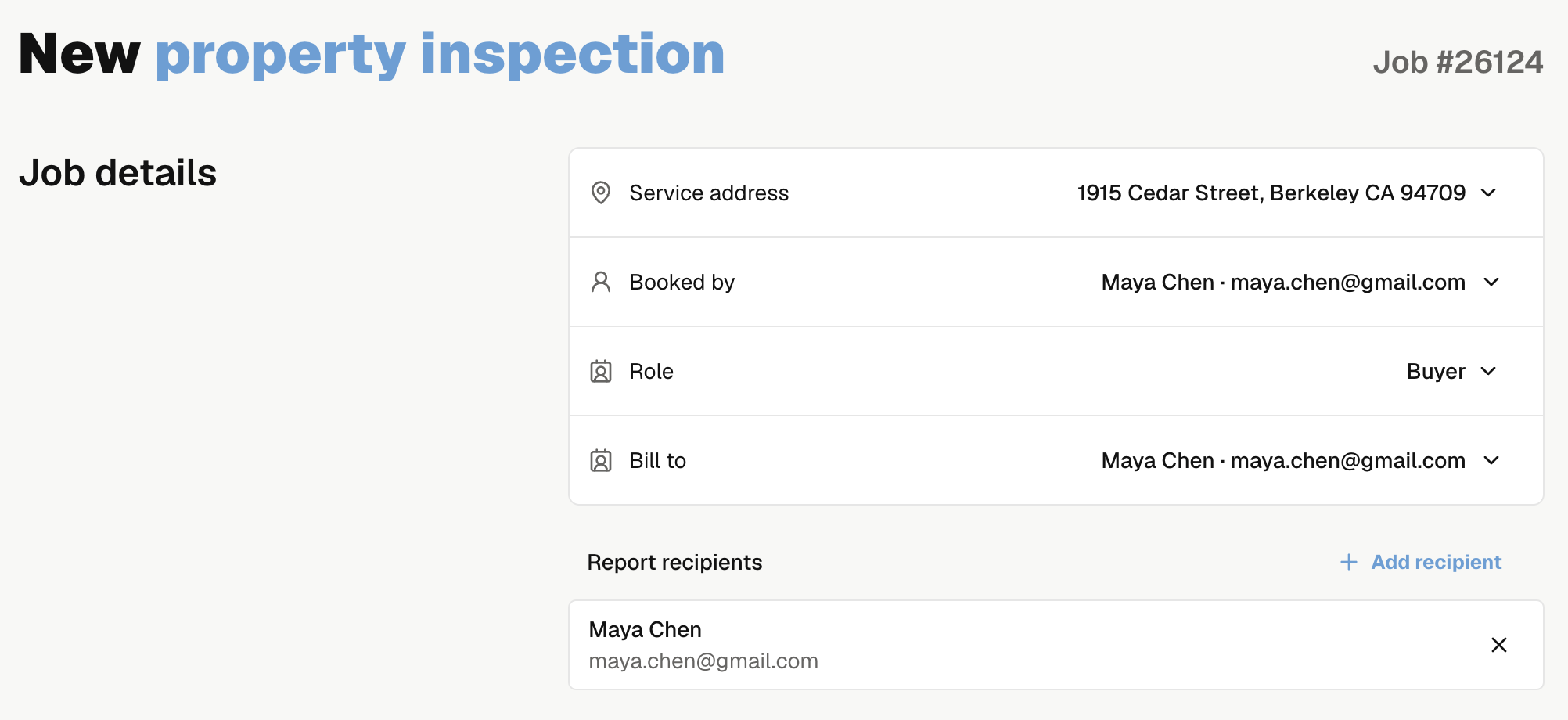
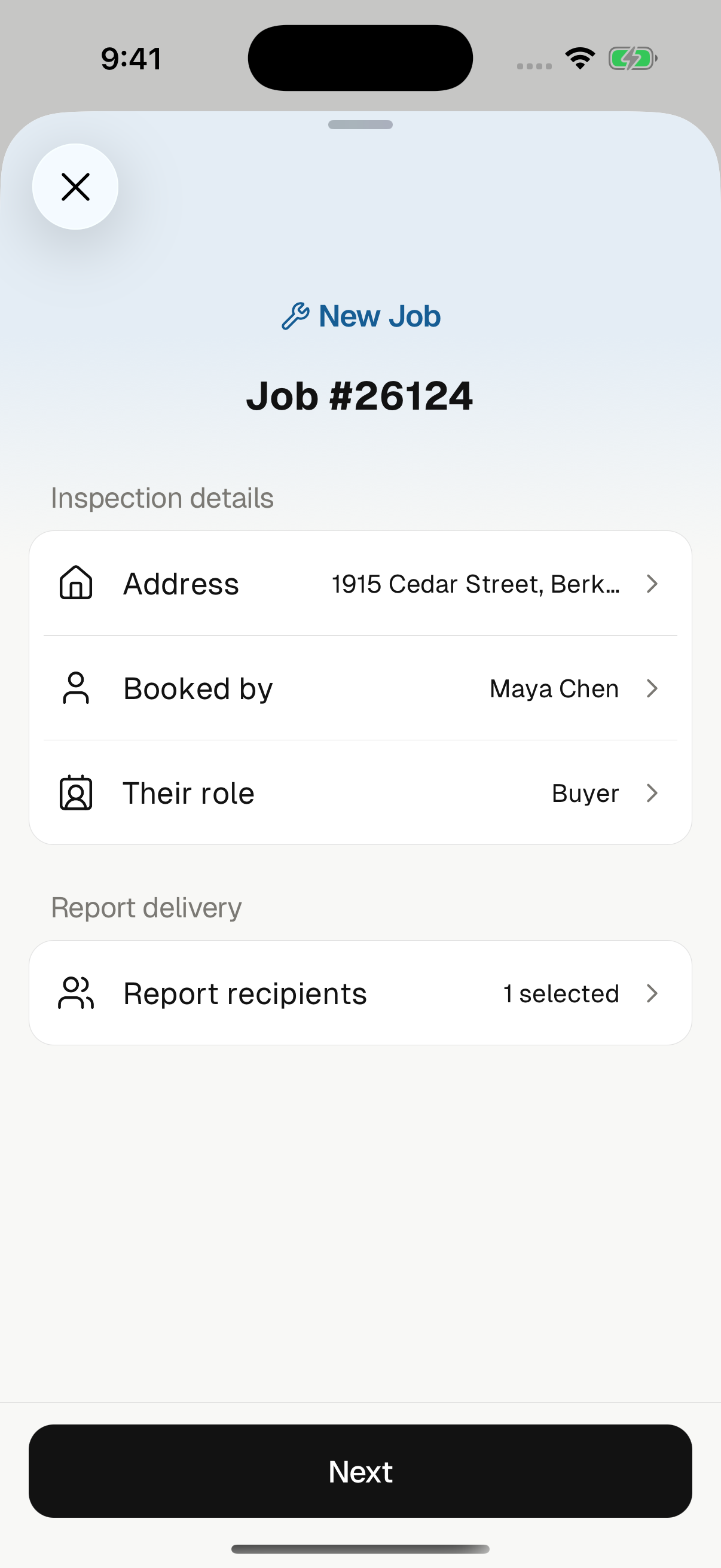
Set Address, Booked by, and Their role. Use New service address → Add address for another address, or New contact for another person.
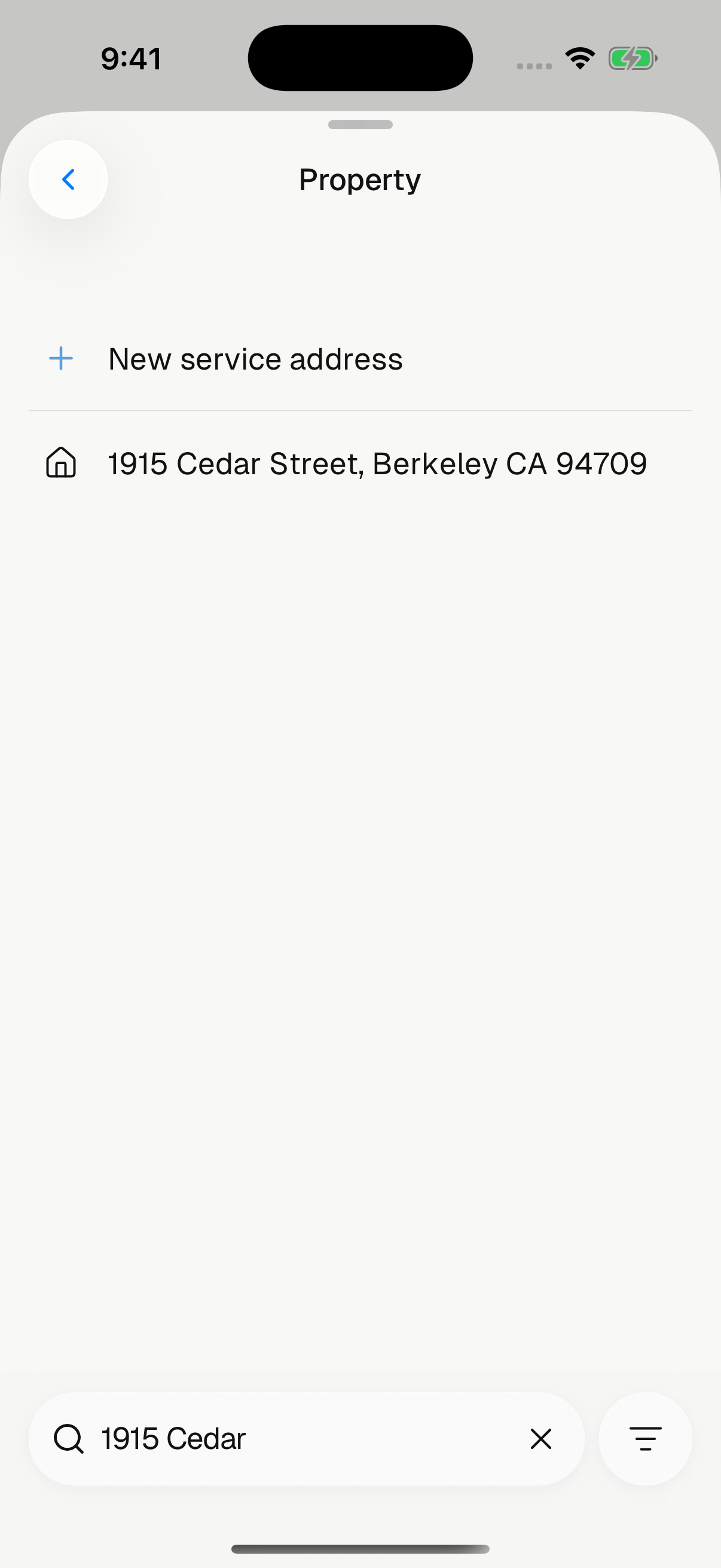
Search saved addresses by street or unit. Address order switches between Saved order and Address A to Z.
For report delivery, open Report recipients → Add recipients. Use New recipient → Add recipient if needed. Select Next.

Set the service and price
| Choice | Set |
|---|---|
| Service | Choose a service, review Square feet and Service fee, and select add-ons. |
| Custom price | Enter the inspection fee. Choose the inspection type if your company offers both. |
A service supplies its inspection type, report setup, duration, and available add-ons. Every selected item needs a price, including Price to be confirmed. Changing booked fees leaves the service catalog unchanged.
Use Service & pricing. Select extras with Add add-on. Custom pricing uses Inspection fee and Type of inspection.
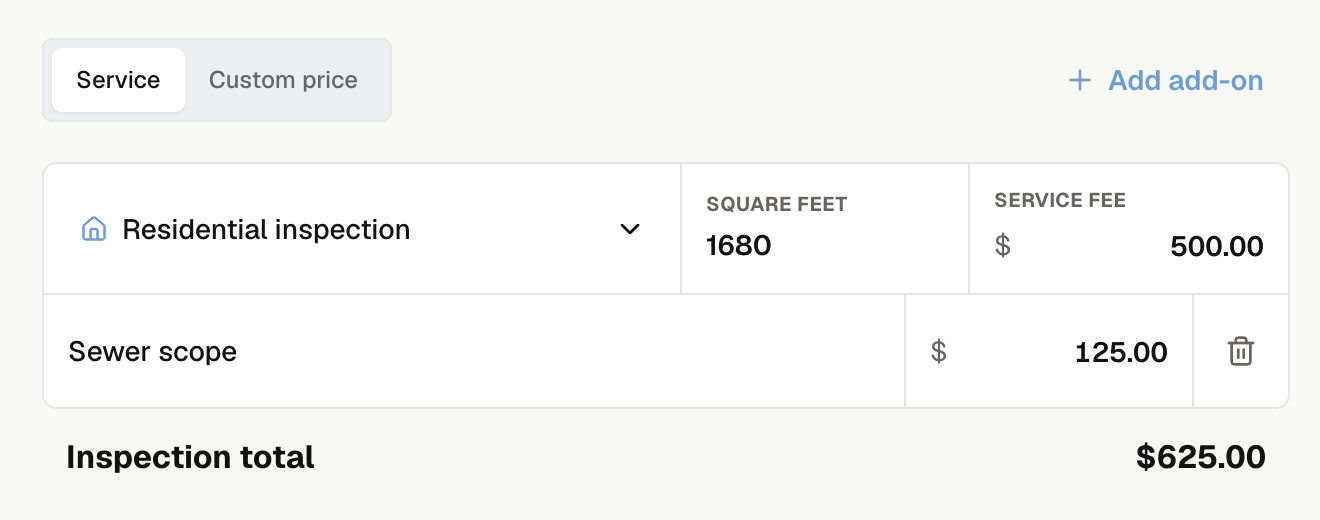
Open Add-ons to choose extras. Custom pricing uses Price. For property inspections, review Inspection → Template, then select Next.
Review the visit
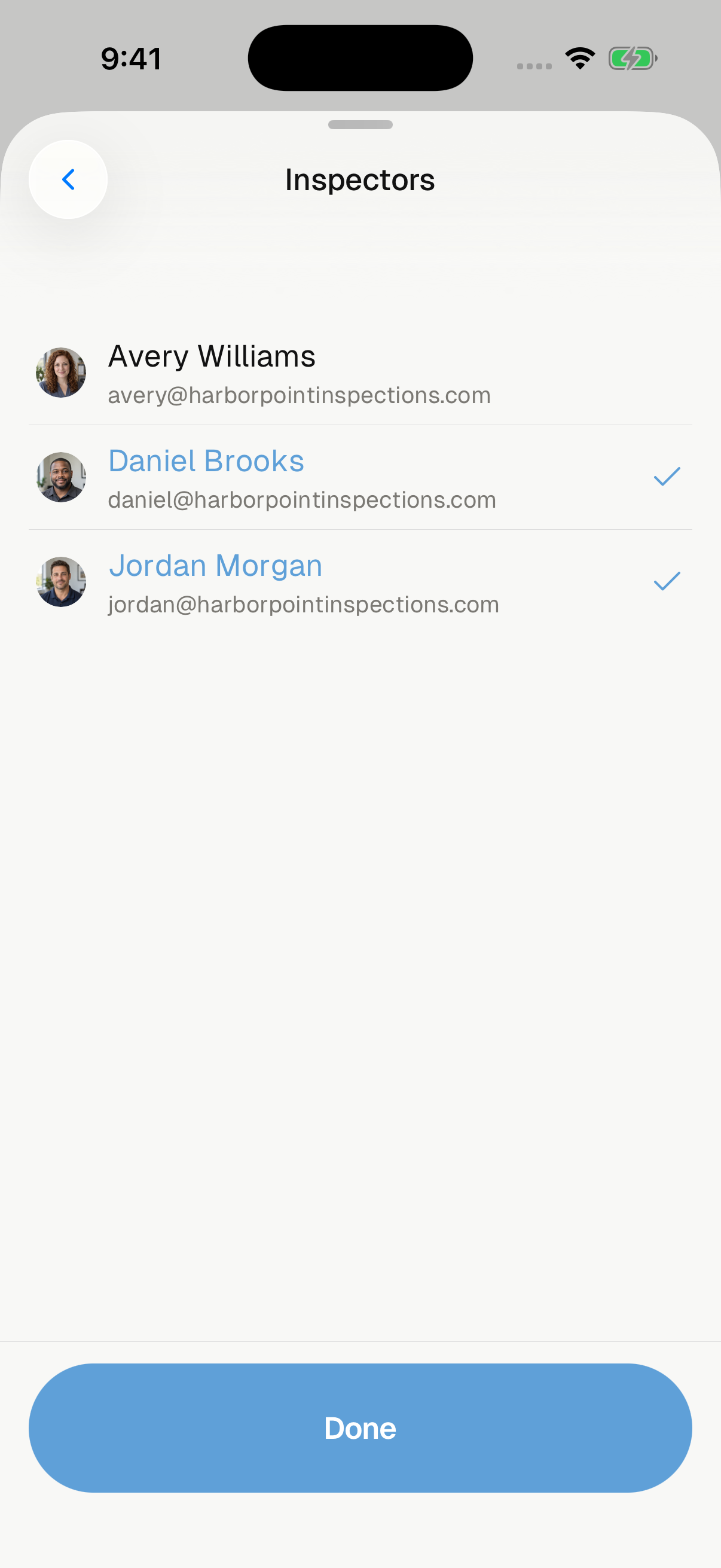
Choose one or more inspectors. Only active teammates with the Inspector role appear. Noma suggests an opening for the full team. Times use the property's time zone; the end must be later that day.
Manual time changes stay in place. For a schedule warning, use the suggested time, change the details, or select Use this time anyway when available. Invalid times or inspector assignments must be fixed.
The visit email gives the booker a booking link. Turning it off also hides and turns off the invoice email for this save. Inspector notices and contract emails keep their own rules.
Review Start date, Start time, End time, and Visit instructions. Turn on Email visit details to booker for the booker's notice. For a positive total, Send invoice now sends a separate invoice email to Bill to. Use Add Cc recipient for copies.
Set Date, Starts at, Ends at, and Inspector. Select Done after using a picker. Review Visit instructions and Email visit details. For a positive total, turn on Email invoice now to send a separate invoice email.
For a property contract, open Contract details → Lock report until signed. Invoice copies use Send a copy.
Review report settings
Choose the inspection template for this visit.
To send a contract during creation, turn on Send contract now. Choose the contract, review signers and CC recipients, and check Contract price when shown. Contract price is document text; it does not change billing.
Turn on Lock report until contracts signed (Lock report until signed in the app) to require signing before report access. Prepare a reusable contract first.
Choose Report type. Complete report and Limited report need no previous report. Supplemental report and Reinspection report need an eligible Previous report. Check the source rules.
To send a contract, send it from the saved job.
Review these choices under Report settings.
The service and pricing step has the inspection Template, or Report type and Previous report for termite visits. The final step has Send contract now and Contract details for property visits.
For a positive total, review Lock report until paid. In the mobile app, invoices go to the booker. Invoice copies are separate from report delivery.
Create the job
Select Create job to save the job and its first visit. Each visit gets a permanent Job #. The number shown before creation is an estimate. Creation needs an internet connection.
A positive total creates an unpaid invoice, even when invoice email is off or online payments are not set up. A free visit creates no invoice.
Noma opens the saved job. If creation is blocked, complete the requirement above Create job.
For The visit may have been created. Retry to confirm the result., select Retry.
Calendar opens on the created visit's date. For Couldn't confirm job. Try again., select Try again.
A retry checks the same job. Do not start another job to recover an uncertain save.
Leaving the unsaved form discards job details. Contacts and properties already added remain saved.
New termite visits may also start AI diagram preparation. You do not need to wait for it to finish creating the job.
Next, explore the saved job. To change its schedule, reschedule the visit. For delivery issues, review job emails.