
Review Inbox
Find booking changes, payment updates, and work that needs a response.
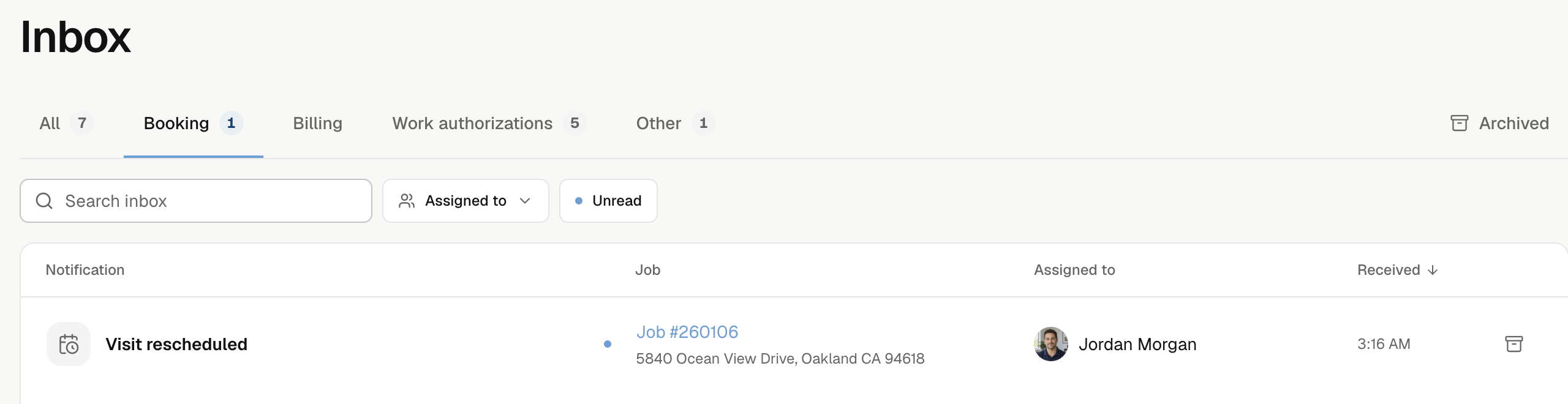
Open Inbox in the web dashboard. Inbox is shared by your company. Reading or archiving an item changes it for your teammates too.
Find an item
| Tab | Includes |
|---|---|
| All | Every active item. |
| Booking | Public bookings, visit reschedules and cancellations, booking email failures, and booking or contract reviews. |
| Billing | Card and bank payment updates. |
| Work authorizations | Returned or declined work authorizations. Shown for companies that offer termite inspections. |
| Other | Other notices, such as contract updates and new team members. |
| Archived | Items your company has archived. |
Use Search inbox for a title, address, job number, or assigned person's name. Assigned to filters by a teammate or Unassigned; it does not change access. Turn on Unread to show unread items. Select Clear to remove these filters.
Tab counts show unread items for the selected assignee. Search and Unread do not change those counts. The main navigation badge shows the company's full unread count.
Open the details
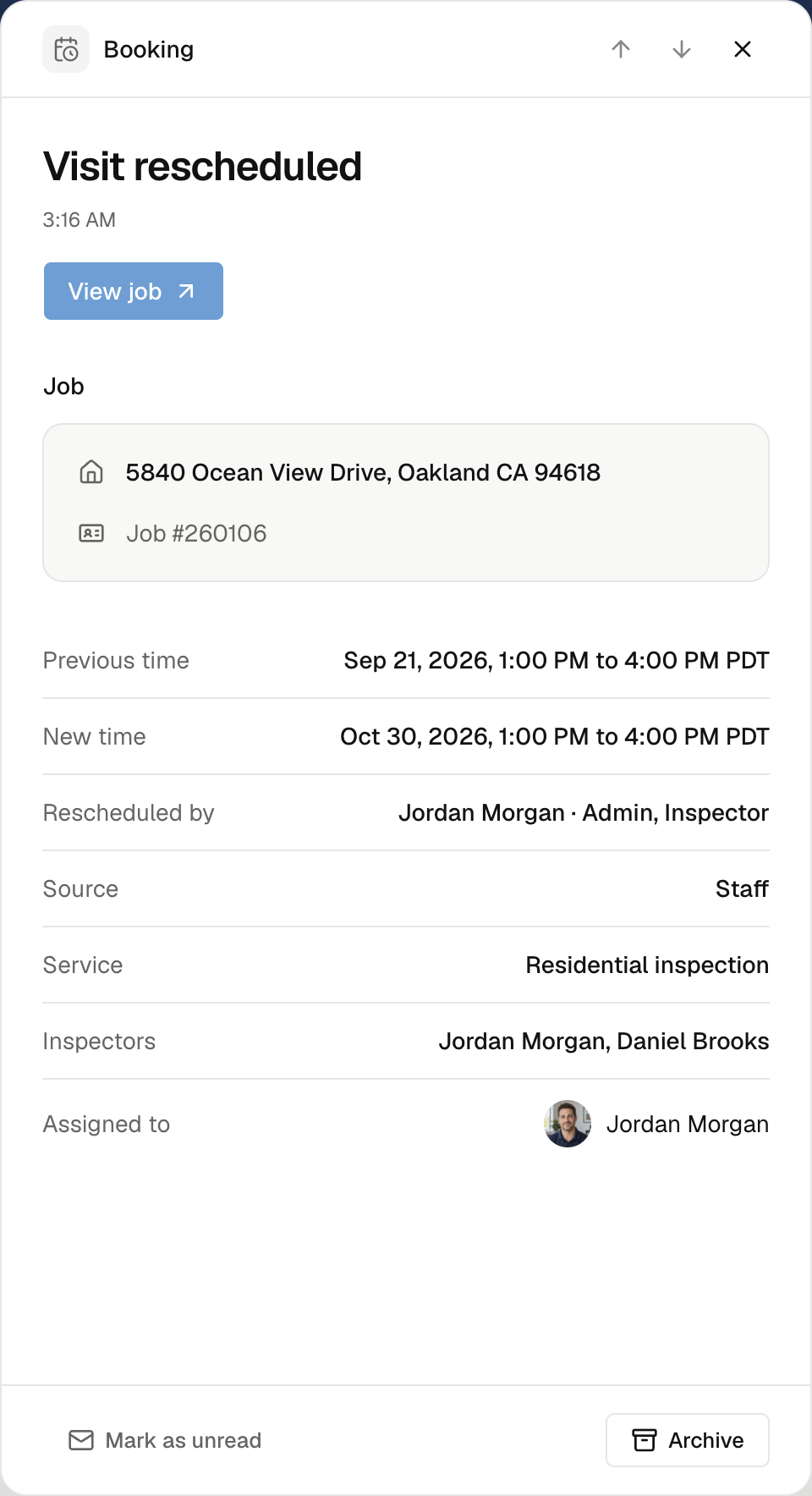
Select an item. Once its details load, Noma marks it as read. Use Previous notification and Next notification, or the Up and Down arrow keys, to move through the list.
The main action opens the related job, invoice, email, contract, or work authorization in a new tab. Check that saved record before taking further action.
Booking notices keep the schedule, service, people, and actor recorded at the time. A reschedule shows both times. These facts may differ from today's job details.
Know which bookings appear
Visit booked comes from the public booking page. Creating a job or adding a visit from the dashboard or app does not add that notice.
Reschedules and cancellations appear for visits that were still scheduled and had not started fieldwork. Changing only inspectors or private instructions does not add a reschedule notice. Visit email settings do not control Inbox notices.
Mark or archive an item
- Mark as unread keeps an item active for later review. Mark as read clears its unread mark.
- Archive moves the item to Archived. Use Undo after the save to restore it.
- In Archived, select Restore to inbox to return an item to the active list.
Archiving does not complete the task, change the job, or send an email. Follow the item's action to resolve the source issue.
For a failed message, see Review job emails. For payment issues, see Fix payment problems.