
Explore a job
Find visits, reports, documents, people, and payment status.
Choose your inspector type
A job groups visits at one address and inspection type. Each visit keeps its own permanent Job #, schedule, people, fees, and report. The shared job uses the property address. Rescheduling, canceling, or reopening a visit keeps its number.
Open a job
Open Jobs, search for the address, person, or job number, then select a visit. From Calendar, select a visit → Open job.
Use Date, Status, Inspectors, and Visit type when shown to narrow the list. Date checks the scheduled start in your browser's time zone. Choose All dates to include every date, or select both ends of a date range.
Filter choices stay saved for your company membership in this browser. Search and table sorting stay temporary. Clear filters restores the full list.
Open a visit from Calendar or the Upcoming or Previous job list.
Find what you need
| Area | Use it to |
|---|---|
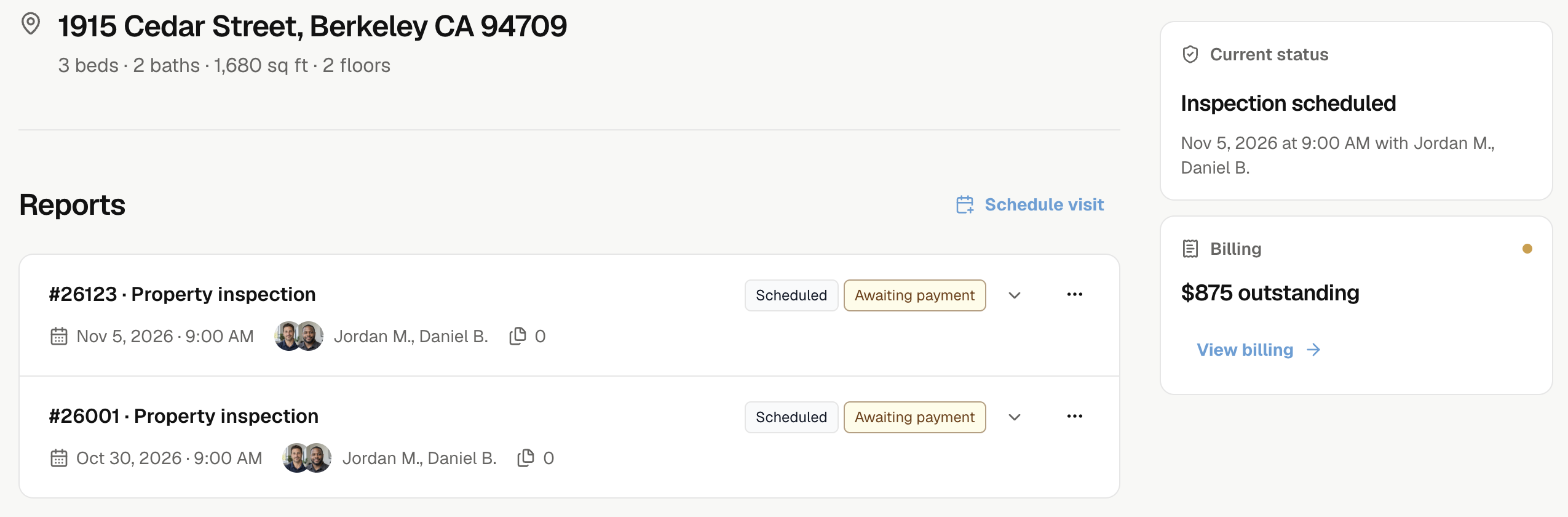
| Reports | Expand a visit, open its report, or Schedule visit. |
| Documents | Find contracts, work authorizations, and completion notices. |
| Property details | Check property facts or select View property. |
| Emails | Open a saved message or Open emails. |
| People | Open a linked contact. |
| Next step or Current status | See the next action or what the job is waiting for. |
| Billing → View billing | Review invoices and amounts due. |
| Select | Opens |
|---|---|
| Address | Directions. |
| Time on the property photo, or Visit settings | Schedule, inspectors, people, and report access. |
| Payment badge | Invoices. |
| Signature badge on a property visit | Contract. |
| Settings, or More options → Settings | Inspection details and the visit's other settings. |
Termite visits show Termite diagram and Findings. Property visits show Inspection areas, Equipment, and Unused photos.
Open a visit or report
Expand a visit under Reports to see its instructions and reports. Select a report to open it. The visit menu contains Visit settings and the actions available for that visit.
Termite visits also offer Print → Print field sheet. Linked follow-up visits show their source visit.
To schedule another inspection at this job, add a visit.
The bottom button follows your work: Start fieldwork, Finish fieldwork, Reopen fieldwork, or View report. Open report in browser opens the web editor; it does not send the report.
Edit job details
On the web, open More job actions → Edit job details. Change Escrow number (optional), then select Save job.
Service address can change only while every visit is Scheduled and no invoice, contract, contract draft, report, or report preparation exists. Otherwise, create a job for the other property.
Check emails and documents
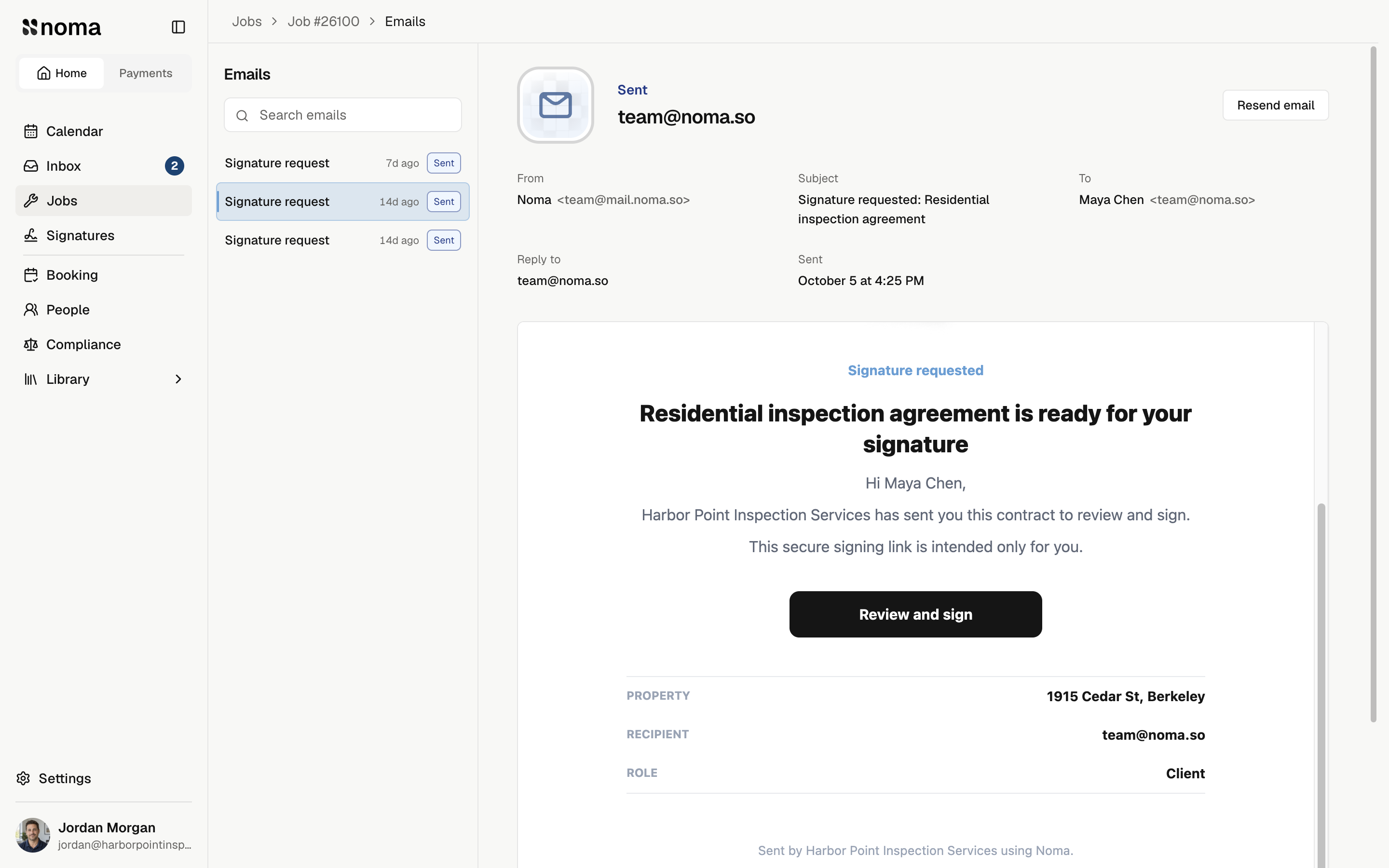
On the web, select a message under Emails to see its saved content, recipients, files, and delivery result. Use Load more for older messages. Review job emails for search, resending, and status meanings.
Contracts and other saved documents stay under Documents. Open the matching row to review it. Use client invoices for billing; report recipients and contract signers have separate roles.
Read payment badges
In the mobile app, the card icon shows payment status for this visit. Open Invoices for the full result.
| Badge | Meaning |
|---|---|
| Paid | Saved invoices are paid, with no remaining items to invoice. |
| Awaiting | An invoice is open, including a bank payment still processing. |
| Issue | A payment needs attention, such as a failed bank payment or dispute. |
| No invoice | No active invoice is saved, or items still need an invoice after other invoices were paid. |
When invoices have different states, Issue takes priority. No invoice does not mean payment is due; a free visit can have no invoice. These badges do not track email delivery.
Read signature badges
In the mobile app, property visits also show contract status. Select the badge to open Contract.
| Badge | Meaning |
|---|---|
| Signed | All current contracts are completed. |
| Awaiting | A current contract is unfinished. |
| Issue | A contract was declined or its delivery failed. |
| No contract | No current contract exists. Voided contracts do not count. |
The badge does not set report access.
On Home, badges belong to the job card; select the card to open the visit. On job detail, Saved means an offline value. Unknown means the status has not loaded yet.
To stop work, cancel the visit or archive the job.