Set emails and reminders
Choose when Noma sends reminders and who gets team emails.
- Open Notifications. From Company settings, choose Notifications, then Emails and reminders.
- Select a section and a row. Set its times or email recipients.
- Select Save.
Admins save these settings
Other company members can view settings and previews. Use the web; these settings are not in the mobile app.
Choose a section
| Section | What you can set |
|---|---|
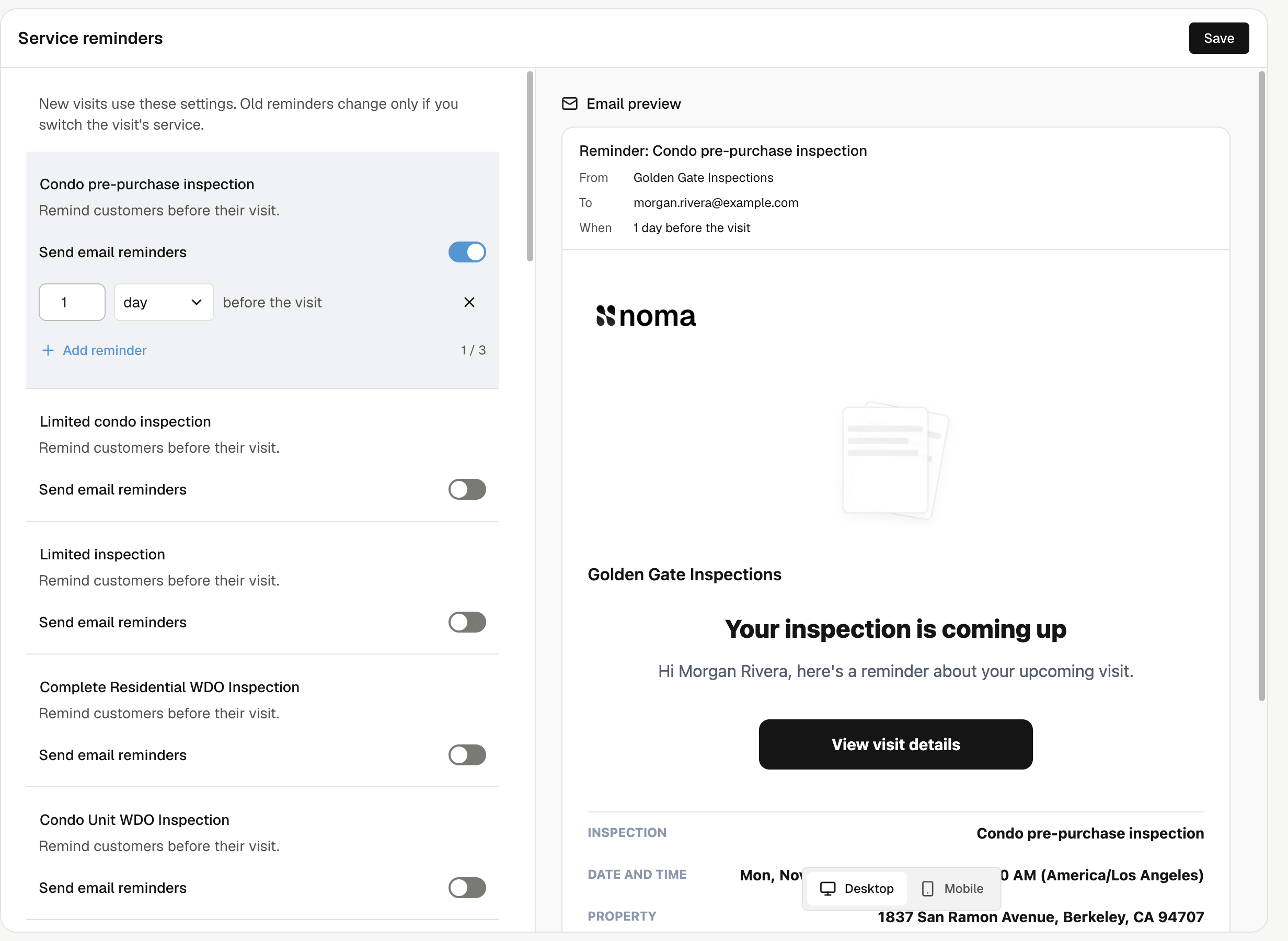
| Service reminders | Visit reminders for each service and Custom visits. |
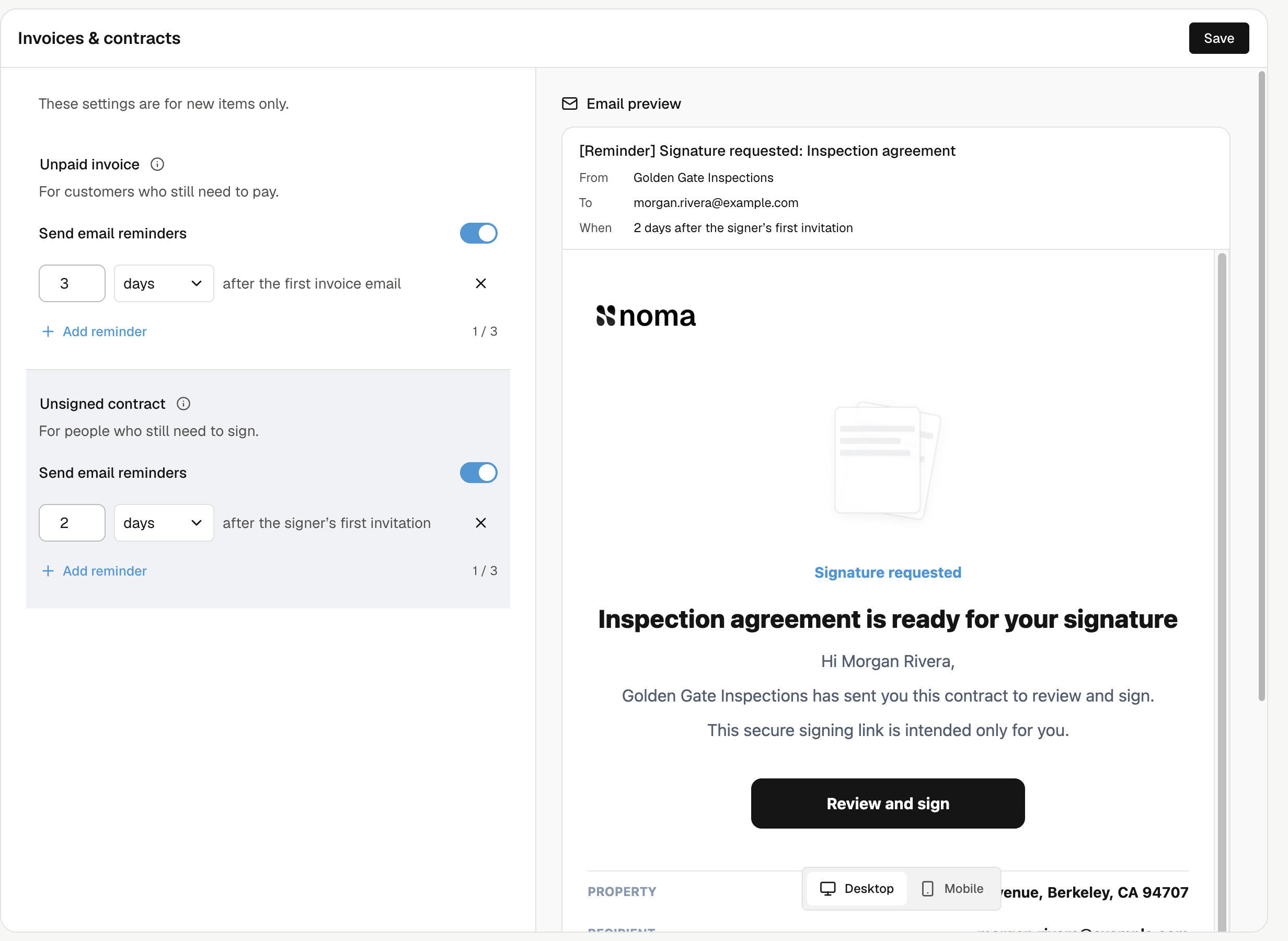
| Invoices & contracts | Unpaid invoice and Unsigned contract reminders. |
| Automatic updates | Emails when report or notice access is released, or a contract is declined. |
| Service notifications | Visit and booking request emails for the company and assigned inspectors. |
| Other notifications | Company Inbox email copies, plus notices to the sender or report author. |
From a saved service, open Notifications > Manage notifications to reach that service's row. Save a new service before opening this link.
Set reminder times
- Select Service reminders or Invoices & contracts.
- Find the service, Custom visits, Unpaid invoice, or Unsigned contract.
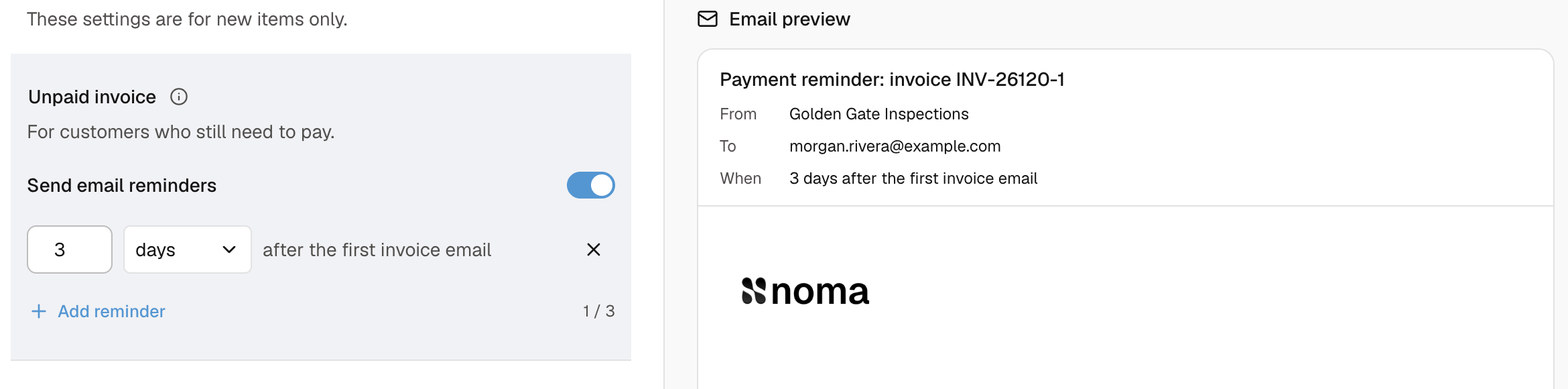
- Turn on Send email reminders. Set the number and unit for each time. Use Add reminder for another time.
- Select Save.
All reminders start Off. Each row allows up to three different times. Use whole numbers. You cannot add both 1 day and 24 hours to the same plan.
| Reminder | Units you can pick | First times Add reminder suggests |
|---|---|---|
| Visit | Minutes, hours, days, or weeks | 1 day, then 2 hours, then 30 minutes |
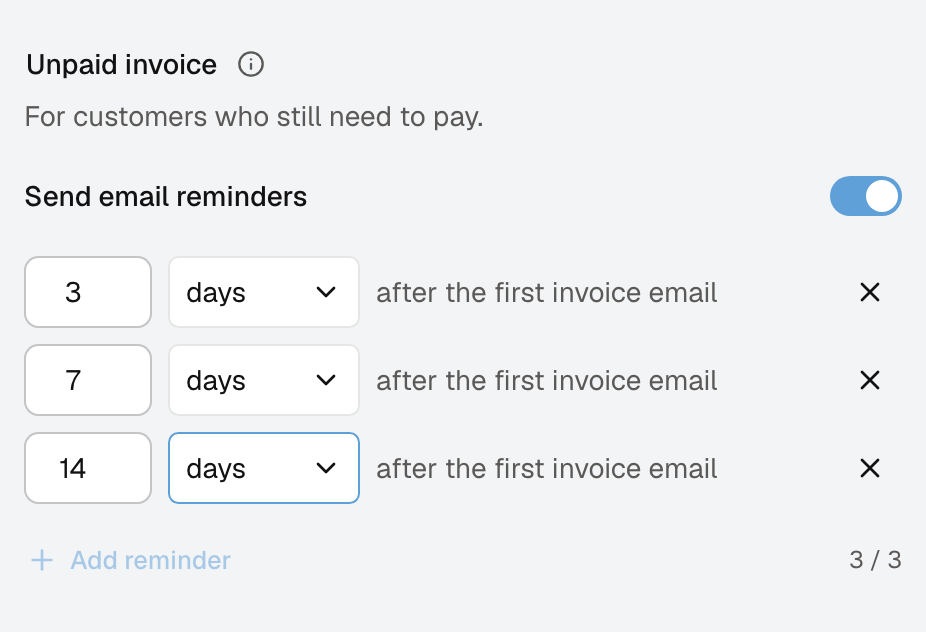
| Unpaid invoice | Days or weeks | 3 days, then 7 days, then 14 days |
| Unsigned contract | Days or weeks | 2 days, then 3 days, then 7 days |
You can change any suggested time.
| Reminder | Allowed time | Who gets it |
|---|---|---|
| Visit | 30 minutes to 28 days before the visit | All active visit invitees, not just the booker. Report-only recipients do not get it. |
| Unpaid invoice | 1 to 28 days after the first invoice email is sent | The To and Cc from the latest invoice send or manual reminder. That email must have been sent. |
| Unsigned contract | 1 to 28 days after each signer's first invite is sent | Each person who still needs to sign. Receives a copy recipients do not get signing reminders. |
For ordered signing, each signer has their own start time.
What changes on saved items
Saved items keep their reminder plan
New visits and invoices copy the plan set when they are made. Contracts copy it when first sent. Changing a plan, or turning it off, does not change those saved items.
| Change | Result |
|---|---|
| Move a visit | Its saved reminders move with it. Times that have already passed are skipped. |
| Switch a visit's service | The visit takes the new service's reminder plan. |
| Send a manual reminder | The clock and other planned reminders stay the same. |
| Use Resend email in history | It sends the saved copy. It does not restart the clock or change future invoice recipients. |
| Replace an invoice | The new invoice has its own plan and clock. Its first invoice email starts that clock. |
When reminders stop
| Reminder | Stop or skip rules |
|---|---|
| Visit | Stops when canceled, when fieldwork starts, or when the visit time arrives. Removed invitees stop getting it. |
| Unpaid invoice | Stops when paid, voided, or no balance is due. A reminder is skipped while a bank payment is processing. |
| Unsigned contract | Stops for a signer who signs or declines. All signing reminders stop when the contract is complete, declined, or voided. |
Archiving a job stops its pending reminders. Noma skips a visit reminder more than 15 minutes late. If several invoice or signing reminders are late, Noma sends only the last one that is due.
Choose team recipients
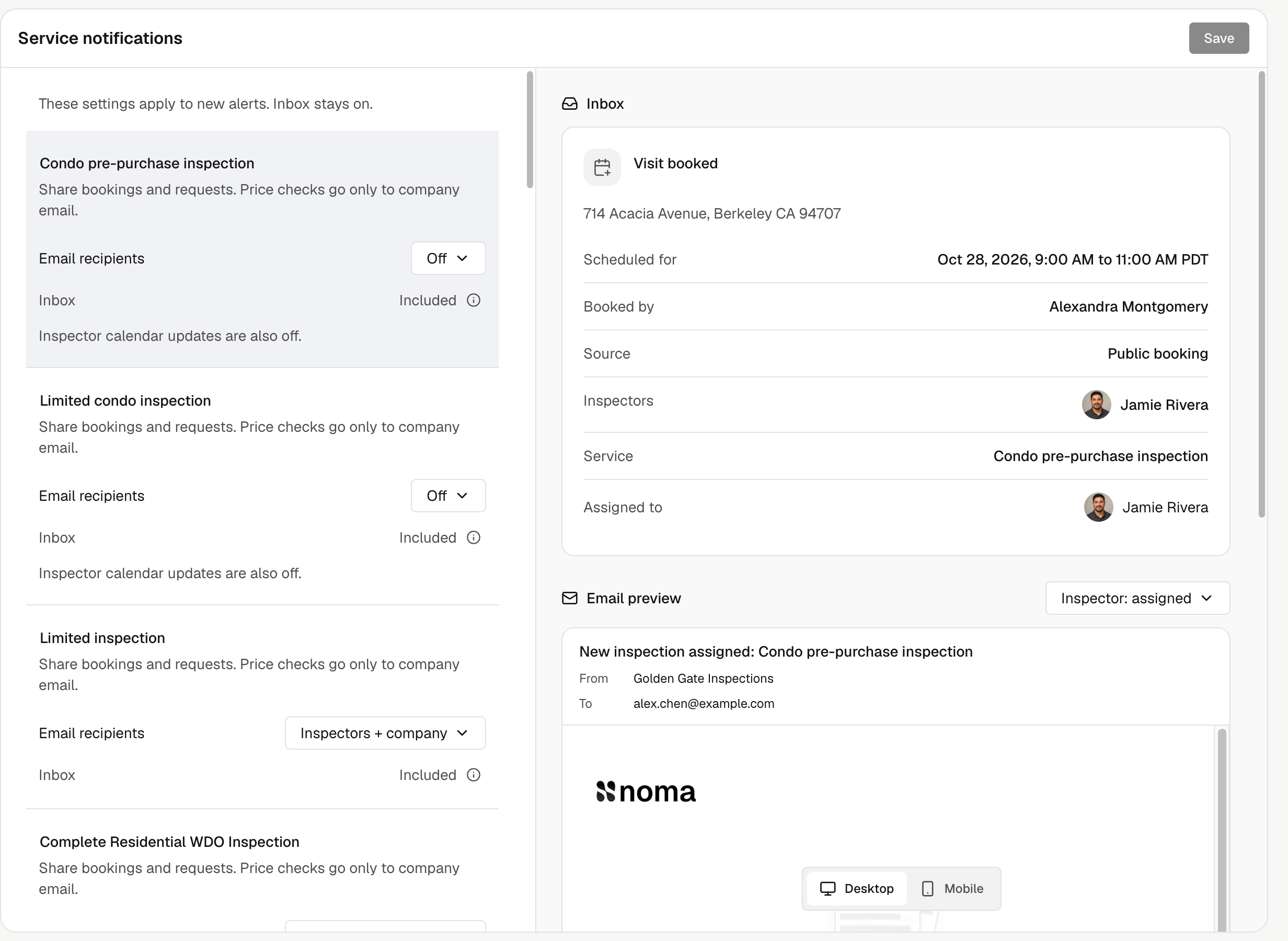
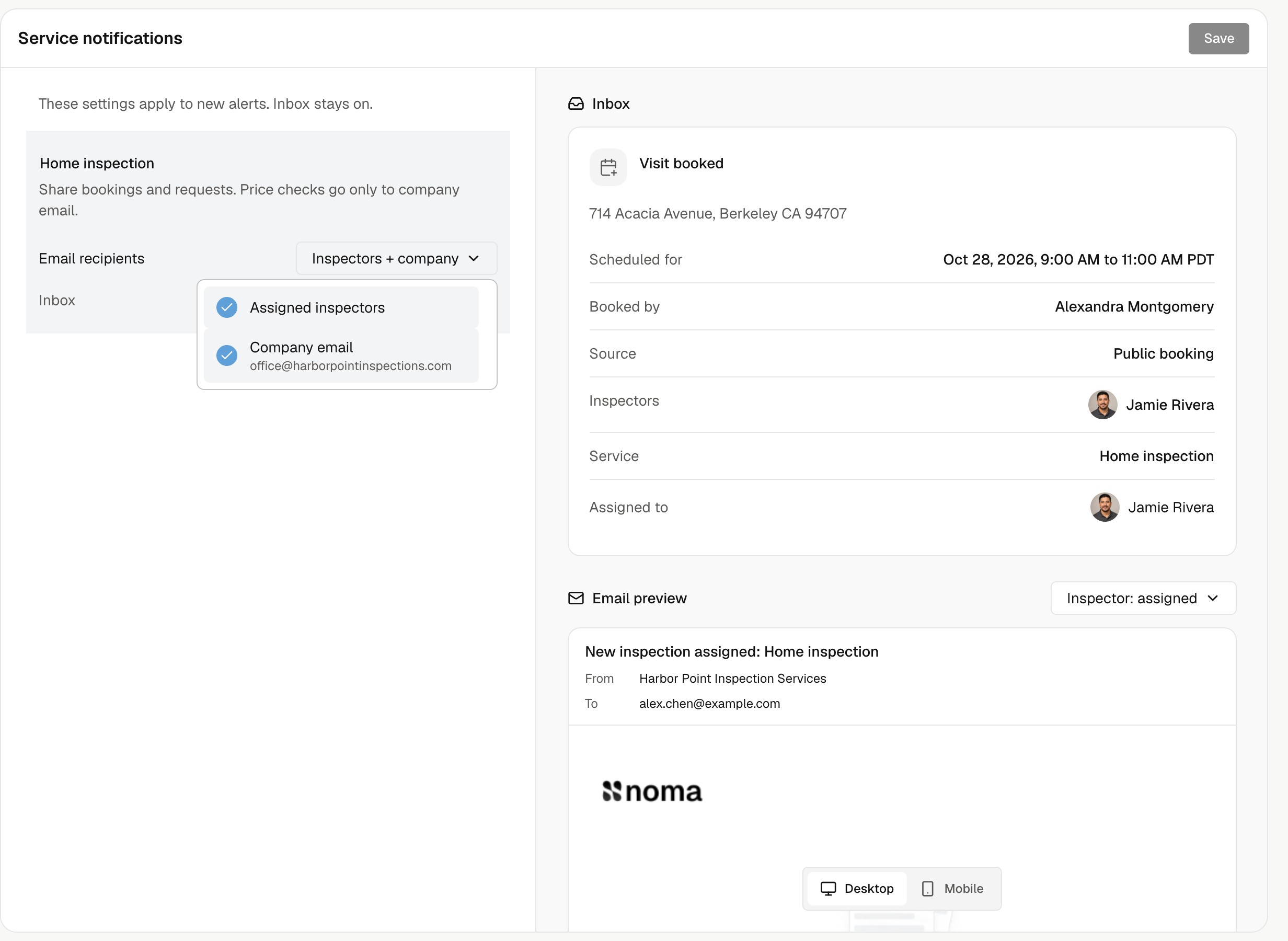
Open Service notifications, select a service, and use Email recipients.
| Choice | Emails it controls |
|---|---|
| Company email | Company visit updates, booking request updates, and booking price reviews. |
| Assigned inspectors | Visit updates and calendar invites for assigned inspectors, plus booking request updates. |
| Off | Stops both types of team email for that service. |
Both choices start on for a new service. Turning off Assigned inspectors also stops their calendar updates. These choices do not turn off client visit emails.
Company visit emails include Inspection booked, Inspection updated, Inspection canceled, and Inspection resumed. They can be sent for visits your team adds, even when no new Inbox item is made.
Custom visits always email inspectors
These choices don't apply to visits made with Custom price. Assigned inspectors get their visit emails and calendar invites. The company gets no copy.
Set custom visit reminders for clients under Service reminders > Custom visits.
Other team emails
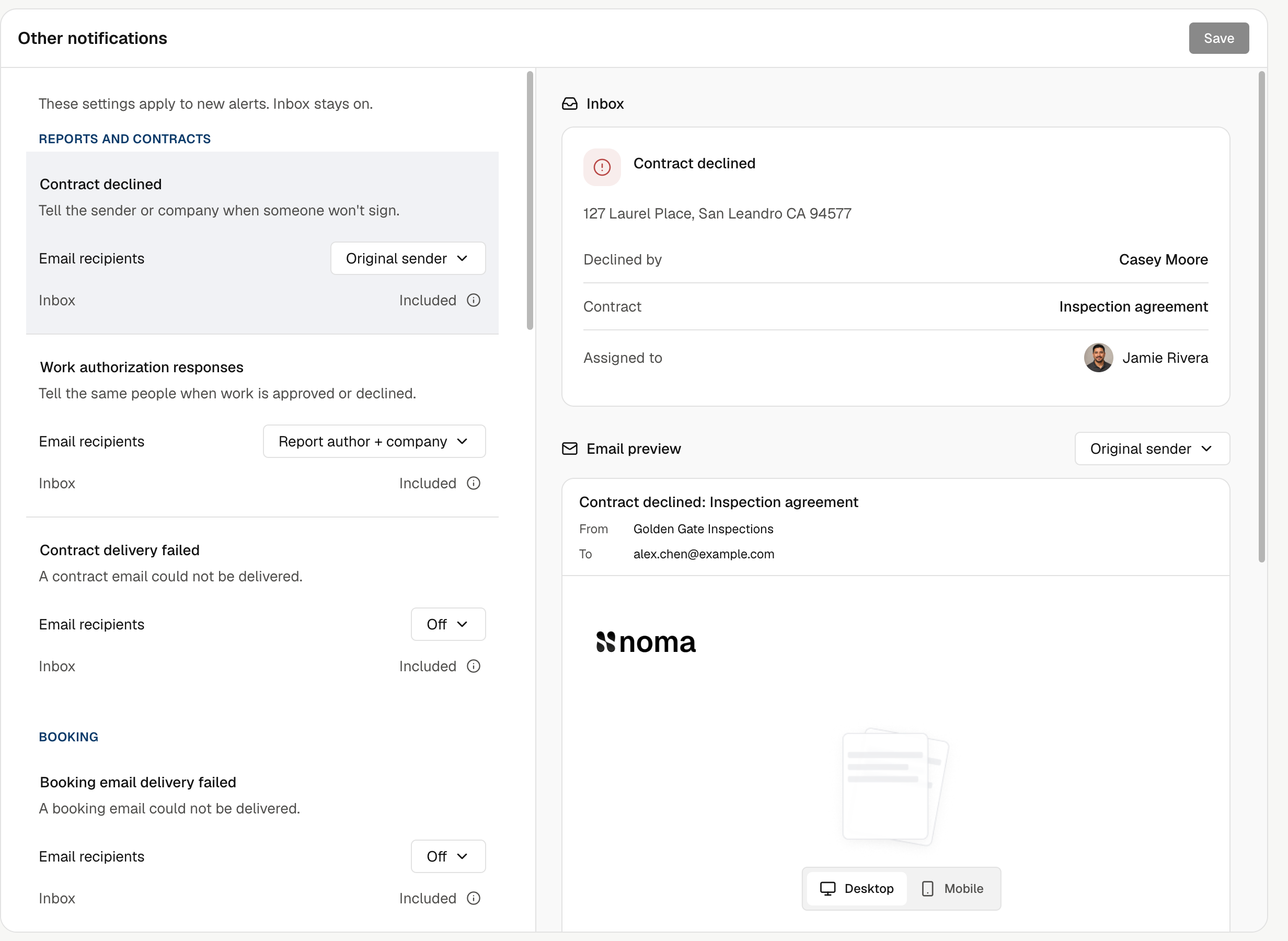
In Other notifications, choose recipients for each row. Most company Inbox email copies start off.
| Row | Starting choice |
|---|---|
| Contract declined | Original sender on; Company email off. |
| Work authorization responses | Report author and Company email on. One choice covers both approved and declined work. |
| Other rows | Company email off. |
Refund failed alerts always go to the company email. They are not a setting, because the client is still owed money.
Original sender means the person who sent the contract. Report author means the person who finished the report.
Company copies use the email in Company settings. Add a valid company email there first. An Open inbox email link opens the exact item.
Email choices apply to new alerts. They do not resend old ones. Inbox items still appear when email is off.
Choose client updates
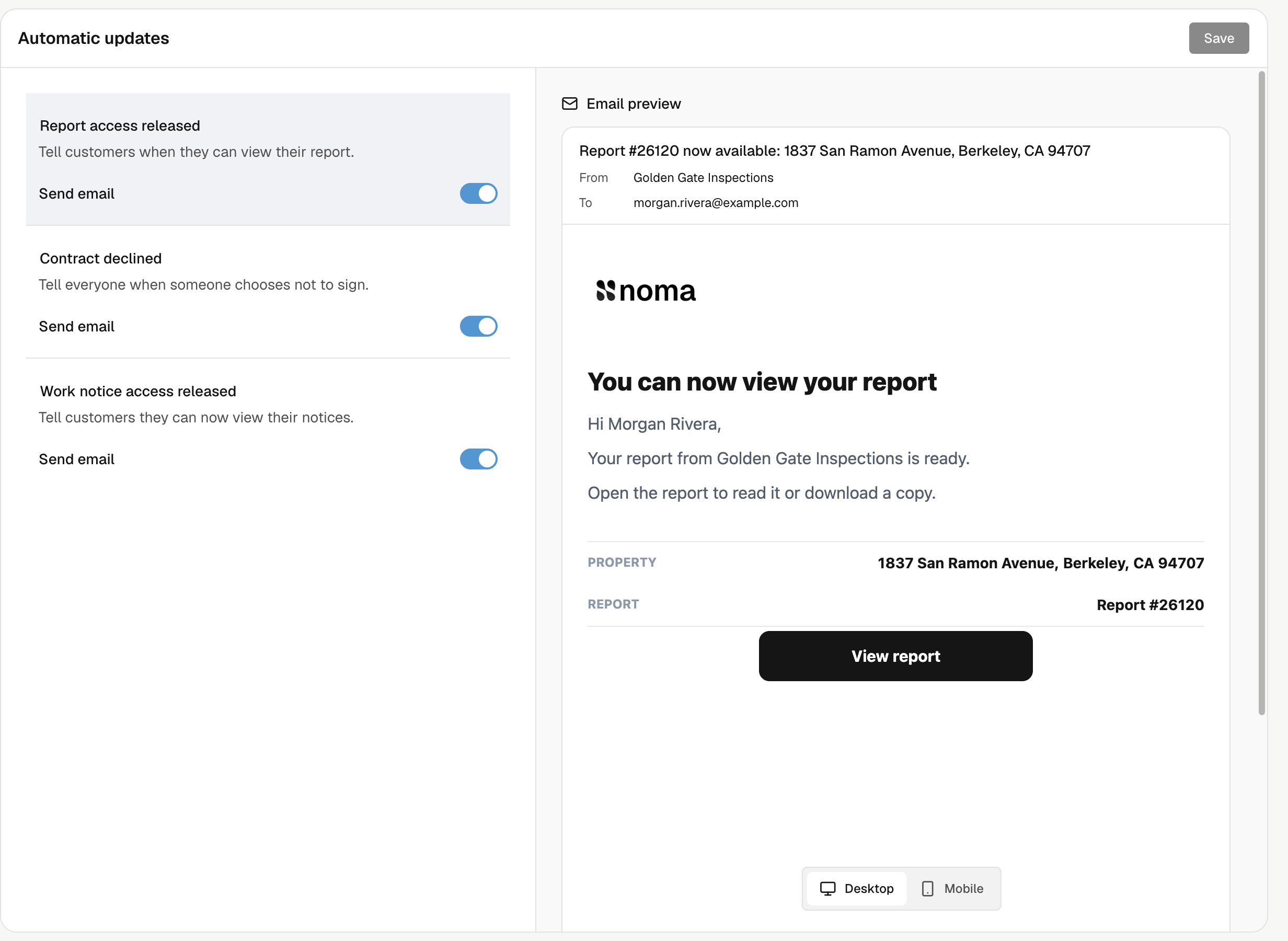
Under Automatic updates, use Send email for each row. All three start on.
| Row | What the email tells clients |
|---|---|
| Report access released | A report they were sent can now be opened. |
| Work notice access released | Their notice page is now unlocked. |
| Contract declined | Someone chose not to sign the contract. |
Turning off an update stops its email, not the access change or contract result. The client decline switch is separate from the team decline row.
See when to email work notices.
Check the email preview
Select a row to see its Email preview. The preview shows the subject, From, To, and Cc when used. Reminder previews also show When.
Use Desktop or Mobile to change the preview width. For rows with several examples, use the picker to view each one. These controls do not send email or change your settings.
You can view an example even with email off. To check who gets a saved message, open its email history.
If saving fails
| What you see | Next step |
|---|---|
| A time is marked | Fix that time, then select Save again. Your edits stay on the page. See the messages below. |
| A save error | Keep the page open and try Save again. |
| Notification settings changed. Reload and try again. | Note your edits, then reload. Review the latest choices before saving again. Another save changed these settings. |
| Message under a time | Fix |
|---|---|
| Enter a whole number of 1 or more. | Remove decimals and blanks. |
| Use days or weeks. | Invoice and contract reminders cannot use minutes or hours. |
| Use at least 30 minutes. | Pick a visit time 30 minutes or more before. |
| Use at least 1 day. | Pick an invoice or contract time of 1 day or more. |
| Use 4 weeks or less. | Pick 28 days or less. |
| This reminder time is already used. | Pick a different time. 1 day and 24 hours count as the same. |