Use the inbox
Find, read, and archive notifications shared with your company.
Open Inbox in the web dashboard. Any active company member can use Inbox.
Inbox is on the web only. Read and archive status is shared with your whole company.
Notification examples
Payment notifications
Booking notifications
Work authorization notifications
Contract and team notifications
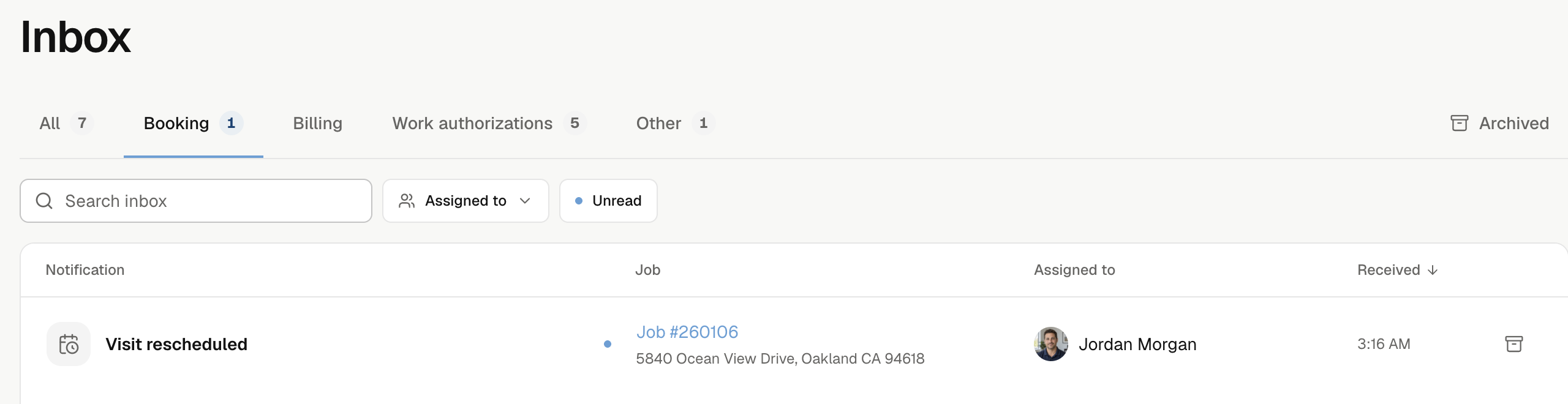
Find an item
| Tab | Includes | Guide |
|---|---|---|
| All | Every active item. | |
| Booking | Booking requests, visit changes, failed emails, and booking reviews. | Booking notifications |
| Billing | Card and bank payments, plus invoices from approved work. | Payment notifications |
| Work authorizations | Returned or declined termite work. | Work authorization notifications |
| Other | Contract updates, new team members, and older report email failures. | Contract and team notifications |
| Archived | Items your company has archived. | Mark or archive an item |
- Search inbox finds titles, addresses, job numbers, and assigned names.
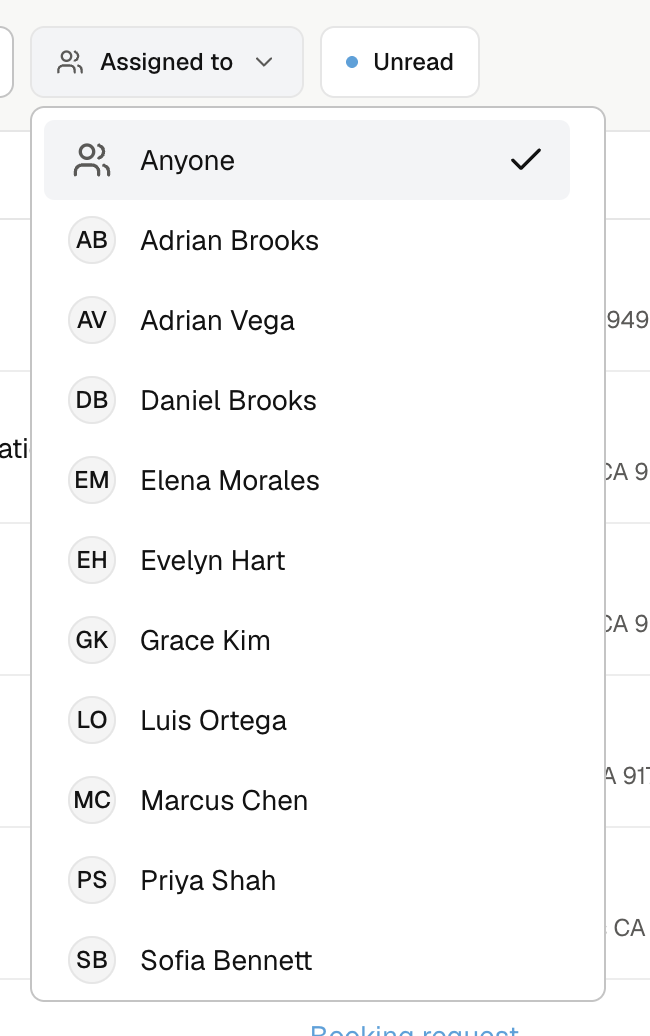
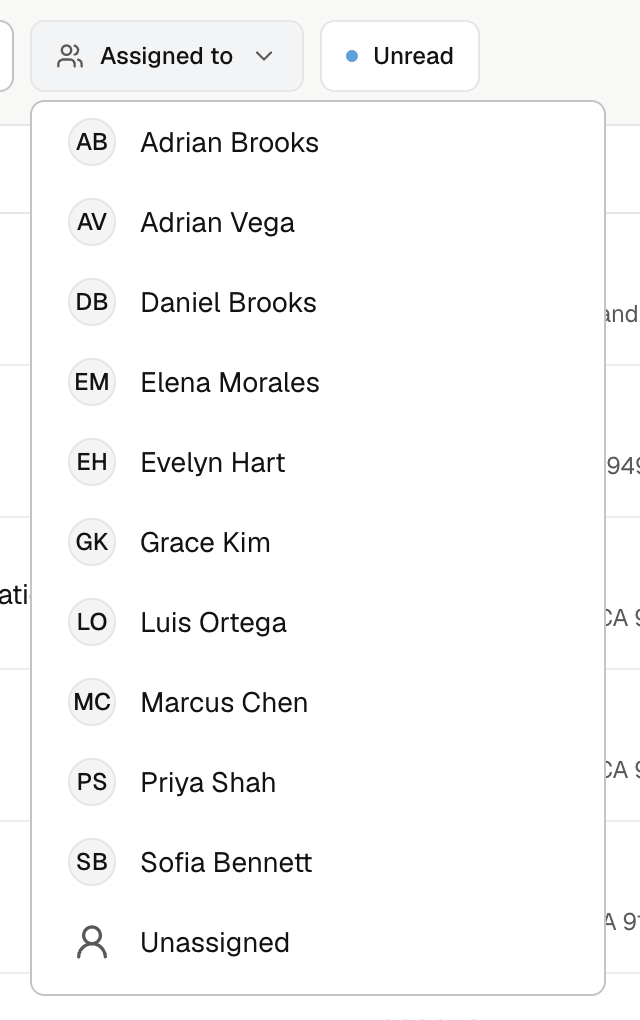
- Assigned to filters by a teammate or Unassigned. It does not change access.
- Unread shows unread items. Clear removes the filters.
Tab counts follow the selected assignee. Search and Unread do not change them. The main navigation badge counts all company unread items.
Open the details
Select an item to open it. Noma marks it as read when the details load.
- Use Previous notification, Next notification, or the Up and Down arrow keys to move through the list.
- Most action buttons open the record in a new tab. To handle a booking request, use Reject or Review and confirm in the details.
- When shown, select View in Inspection details to open the job.
Preview a visit
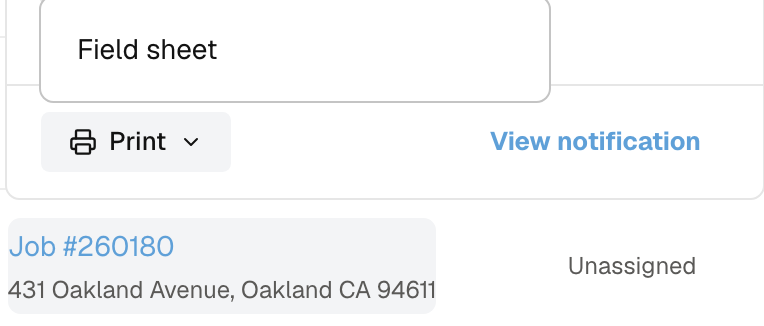
Point to or select its job number. The card shows the visit, its service, and any add-ons. Select View notification to read the alert.
Use Print when the card offers it. Choose a paper from the current published report set or print a field sheet for a termite inspection, even before the report is published.
Shared details
| Shown on | Fields |
|---|---|
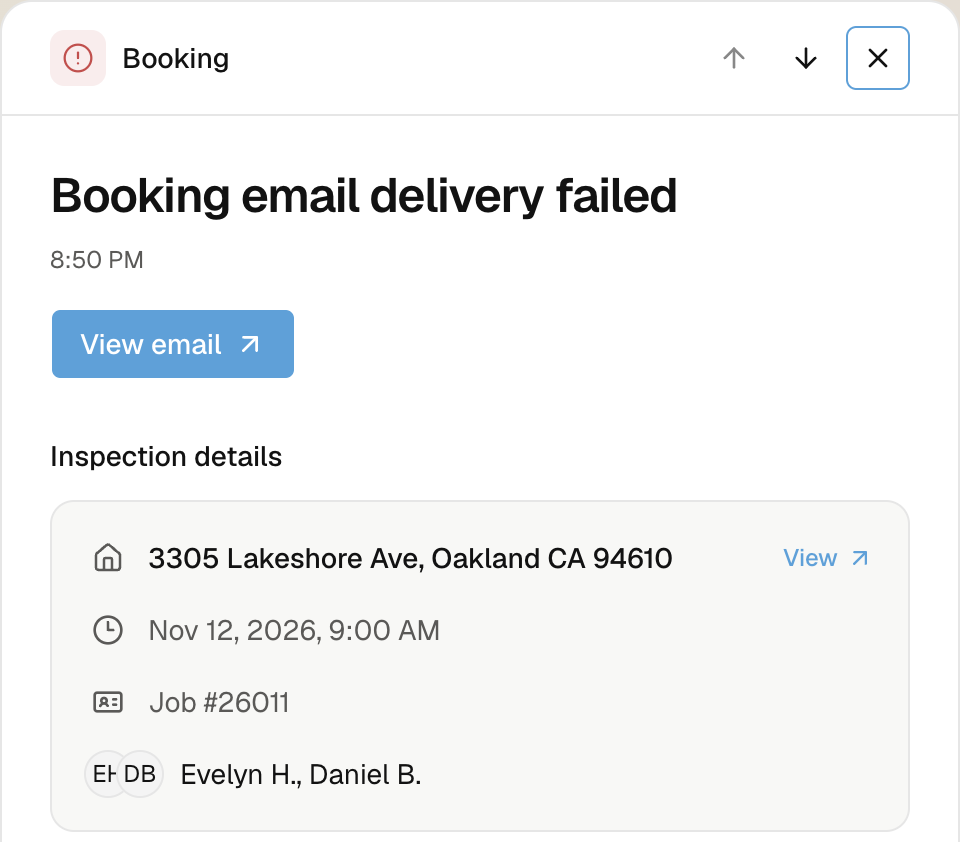
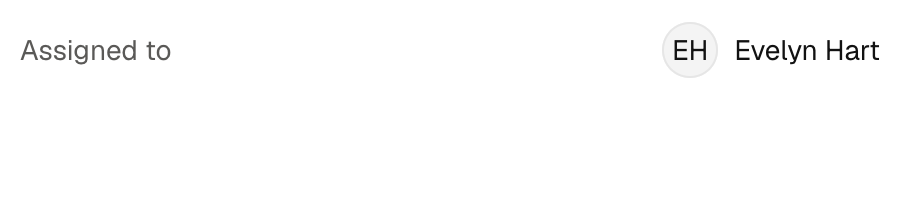
| Every notification | Category, title, received time, and Assigned to. Assignment shows a person or Unassigned. |
| Notifications with a job or visit | The property address and, when tied to a visit, its job number. |
| Notifications with a visit | The visit date, time, and inspectors when saved. Visit changes show the details from the time of the change. |
The tables in each guide list the extra fields. Empty fields are left out. Assigned to is separate from the visit's inspectors.
A booking request shows its address before a job exists.
Mark or archive an item
| Action | Result |
|---|---|
| Mark as unread | Keeps the item active for later review. |
| Mark as read | Clears the unread mark. |
| Archive | Moves it to Archived. Undo restores it after saving. |
| Restore to inbox | Returns an archived item to the active list. |
Archiving only clears the Inbox list. It does not fix the source issue or send an email.


Get email copies
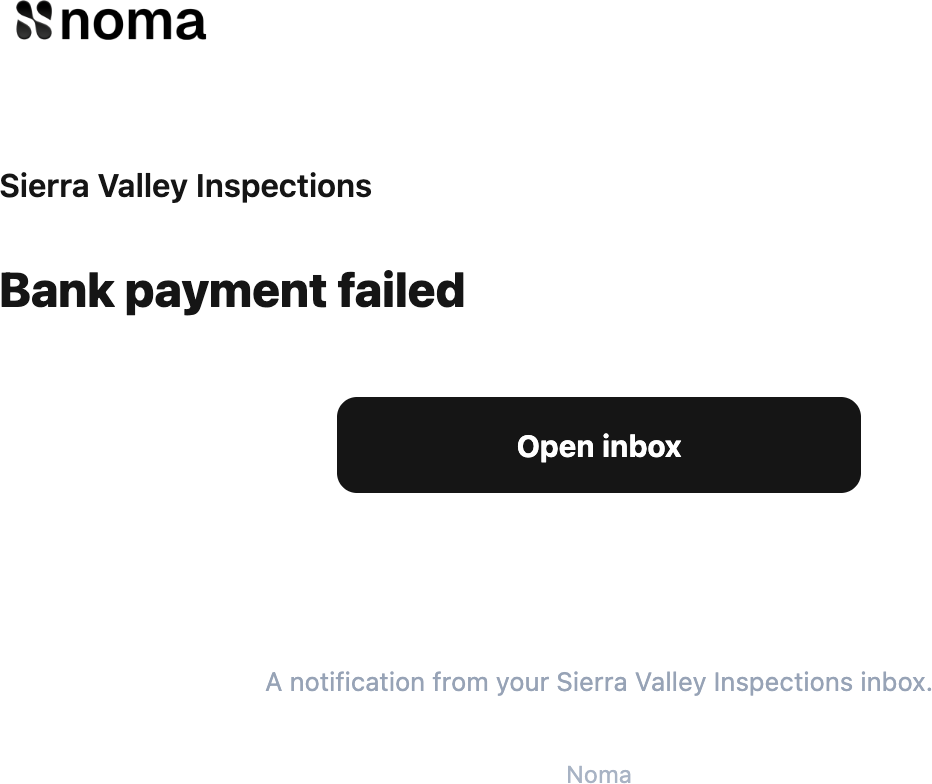
An Admin can choose which alerts reach the company email. Select Open inbox in an alert email to open that item.
For more help, see Review job emails or Fix payment problems.