Booking notifications
Review booking requests, visit changes, and failed booking emails.
Open Inbox and select Booking. Each notice also includes the shared details. Visit times, services, and inspectors show the saved change.
Booking requests
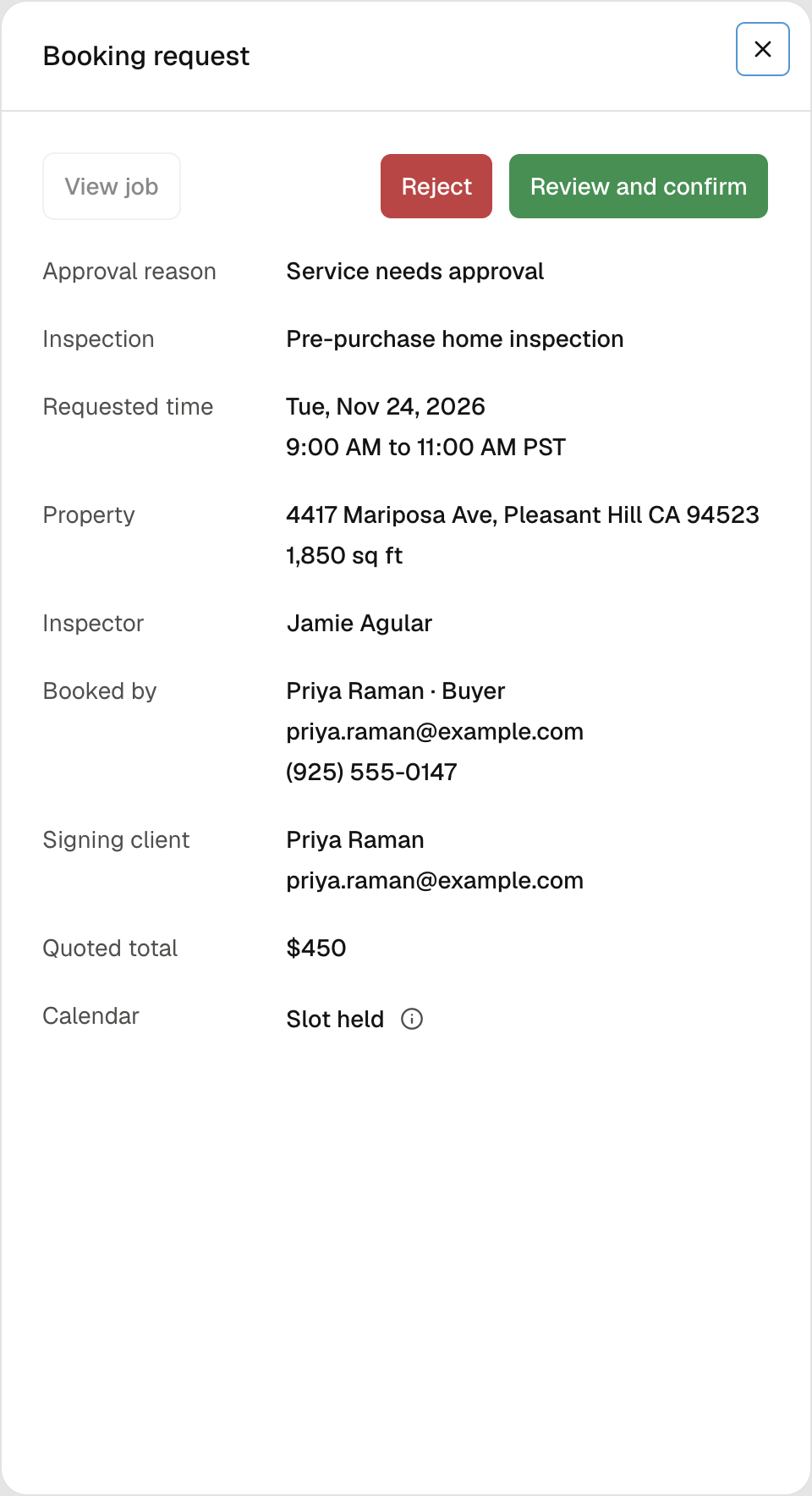
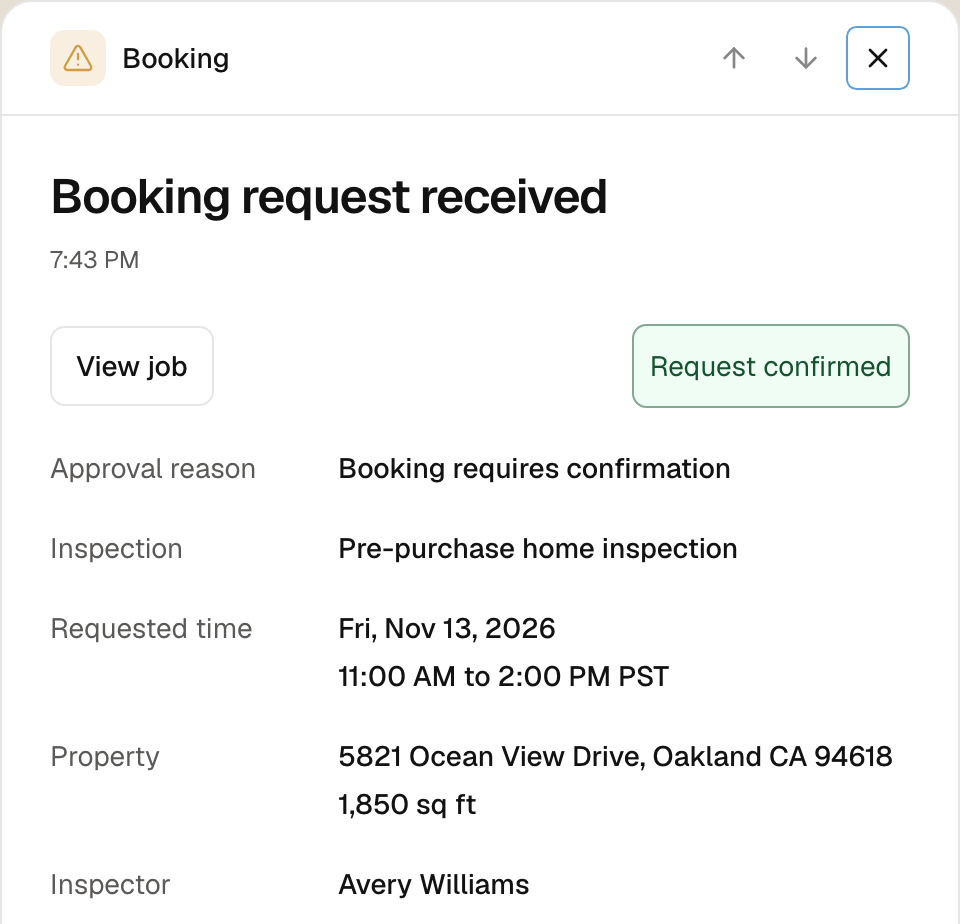
Booking request received is assigned to the requested inspector. All active company members can review it.
Select the item to view the time, address, service, people, and Travel fee, when present.
| Request result | Notice shows |
|---|---|
| You confirm it | Request confirmed. View job turns on once the job exists. |
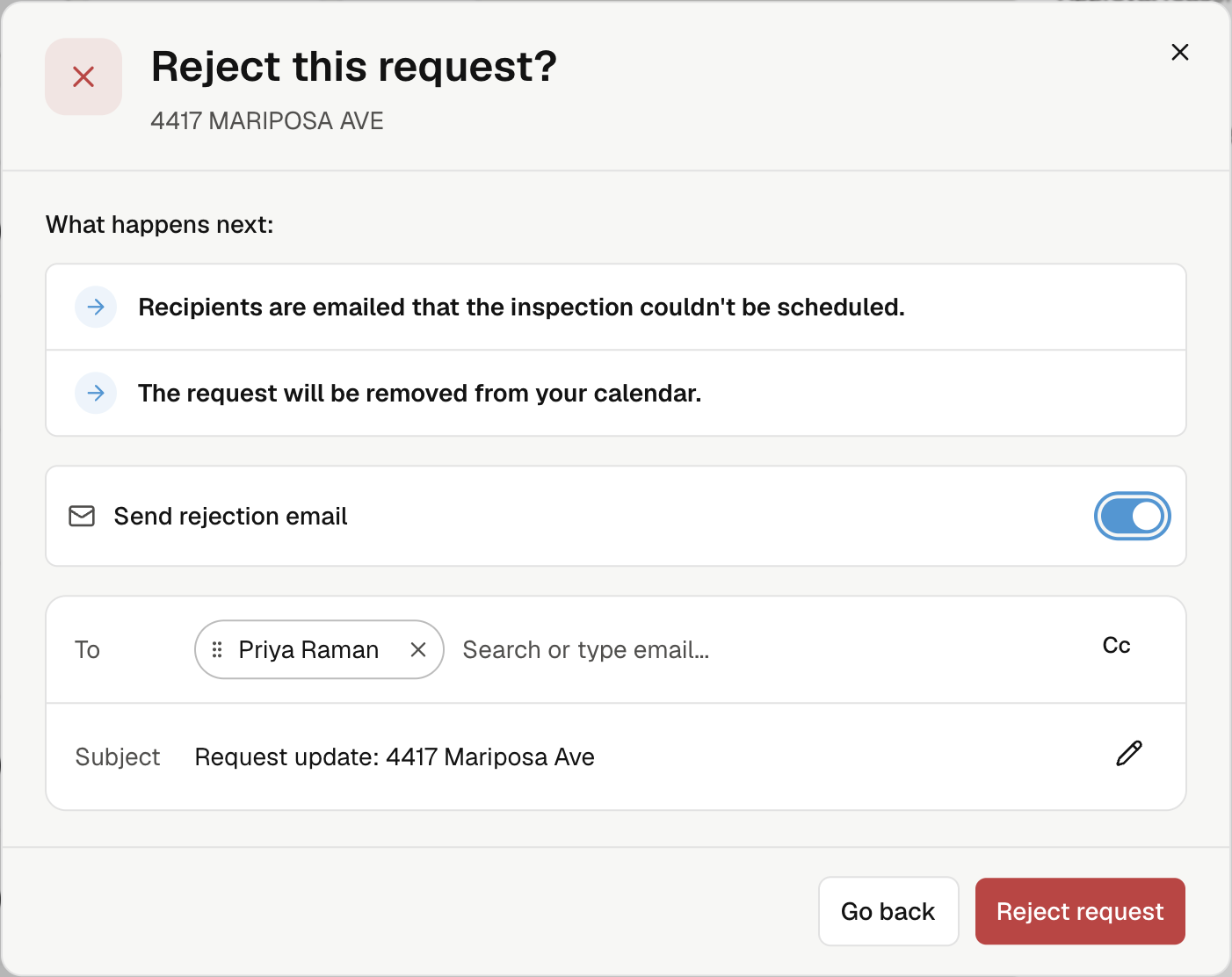
| You reject it | Request rejected. |
| The client withdraws it | Request withdrawn. |
| Action | Opens |
|---|---|
| Review and confirm | New job, filled from this request. Review it before saving. |
| Reject | A review before you reject the request. |
| View job | The saved job after confirmation. |
Follow Review booking requests for the full steps.
You can also find requests on the calendar.
Visit changes
| Notice | Fields shown when saved | Action |
|---|---|---|
| Visit booked | Scheduled for, Booked by, Source, Property at the time, Service, Inspectors. | View job |
| Visit rescheduled | Previous time, New time, Rescheduled by, Source, Property at the time, Service, Inspectors. | View job |
| Visit canceled | Canceled time, Canceled by, Source, Reason, Property at the time, Service, Inspectors. | View job |
Property at the time appears only if the saved address differs from the current job address.
Source shows how the change was made, such as Public booking or Customer link.
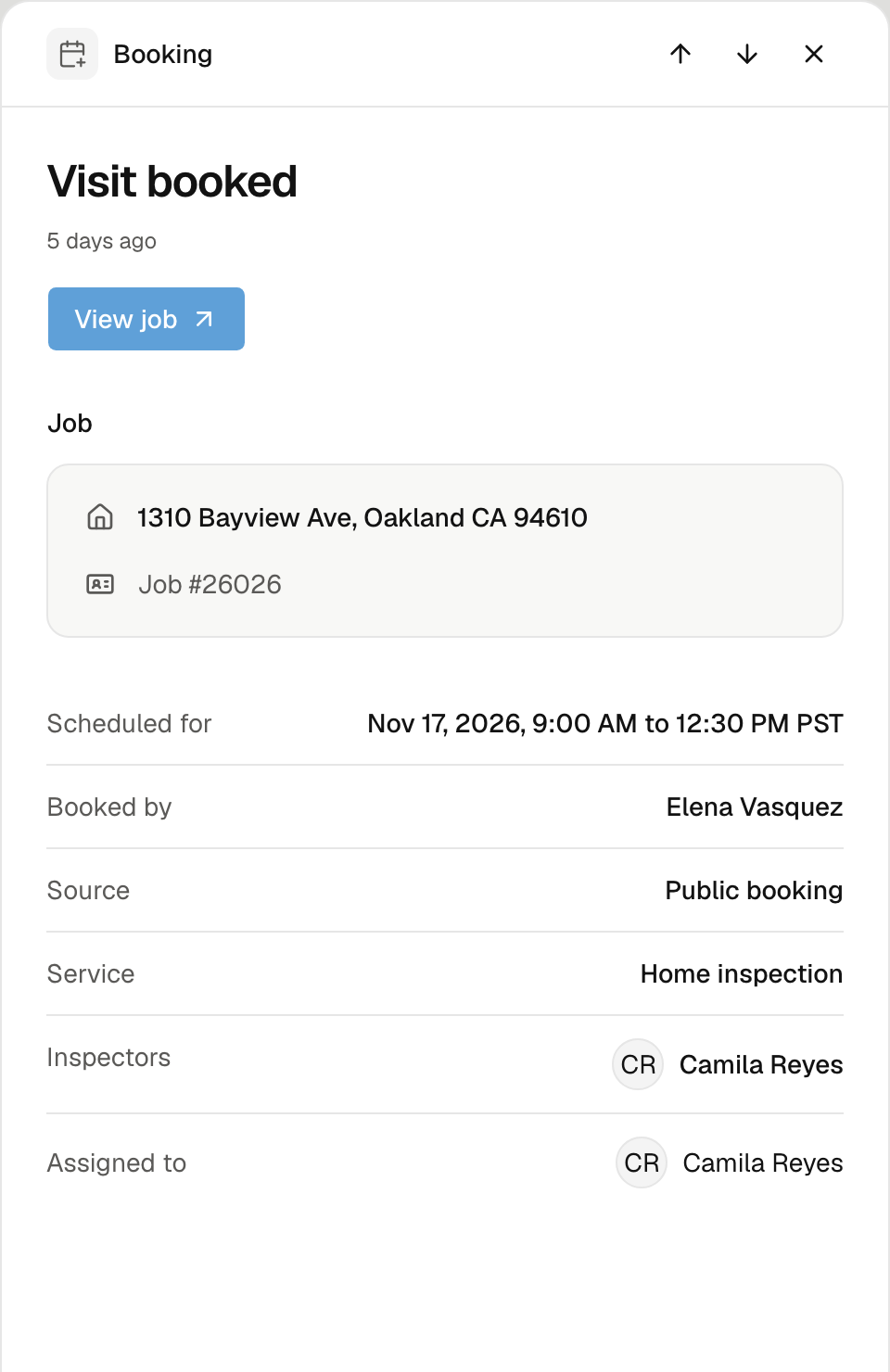
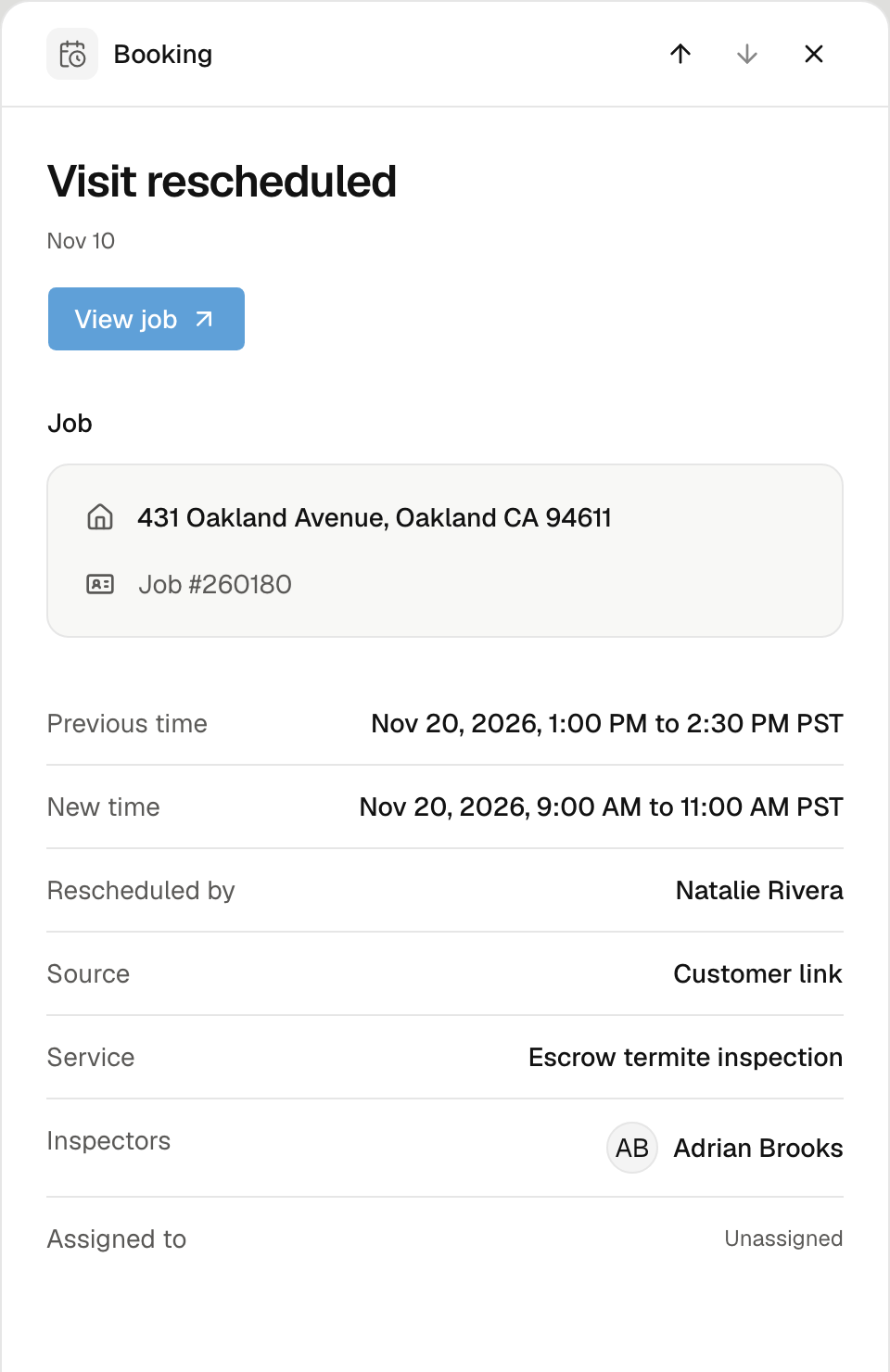
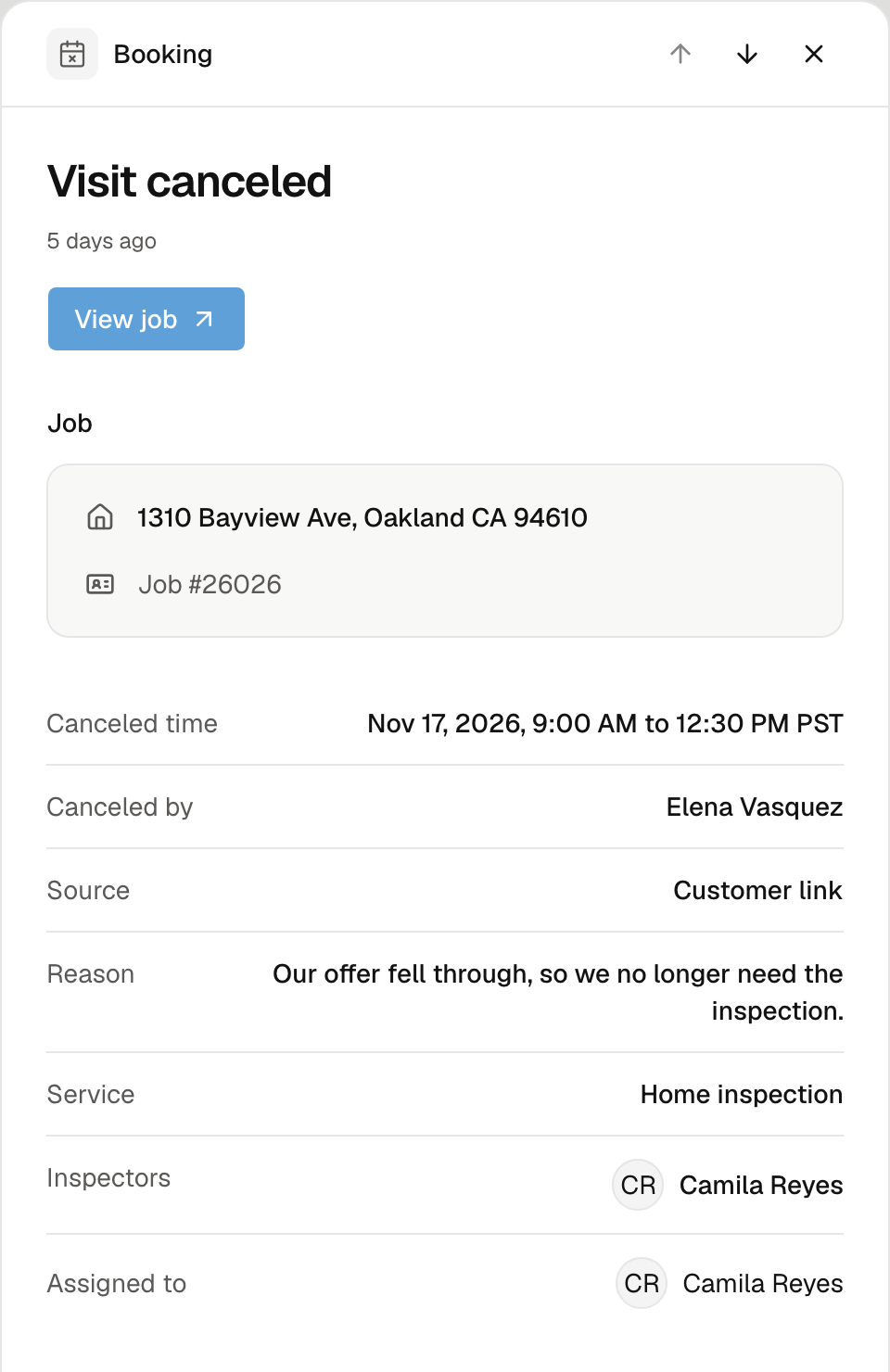
Booked by, Rescheduled by, and Canceled by show who made the change.
Booking reviews
| Notice | Fields shown when saved |
|---|---|
| Price needed for public booking | Customer, Service, Price, Travel fee when present. |
| Contract date needs review | Contract date, Rescheduled to. |
| Cancellation kept a paid invoice or completed contract | Visit, Invoice or Invoices, Contract or Contracts, Reason. |
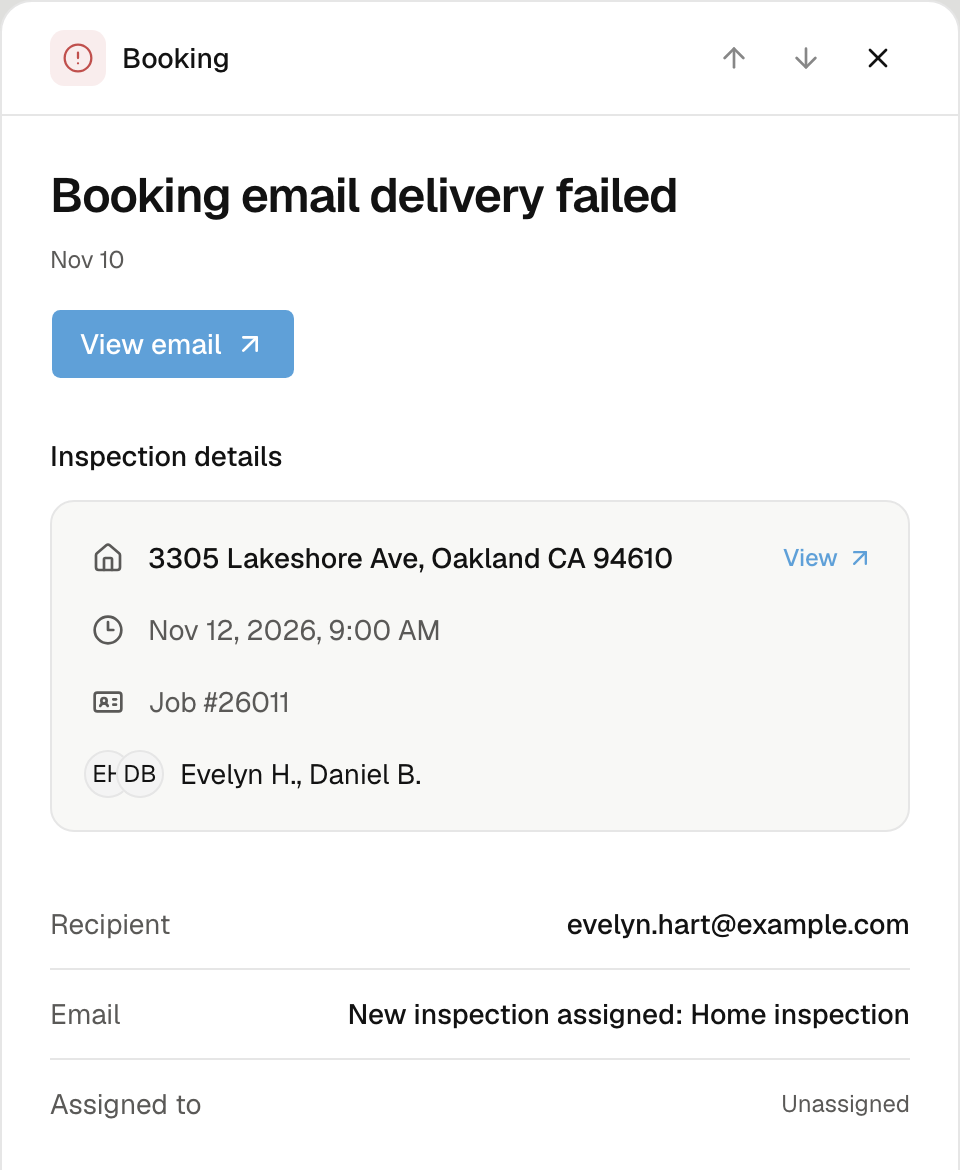
| Booking email delivery failed | Recipient (email address), Email (subject), Reason. |
| Review | When it appears | What to do |
|---|---|---|
| Price needed | No price was saved. Price shows Not set at booking. | Open the job and set the price. |
| Price and contract need attention | No price was saved, and the contract also needs review. | Set the price, then review the contract. |
| Contract date needs review | The booking agreement date differs from the new visit date. A time change on the same date does not count. | Review the contract. A voided agreement needs no review. |
| Cancellation review | A canceled visit kept a paid invoice or completed contract. | Open the job and check what was kept. See Cancel or archive. |
| Action on the notice | Where it takes you |
|---|---|
| Review booking or Review cancellation | The job. |
| Review contract | The contract whose date needs review. |
| View email | The failed message in job emails. If that message is no longer saved, View email history opens the history. |
Know which bookings appear
| Change | Adds an Inbox item |
|---|---|
| Client books on your booking page | Yes, Visit booked. |
| You create a job or visit | No. |
| Reschedule or cancel before fieldwork | Yes. |
| Reschedule or cancel after fieldwork starts | No. |
| Change only the inspectors | No. |
| Edit private notes | No. |
| Resume inspection | No. |
Company emails and Inbox items have different rules. Set email recipients in Notifications.