Review booking requests
Check a client's request, then create the job or reject it.
A request has no job, invoice, or sent contract yet. It stays open until your team makes a choice or the client withdraws it. It stays open even after its time passes.
Open a request
Any active team member can review a request.
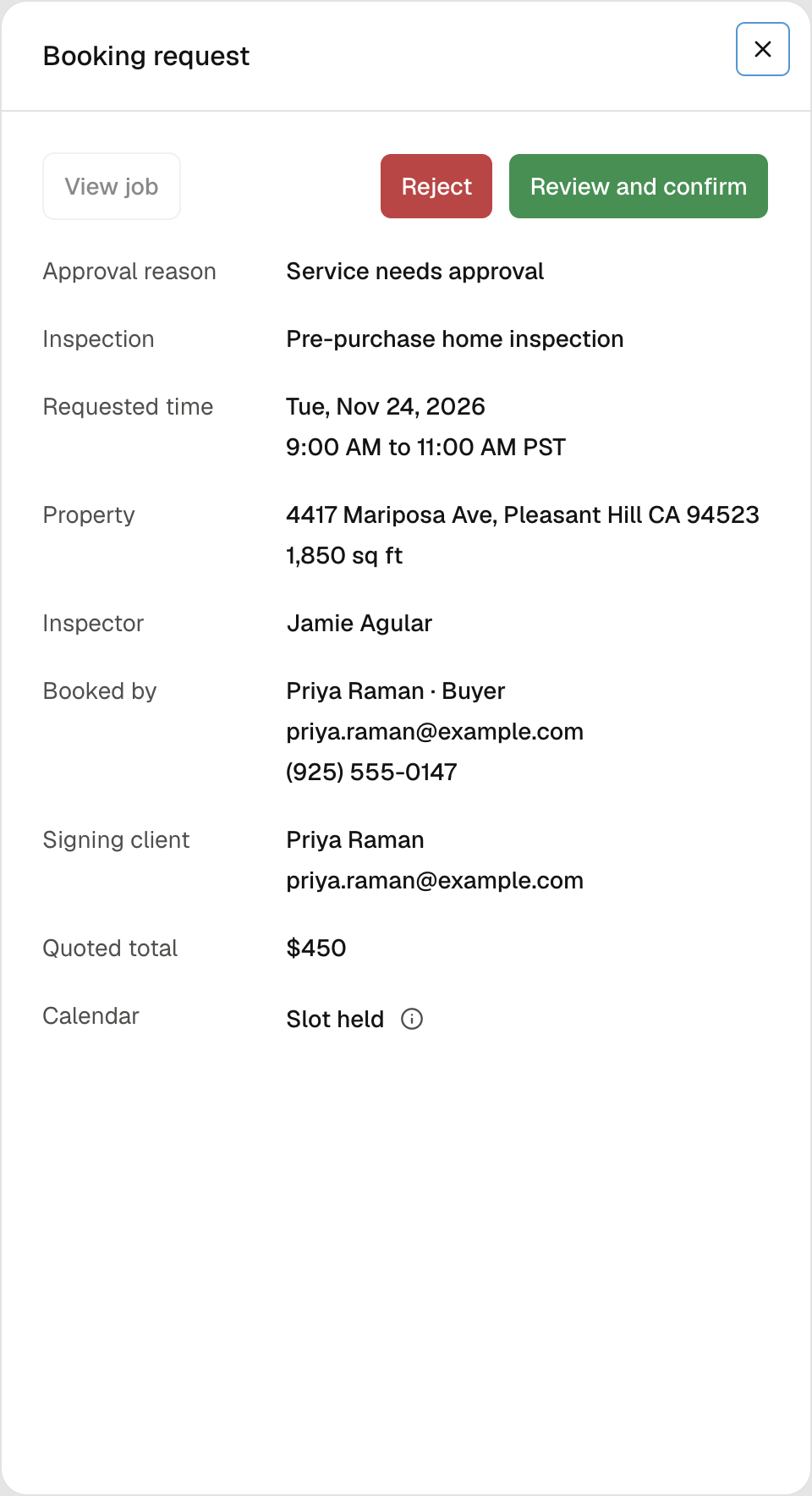
- Open Calendar.
- Open Filters and choose Awaiting approval. You can also keep All to see requests with visits.
- Select the request. You can also find Booking request received in Inbox.
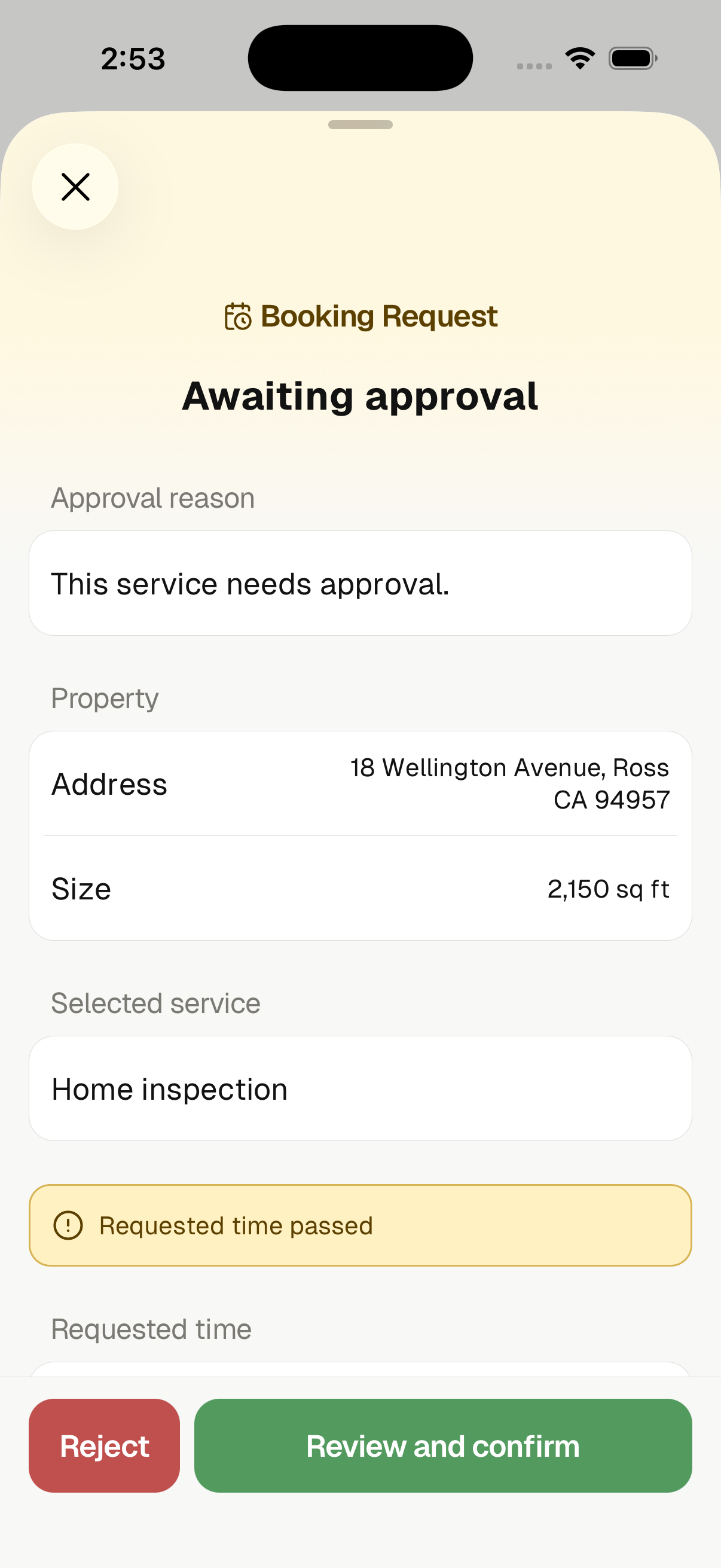
- Open Calendar in the Noma app.
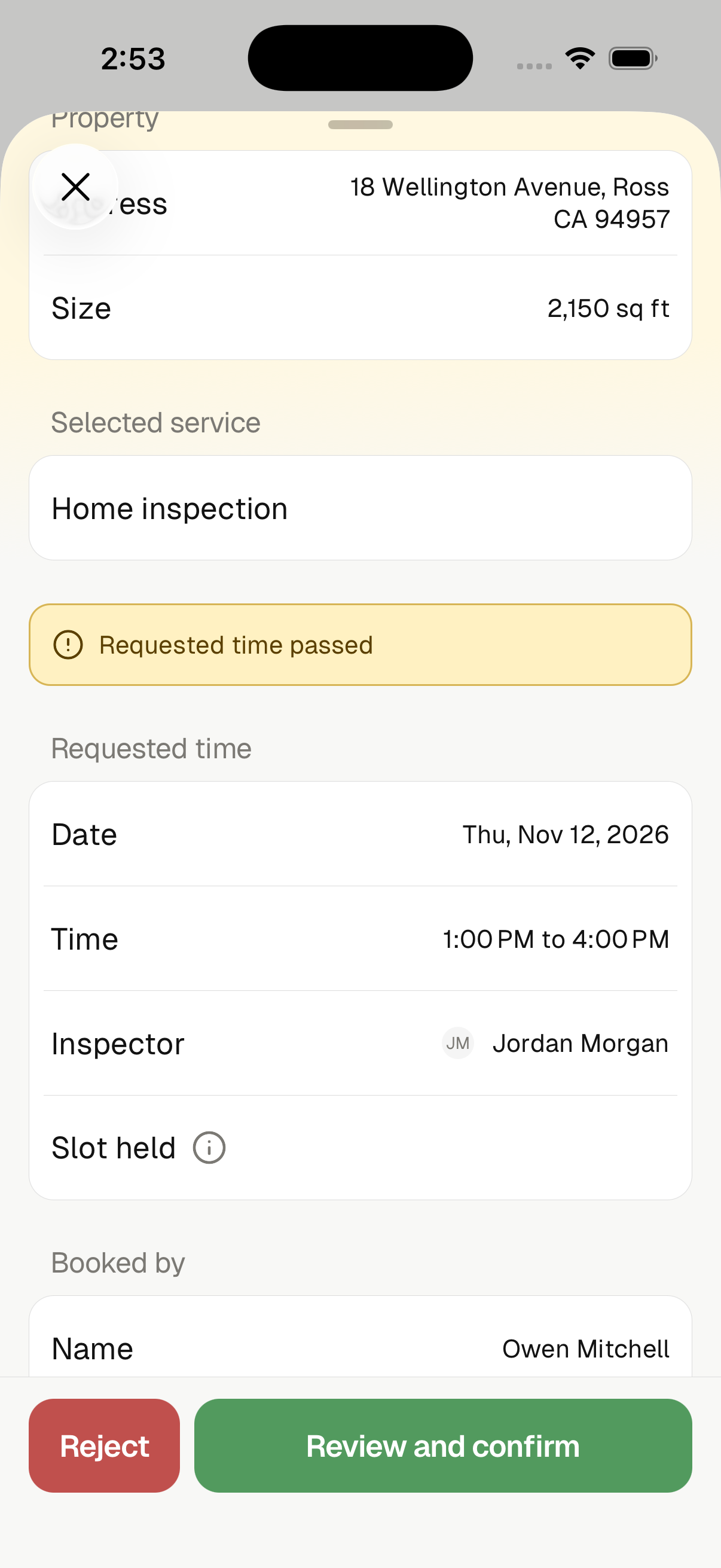
- Select an Awaiting approval card to see the request.
You can read downloaded requests offline. Go online to load a new request or make a choice.

Why it needs approval
Look for Approval reason or Approval reasons in Noma. The request email to your team also lists the reasons.
| Reason | Where to check |
|---|---|
| Berkeley, CA needs confirmation | Needs confirmation areas. Each matching area adds its own reason. |
| Booked less than 1 day ahead | The service's notice rule for approval. |
| Free email address | The service's free email rule. |
| Service needs approval | The service is set to Always ask for review. |
Check the calendar status
| Label | What it means |
|---|---|
| Slot held | The request holds the time. |
| Slot not held | Someone else can still book the time. |
| Requested time passed | Choose a new time during review. |
Review and confirm
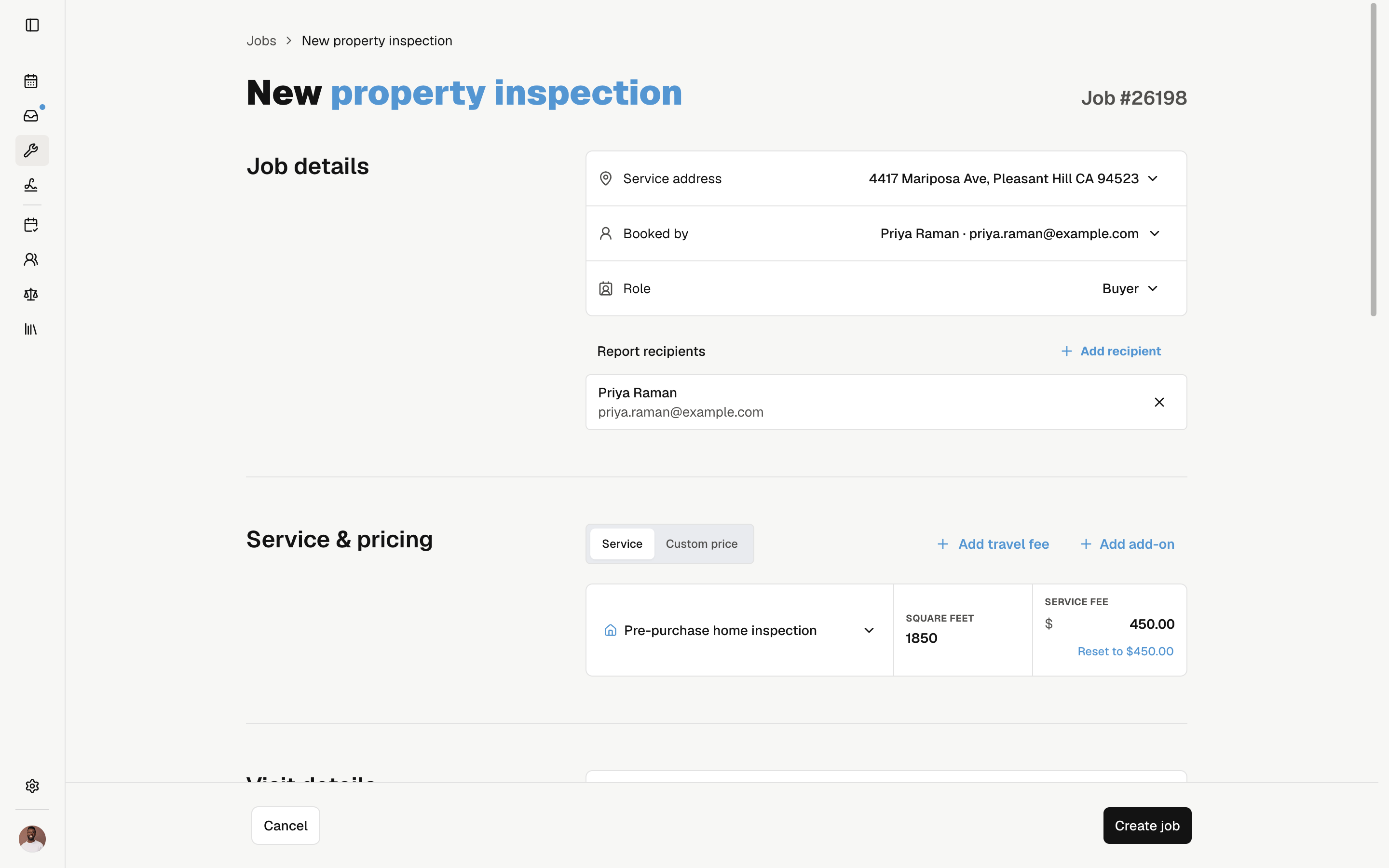
- Select Review and confirm to open New job with the request filled in.
- Check the property, service, add-ons, people, and time. Review the saved quote, including any travel fee.
- Fill in any missing price and fix any time or service issues. Check the contract and email choices.
- Finish creating the job to confirm the request and replace its hold with the visit. Leaving the form before you save keeps the request open.
Confirm from email
Open the link in the Awaiting approval email. Select Confirm inspection to accept the request as shown, or Review in Noma to edit it first.
Keep the email link private
Anyone with the link can confirm or reject the request without signing in.

Select Review in Noma if the price is missing, the time passed, the slot is taken, or a change to the service or contract needs a check. The request stays open until a decision goes through.
Reject a request
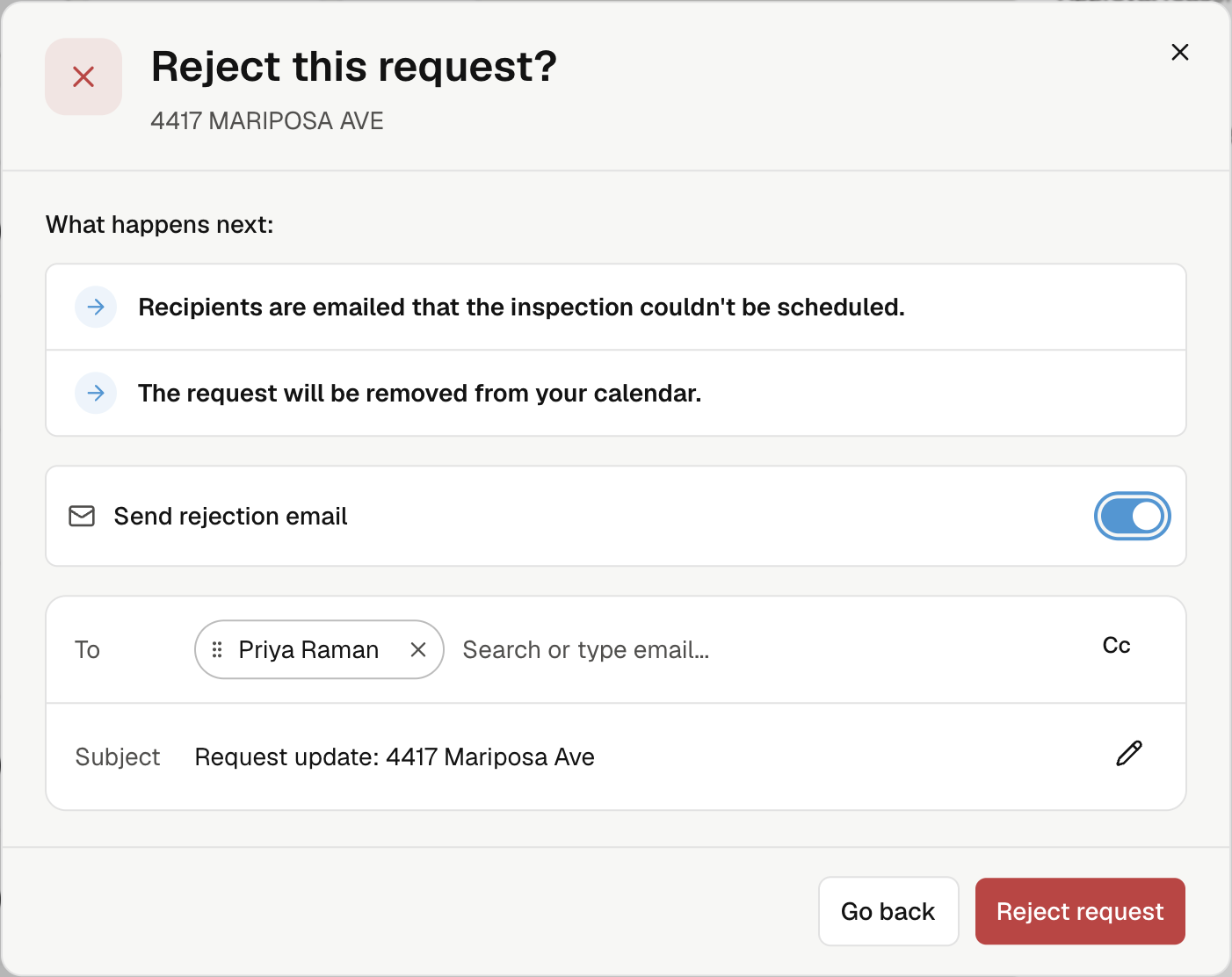
- Select Reject.
- Leave Send rejection email on to tell the client, or turn it off. In Noma on the web, you can also edit To, Cc, and Subject.
- Select Reject request. This removes the request from Calendar and releases any hold.
If the result is unclear, use the retry action. If someone already made a choice, Noma shows that result.