Set service areas and travel fees
Choose where clients can book and where to review requests or charge for travel.
Open Settings → Booking page. Under Service areas & travel fees, select Open settings. Company admins can save these rules on the web.
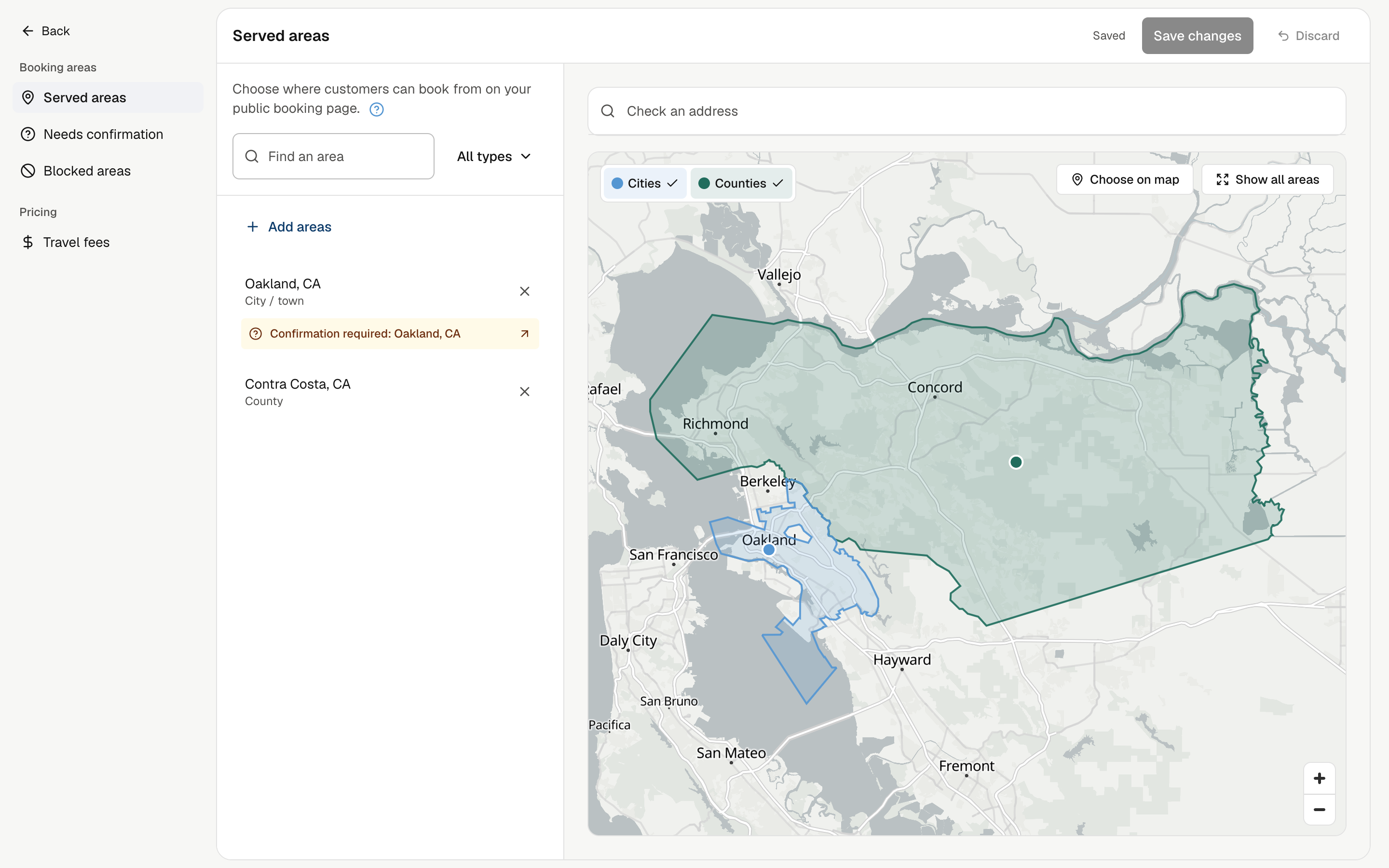
Add served areas
- Open Served areas and select Add areas.
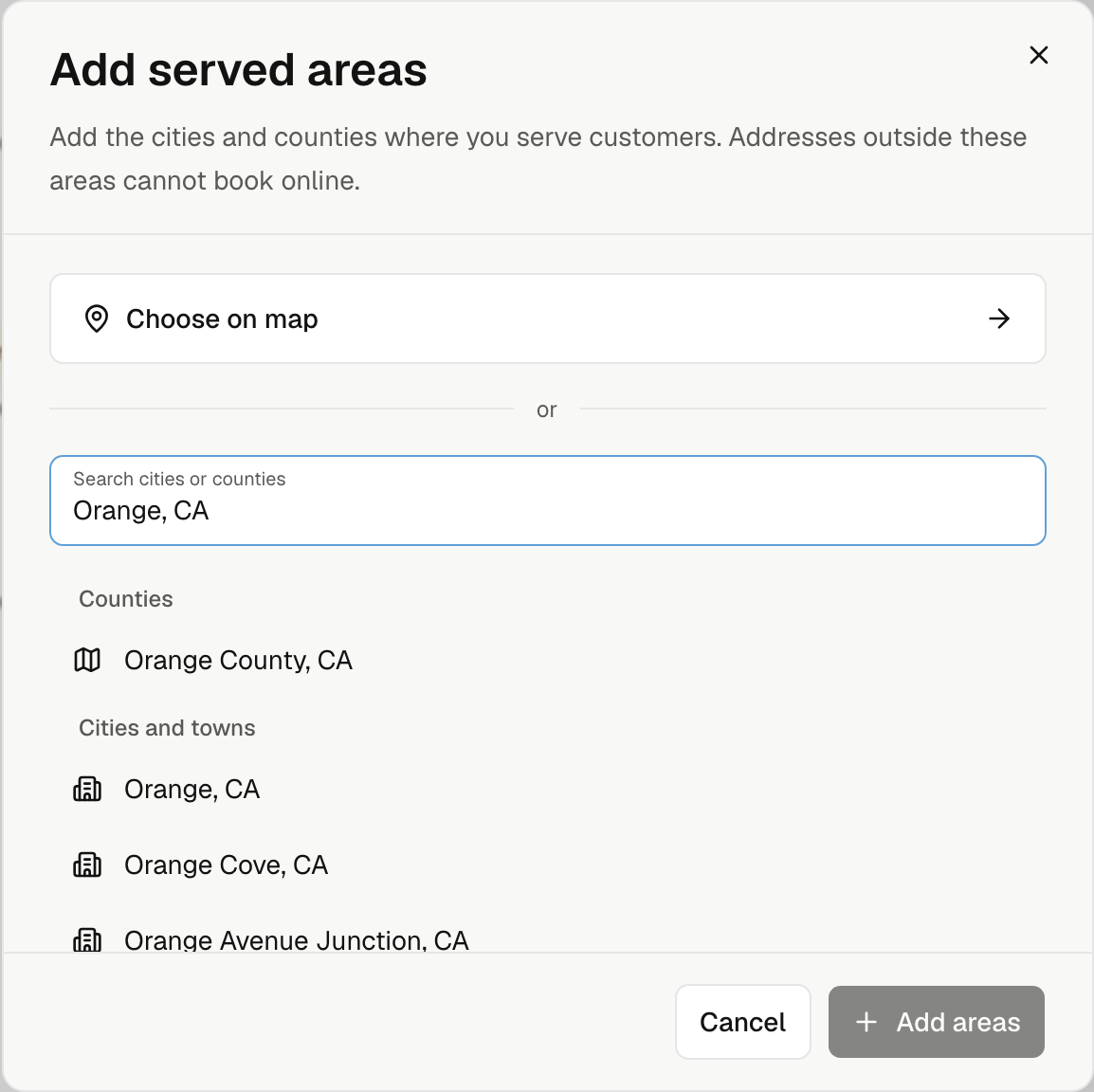
- Use Search cities or counties or select Choose on map. Add a state to the search, such as "Orange, CA", to narrow the list. Search also finds places such as parishes that work like counties.
- Pick the places you serve. You can pick more than one before you select the add button, such as Add 3 areas.
- Select Save changes.
Each rule covers the whole city, town, or county in a U.S. state or territory. When your list is empty, Noma allows bookings except in blocked areas. Once you add your first served area, an address outside all served areas is blocked when Noma can check it.
Require review or block an area
| Section | What to do |
|---|---|
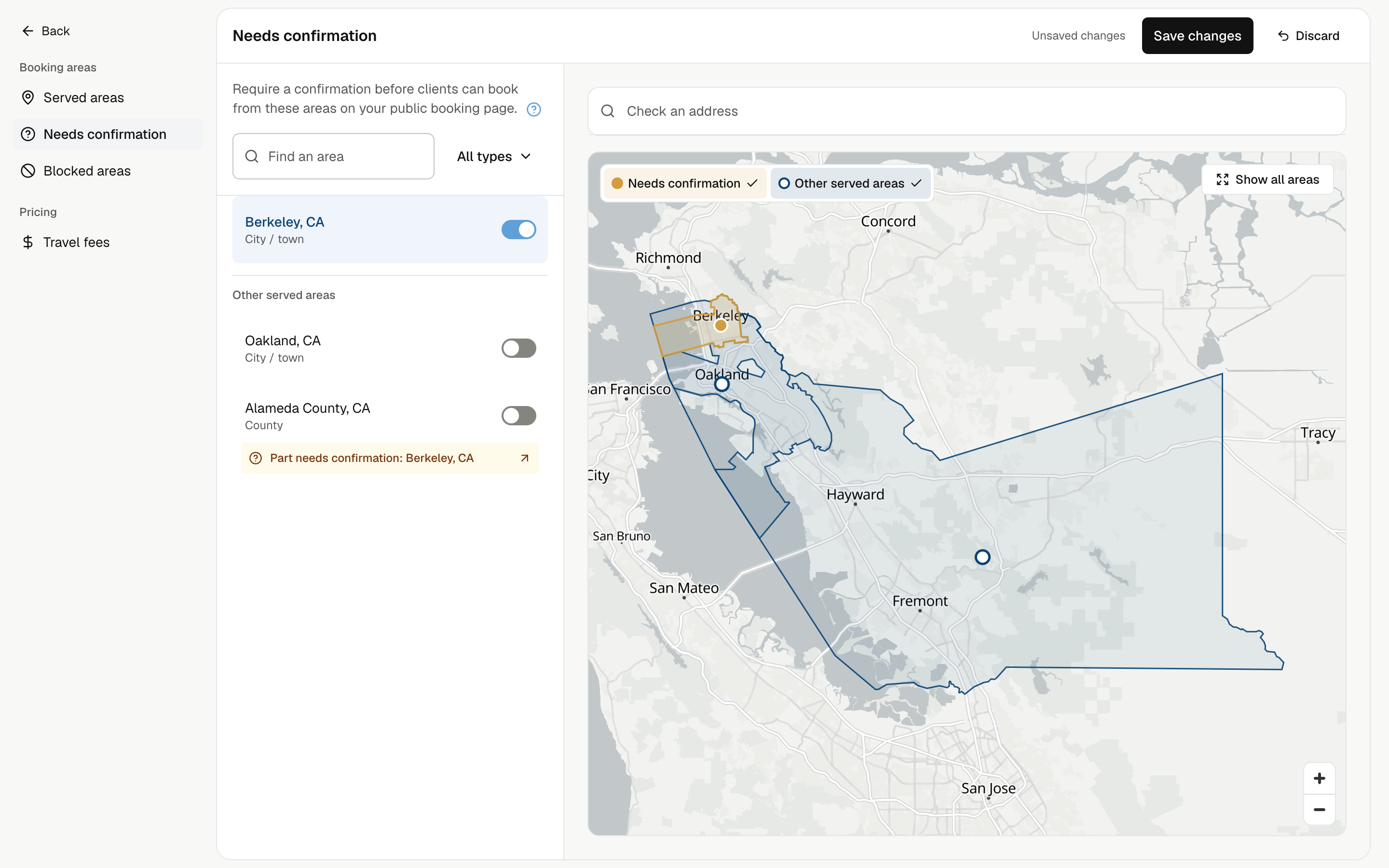
| Needs confirmation | Turn on the switch for a served area. Matching bookings become requests. |
| Blocked areas | Select Add blocked area or turn on a listed area's switch. You can block places outside your served areas too. |
Select Save changes after you edit a rule. If places overlap, a block wins first. A matching review rule wins next, even for a service that books right away. For example, blocking a county also blocks a served city inside it.
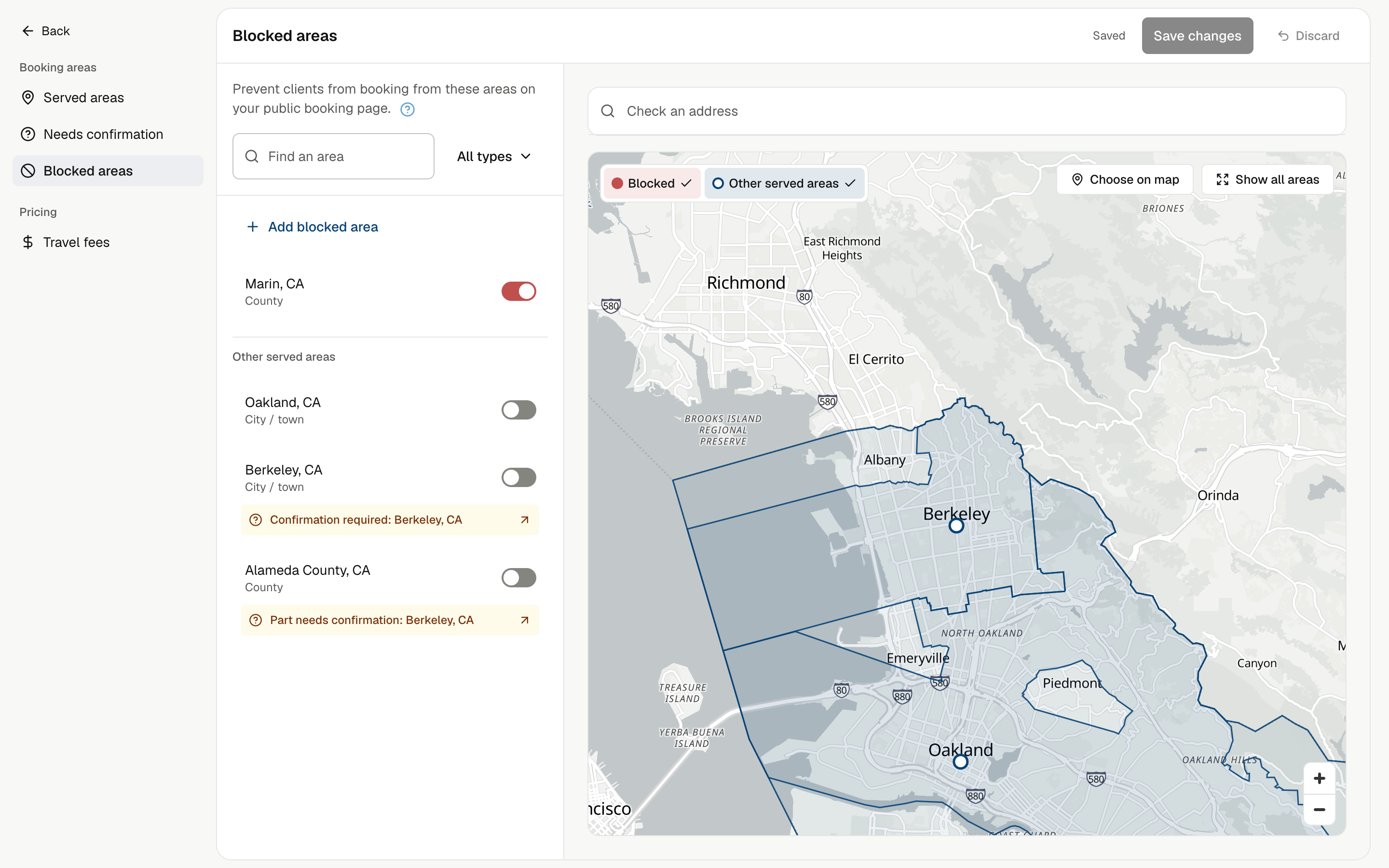
Check overlap warnings
The list shows when another rule covers all or part of an area. Select the warning to jump to that rule. If Some overlaps could not be checked appears, check an address in that area.
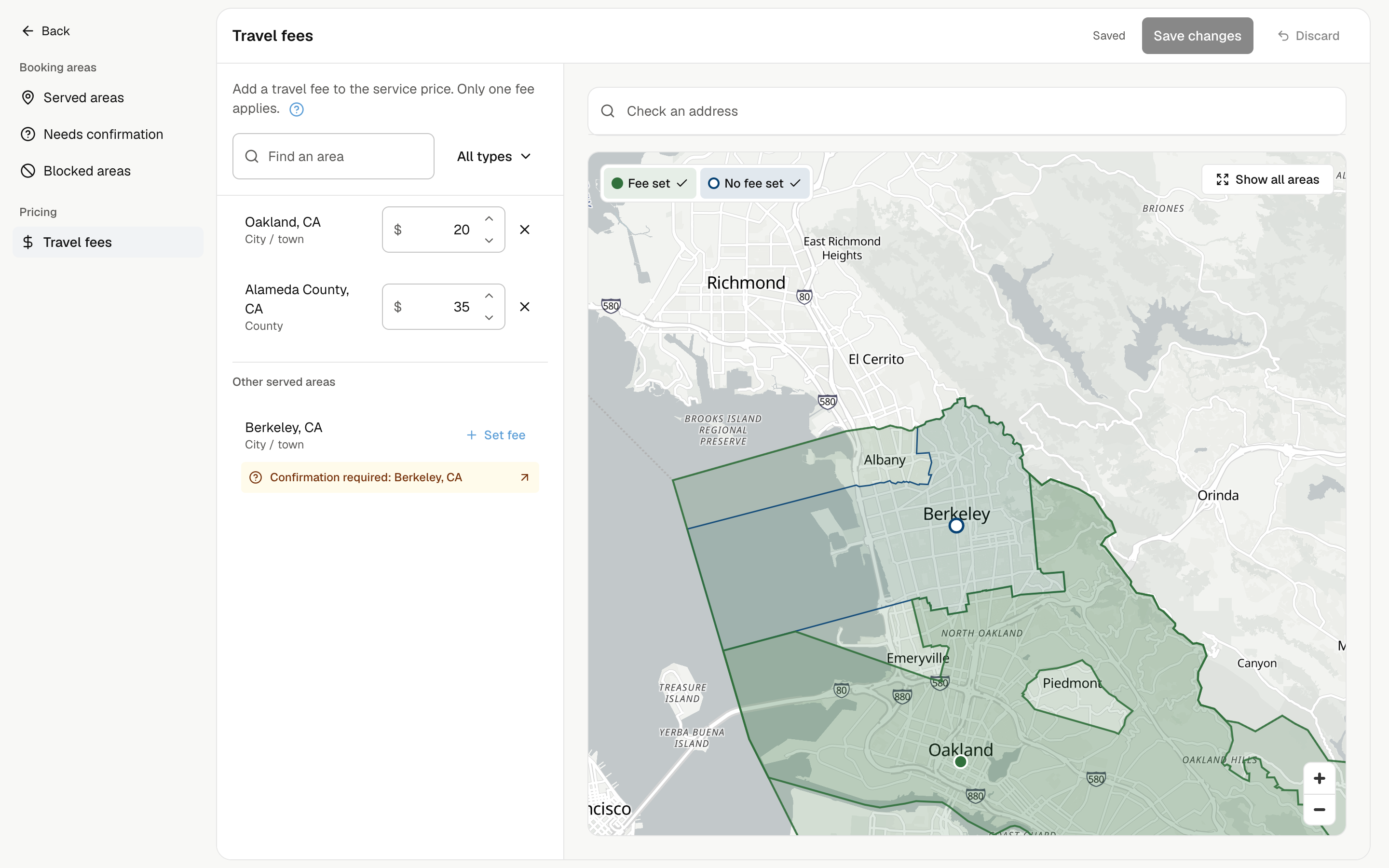
Add a travel fee
- Open Travel fees.
- Select Set fee beside a served city or county.
- Enter a whole-dollar amount of $1 or more.
- Select Save changes.
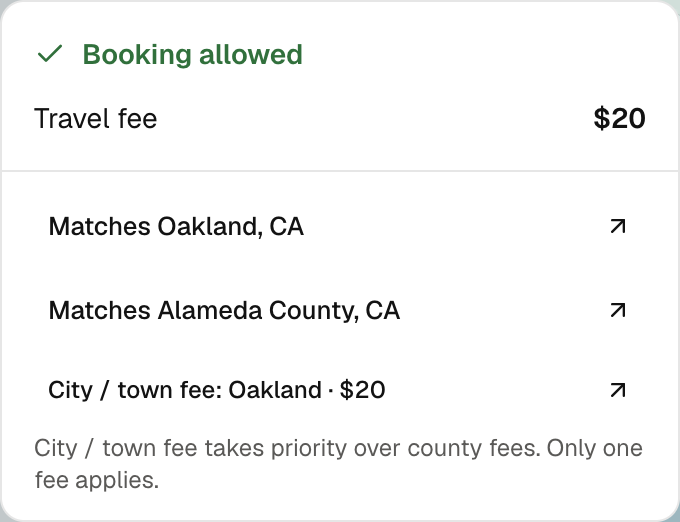
Noma uses one fee. A city or town fee wins over a county fee. If only the county has a fee, Noma uses that fee. A block stops the booking and the fee.
The invoice shows the travel fee on its own line. The fee stays with the booking if the client changes it later.
Check an address
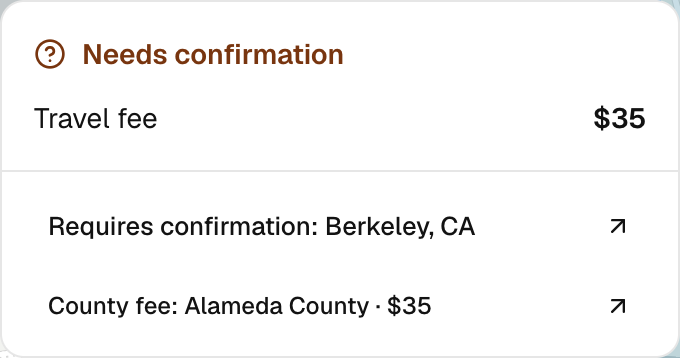
Select Check an address by the map and pick a full address. The check uses your edits as you make them. Select Save changes to use them for new bookings.
| Result | What it means |
|---|---|
| Booking allowed | The client can go on to book, based on the service's rules. |
| Needs confirmation | Your team must review the request. |
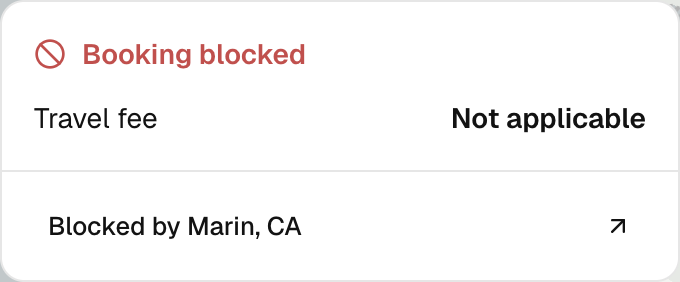
| Booking blocked | The client sees how to reach your company. Travel fee shows Not applicable. |
The result shows which rules matched. Select a rule to find it in the list. If Outside your served areas. appears, none of your served areas matched.
Some outside addresses can still book
The booking can go on if Noma cannot check the address against your rules.
Create a job yourself
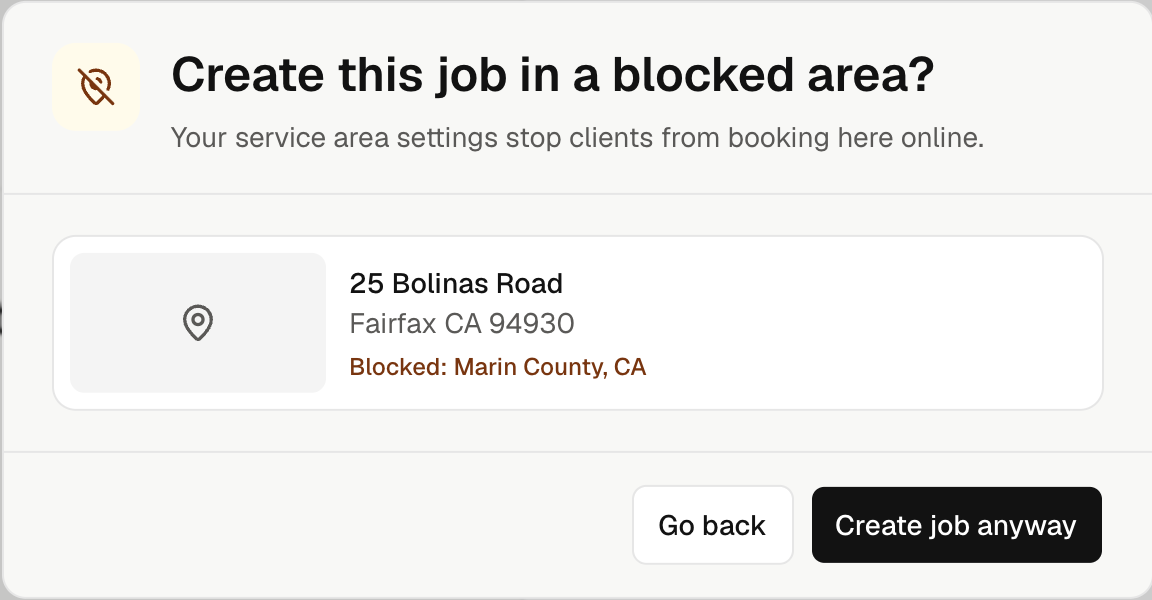
In New job, a matching fee fills the travel fee row. You can change or remove it. You can also choose Create job anyway after a warning about a blocked or outside address. The area check needs internet on the phone app.
Remove or discard rules
| Change | Result |
|---|---|
| Remove a served area | Its review rule and fee go away. A separate block stays. |
| Turn off a block | Any served area rules for the same place stay. |
| Remove a city fee | A matching county fee can still apply. |
| Select Undo after removing an area | The area returns. Select Save changes when you are done. |
| Select Discard | The last saved rules return. |
Saved requests and visits keep their booking details.