Payment notifications
Review payments and invoices from approved work.
Choose your inspector type
Open Inbox and select Billing. Each alert also has details about the job.
Print an invoice
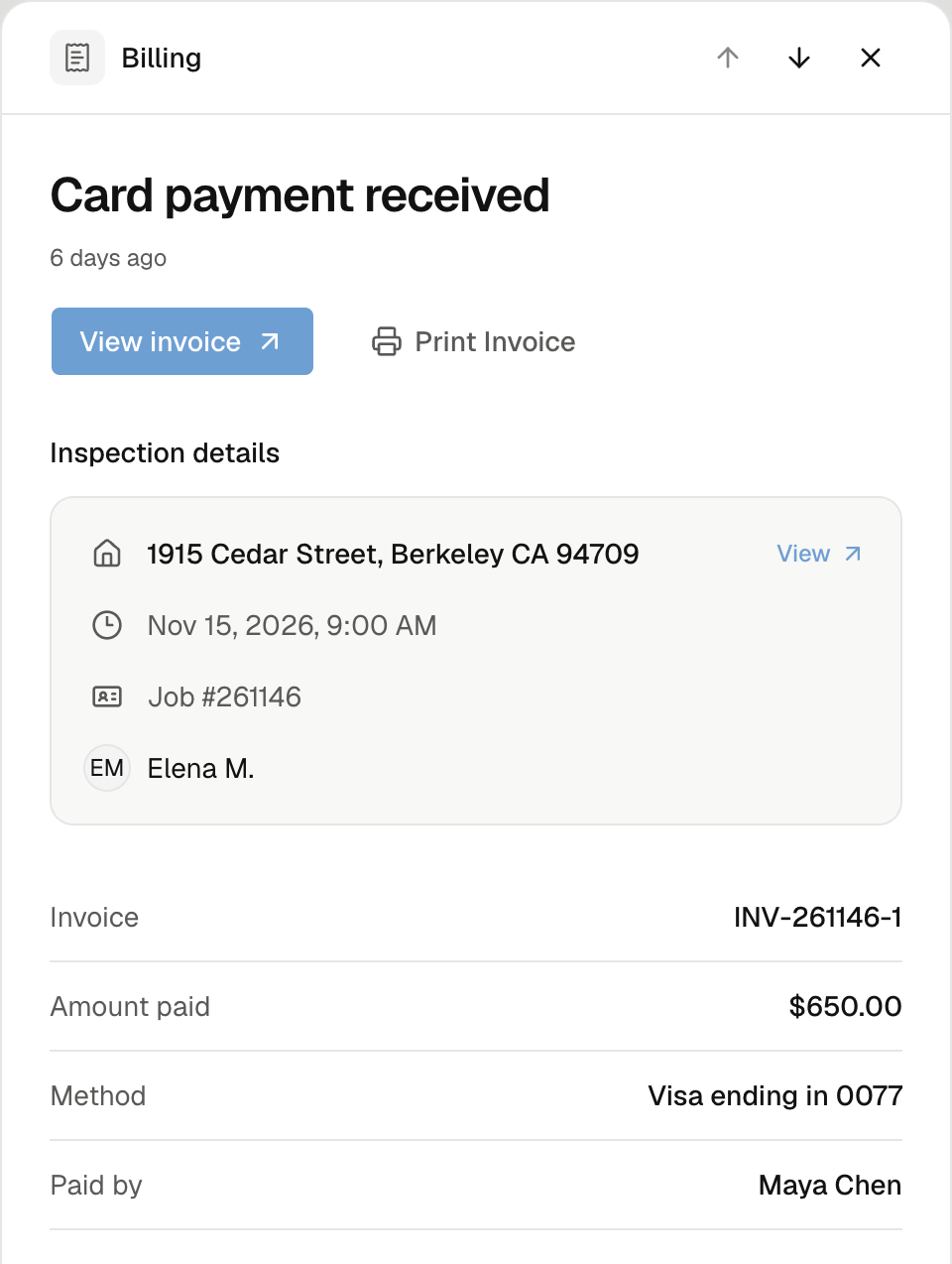
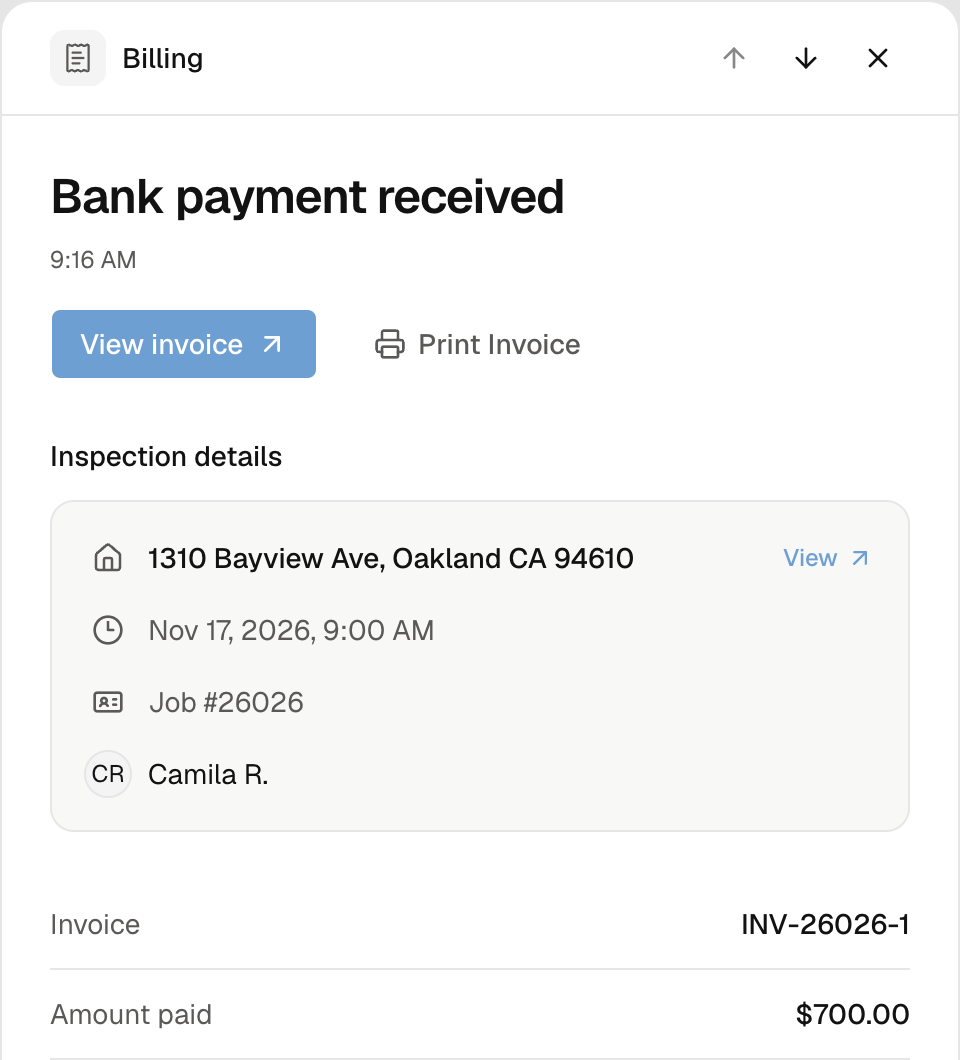
Print Invoice appears beside View invoice only on Card payment received and Bank payment received notifications.
Select Print Invoice to print the full invoice, with line items, the current balance, and payment history, including later reversals. The button shows Preparing… while the invoice loads.
Payment examples
| Notice | Fields shown when saved |
|---|---|
| Card payment received | Invoice, Amount paid, Method, Paid by. |
| Bank payment received | Invoice, Amount paid, Method, Paid by. |
| Bank payment processing | Invoice, Amount, Method, Payer. |
| Bank payment failed | Invoice, Amount attempted, Balance due, Reason, Payer. |
| Bank payment reversed | Invoice, Amount reversed, Balance due, Paid by. |
| Refund failed | Invoice, Refund amount, Method, Reason. |
A Refund failed notice means a card or bank sent a refund back. Fix a failed refund.
- Bank payment processing
The client submitted a bank payment. It has not cleared yet.
- Did the bank payment clear?
- Bank payment received
The payment cleared and lowers the balance.
- Bank payment failed
The payment did not go through. The balance is still due.
- Bank payment received
- Bank payment reversed
Only if the bank pulls back a received payment later. The balance is due again.
Review a payment
Check who paid
Paid by is the saved payer name. Processing and failed attempts use Payer. It can differ from the invoice customer.
Method shows the saved card brand or bank name, with the last four digits when saved.
Open the invoice
| Payment notice | Select |
|---|---|
| Received or processing | View invoice. |
| Failed or reversed | Review invoice. |
Check the current balance before taking the next step. Balance due on failed and reversed notices also shows the current invoice balance.
Check the visit badge
| Payment notice | Visit payment badge |
|---|---|
| Processing | Awaiting |
| Failed | Issue |
See Read payment badges for every badge.
Bank payment processing is not a completed payment. Open the invoice to check its current state.
Invoices from approved work
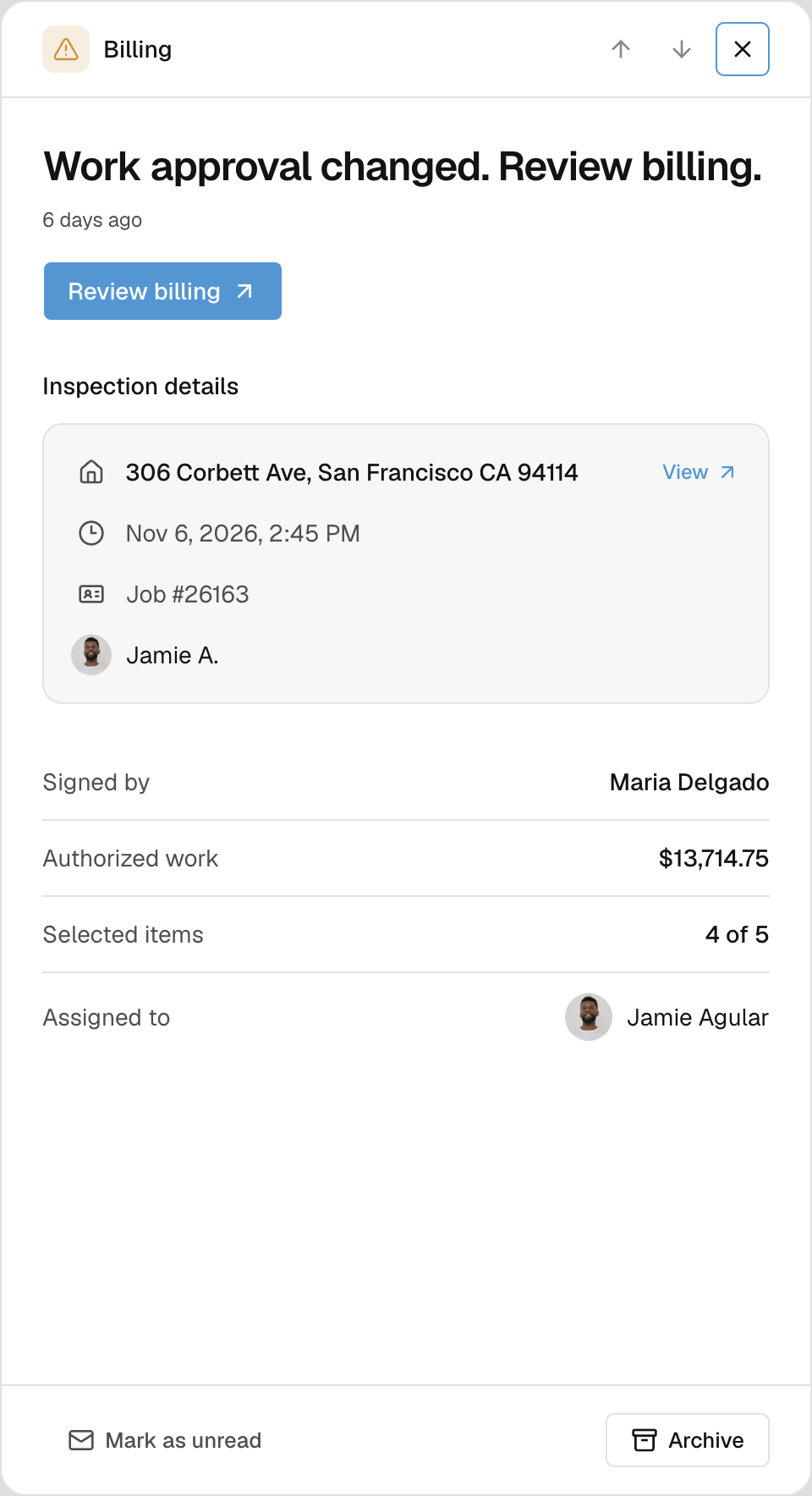
These alerts appear in Billing, not Work authorizations.
See each notice and what to do.
A created-invoice item shows Invoice, Work authorization, Invoice amount, and Customer. These show the facts when the invoice was made. Open the invoice for its current balance.
A changed-approval item shows Signed by, Authorized work, and Selected items. Select Review billing to open the job.
Choose company email copies in Notifications. The Inbox items stay on when email is off.