
Manage payment accounts
Change bank details, view tax documents, and reconnect payments.
An Admin or Billing manager opens Settings → Noma payments → Manage payments.
Change bank or business details
Select Change bank details. Update and save the required details in Bank and business details, then close the form. Check the updated bank in Noma payments.
Changing the bank does not change the destination of an already-created payout. Track bank payouts for its saved destination and arrival estimate.
View tax documents
Select View tax documents, then open or download an available document in Stripe's view.
If an account selector appears, choose Current account or the relevant Previous account. Documents stay with the account that received the payments, including after it is disconnected.
Older accounts may offer Open Stripe Dashboard instead. Use the tools shown for that account.
Update Noma payments
If Update Noma payments appears in settings, select Continue or Resume. Review the terms shown and complete the required details.
Your current account stays in use until the new one is ready. Earlier payments and payouts stay with their original account. The update does not rewrite saved invoice fees or change your Noma subscription.
Disconnect or reconnect
- In Manage payments, select Disconnect Noma payments.
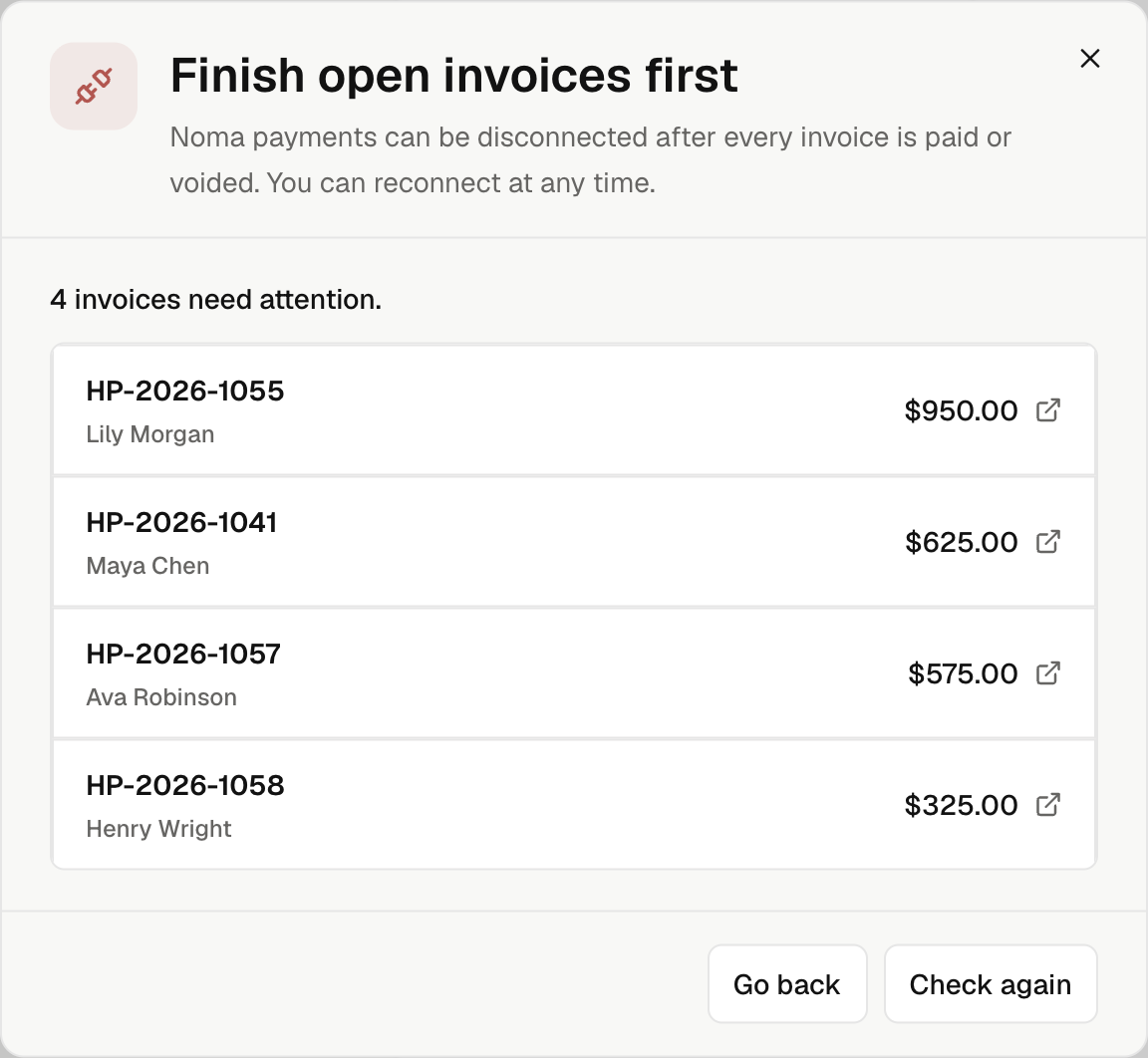
- Resolve any open invoices. Every invoice must be paid or voided; select Check again after fixing them.
- Confirm Disconnect Noma payments.
New online collection stops. Paid invoices and account history stay available. Tax documents and supported dispute tools remain accessible.
To collect again, open Manage payments → Reconnect Noma payments. Complete any details Stripe requests and check the account status.