 Noma
NomaAdd contract fields
Choose what each signer completes and what Noma fills in.
Place fields
Open Add fields in a reusable contract or draft.
- Select the person who will fill the field.
- Choose a field type.
- Select its position on the PDF, or drag it onto the page.
- Select the placed field to change its settings.
Choose a field type
| Field | What the client does |
|---|---|
| Signature | Draws or types a signature. Every signer needs at least one required Signature field. |
| Initials | Adds their initials. |
| Text | Enters an answer. You can limit it to numbers. |
| Checkbox | Checks a box. You can require it to be checked. |
Use Document details for values Noma fills in:
| Field | Value |
|---|---|
| Date signed | The signing date, using the property's time zone when available, then the company's time zone. |
| Signer name, Signer email | The assigned signer's details. |
| Service date, Job number | Details from the linked visit and job. |
| Property address | The job's property address. |
| Contract price | The amount shown in this document. |
| Inspector name | The linked visit's inspector. |
| Company name, Company address | Your company's details. |
Job details need a linked job. Review the values before sending a one-time request.
Set the field owner
Filled by assigns a Text or Checkbox field to a signer or Me before sending.
Choose Me before sending for values your team must enter before sending, such as an access note. The client sees the saved value rather than an empty input.
For other fields, choose the signer whose answer or details belong there.
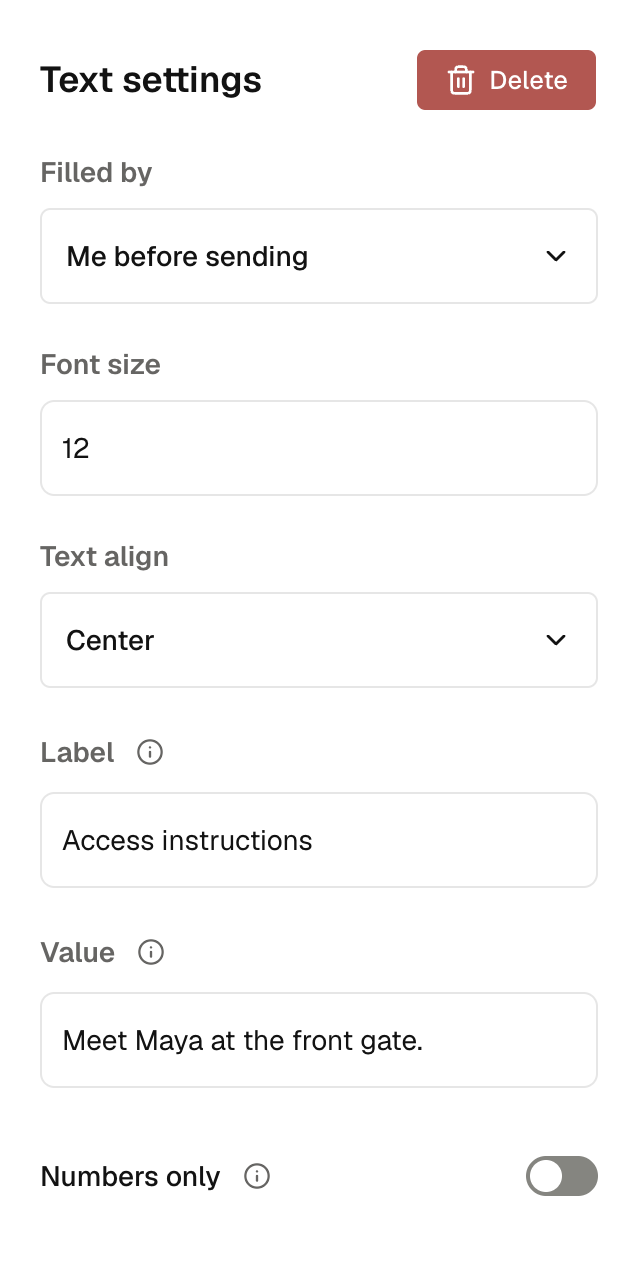
Adjust a field
| Control | Effect |
|---|---|
| Label | Names a Text or Checkbox field when editing or filling it. It is not printed on the PDF. |
| Value | The text your team supplies for a sender field. |
| Checked | The saved state of a sender checkbox. |
| Required field | The assigned person must complete the field. |
| Require signer to check | The signer must check this box to finish. With it off, the box may stay unchecked. |
| Numbers only | Accepts digits and a decimal point, such as 650 or 650.50. |
| Font size | Changes the field's text size. |
| Size | Changes the checkbox size. |
| Text align | Aligns text left, center, or right. |
Available controls depend on the field type. Keep fields inside the page and clear of printed text.
Move, copy, or remove fields
- Move: Drag the field. Use arrow keys for small changes.
- Resize: Drag its edge or corner handles.
- Copy: Select the field and press Command+D on Mac or Ctrl+D on Windows.
- Remove: Select its trash icon or press Delete.
- Undo or redo: Use the editor's controls to step backward or forward through field edits.
Press Esc to leave placement mode. Select Save contract for a reusable contract, or Finish later to keep a request as a draft.
Before sending, preview every page and confirm that each signer has a required Signature field.