 Noma
NomaChoose recipients
Assign the people who sign and those who receive a completed copy.
Roles become people when you send
A reusable contract holds roles such as Client and Co-owner. A request assigns a name and email to each role.
| Person | Receives |
|---|---|
| Signer | A personal link and fields to complete. |
| CC recipient | A copy when the contract is complete; no signing fields. |
These choices do not change the job's report recipients or billing person.
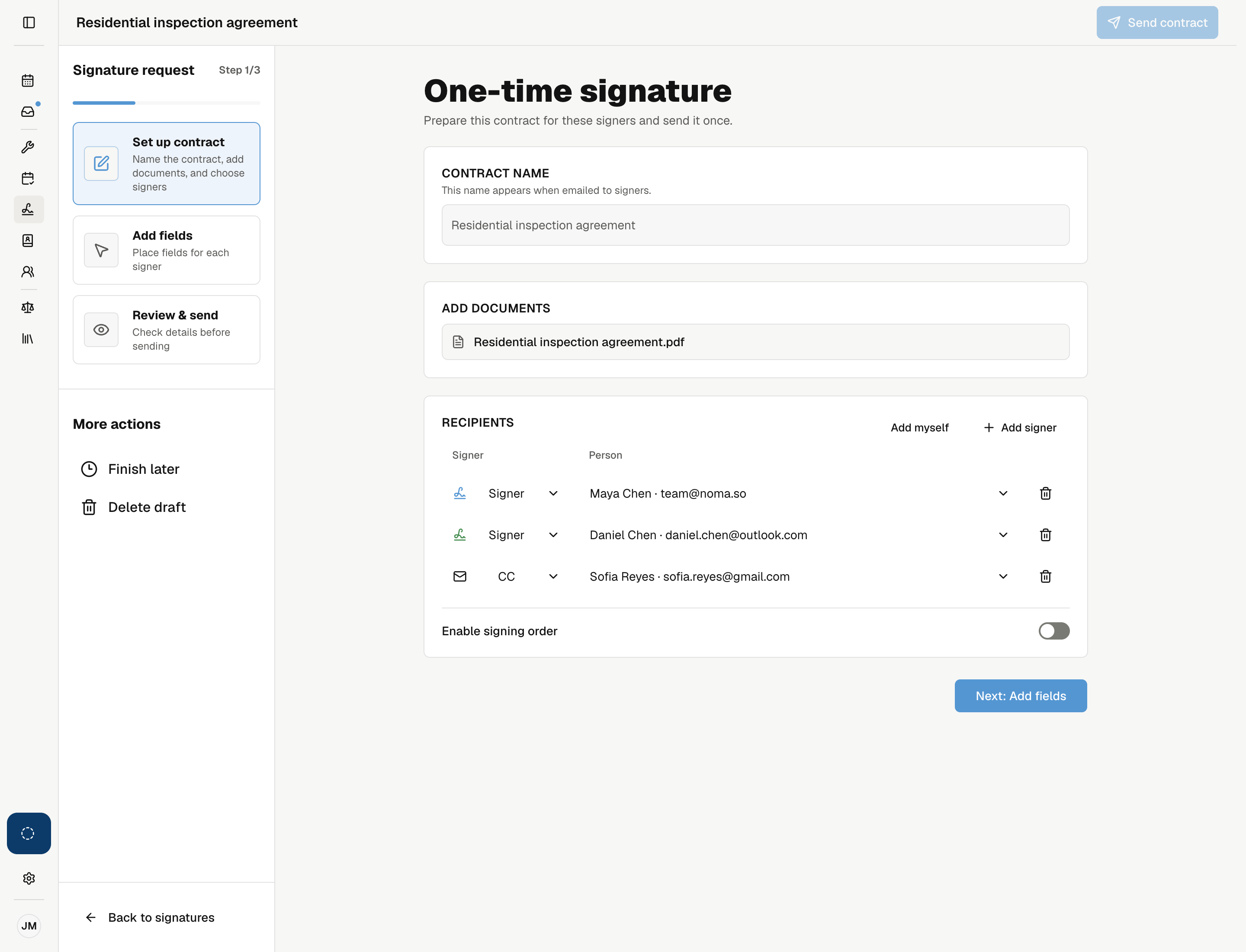
Choose recipients
- Open the request's setup step or the job's Send new contract dialog.
- Select each signer from contacts or active teammates, or enter the person's details where offered.
- If a contact has several email addresses, choose the right one.
- Add any CC recipients.
For job contracts, Noma offers people linked to the job first and may fill the first signer from Booked by. Check each choice before sending.
Use a separate person and email for each signer. A request supports up to six signers.
Set signing order
With two or more signers, turn on Enable signing order and arrange the signers in the order they should act.
The next signer can sign after the previous signer finishes. Leave the switch off to let all signers act at once. CC recipients are not part of the signing order.
Select Save contract for a reusable contract. For a request, send it or select Finish later and confirm.
Change recipients before sending
Edit recipients while the request is a draft. Removing a signer or changing them to CC removes that signer's fields. Review the warning, then check Add fields before sending.
For a sent request, void it and prepare a replacement if the wrong person was assigned. Each personal link belongs to its named signer.