 Noma
NomaSignatures
Set up signatures
Prepare contracts, collect signatures, and track each request.
Choose a starting point
Open Signatures.
Reuse a contract
Prepare a contract once, then send a copy for each job.
Send a one-time request
Upload a PDF for one request, with email or personal signing links.
Turn on signatures
An admin can open Settings, select Company, and turn on Enable signatures. Select Save changes.
This setting lets your company create reusable contracts, prepare drafts, and send requests.
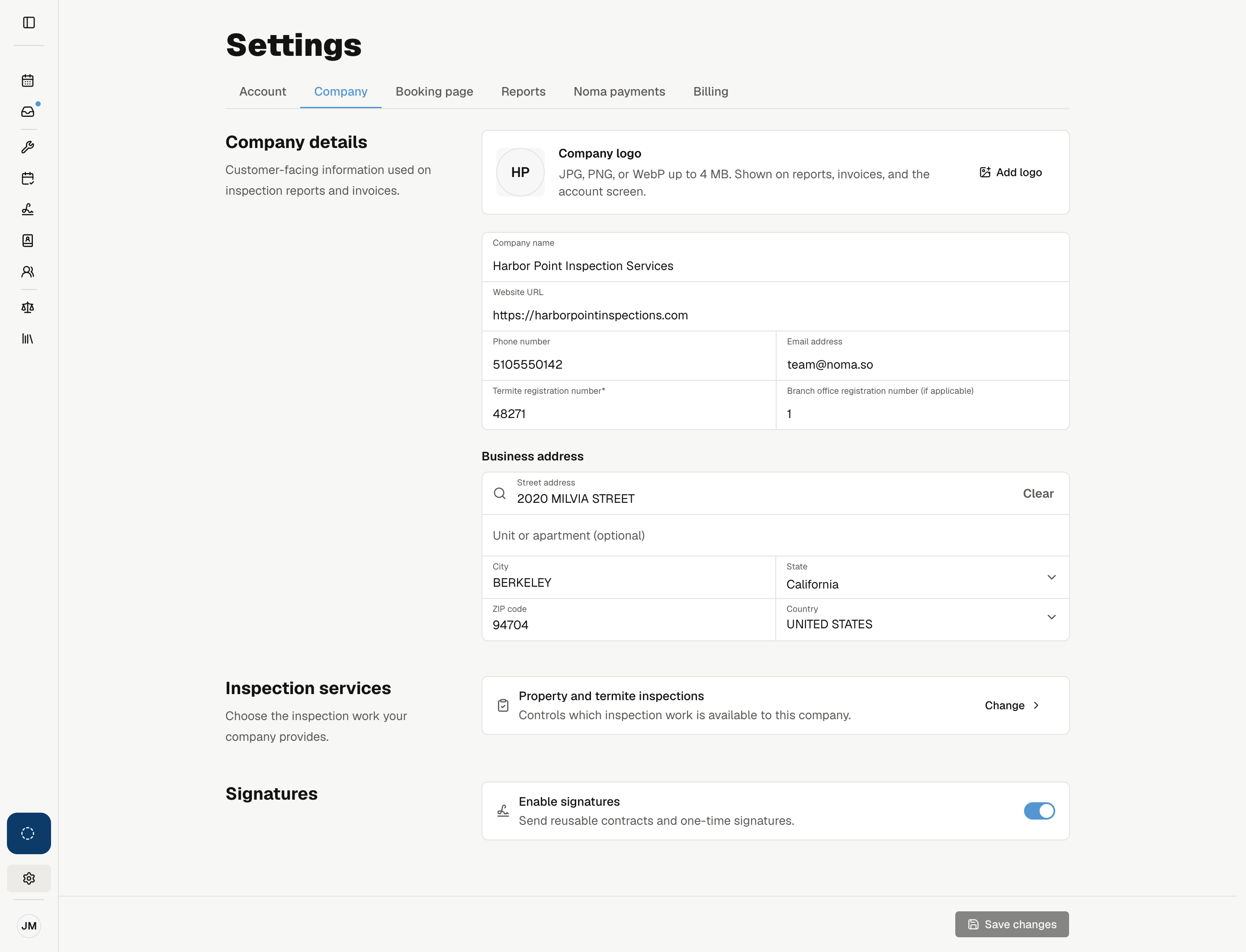
Turning it off stops new contracts and requests. Saved drafts and templates remain available. Clients can still sign sent contracts, and your team can follow up, download completed PDFs, or void eligible requests.
Follow a contract from setup to completion
| Stage | What it means |
|---|---|
| Reusable contract | A PDF with signer roles and fields. Each use creates a separate draft. |
| Draft | A request you can still edit before sending. |
| Sent request | A fixed copy for its recipients. Later template edits do not change it. |
| Completed contract | Every signer has finished. Download the signed PDF once it is ready. |
Send and track a request
Clients sign in their browser, on a computer or phone. They do not need a Noma account.
Public booking does not send a contract automatically. Open the job to send its contract.
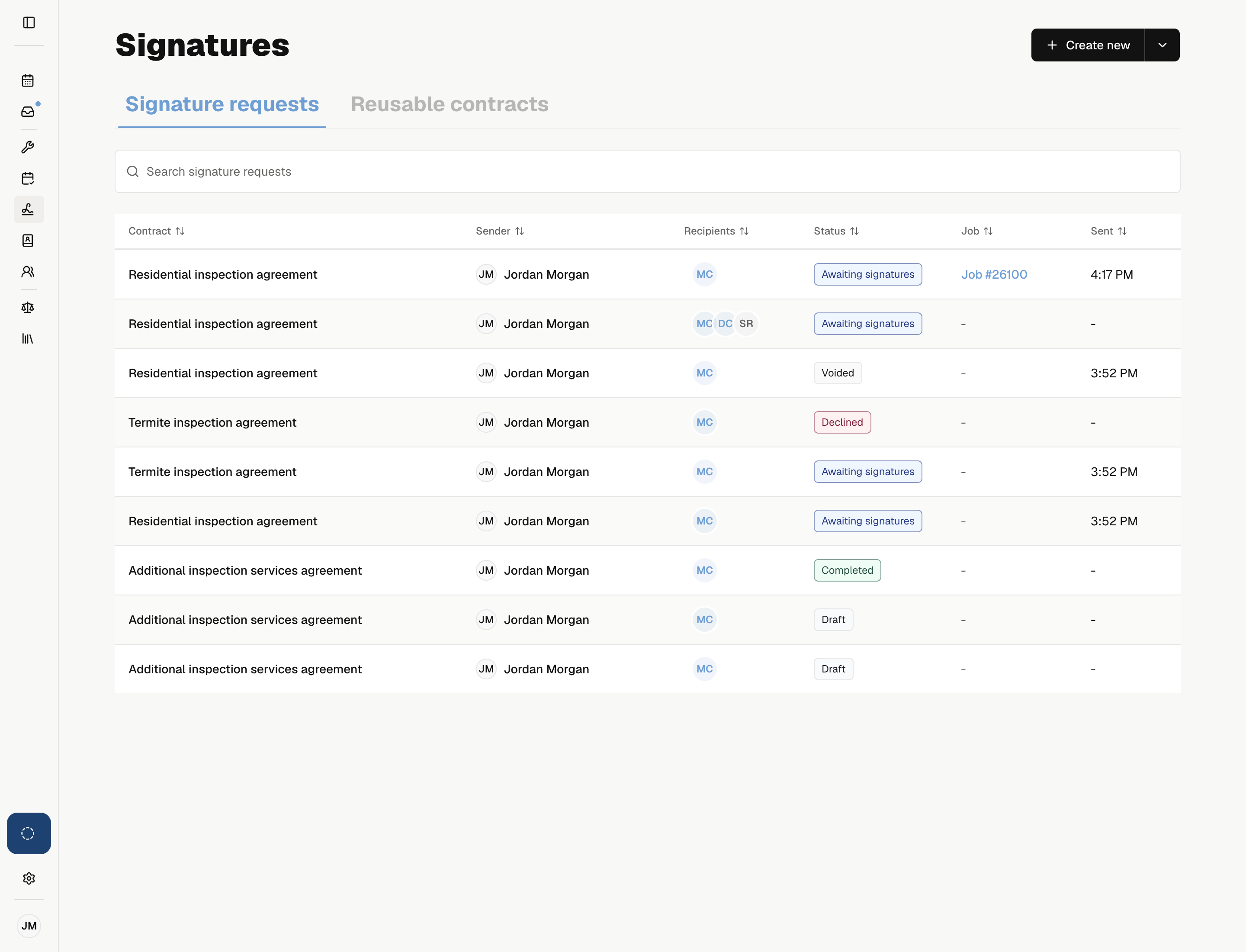
Track signing progress and events from the request details.