 Noma
NomaHow clients sign
See what clients do after opening their personal signing link.
Open and review
The client opens Review and sign from the email, or the personal link you share. No Noma account is needed.
The client reviews the pages and selects Next field to move through assigned fields.
Complete the fields
| Field | Client action |
|---|---|
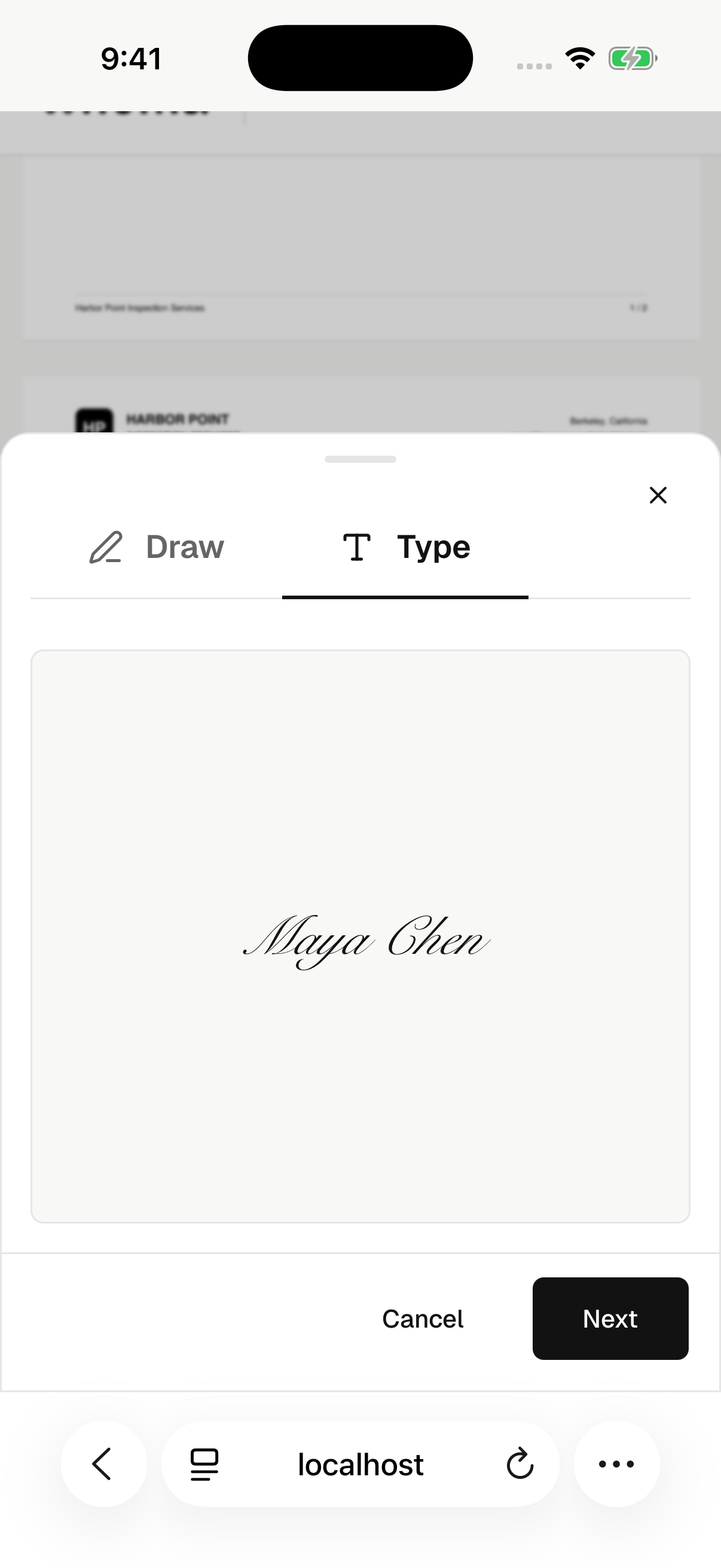
| Signature | Chooses Draw or Type, adds a signature, and applies it. |
| Initials | Enters initials and selects Use initials. |
| Text | Enters the requested answer. Number fields accept digits and a decimal point. |
| Checkbox | Checks the box when they agree. Required boxes must be checked. |
The client can change answers before finishing. Leaving an unfinished page may lose answers that have not been submitted.
On iPhone
The client follows the same steps in Safari. They can draw with a finger or type their signature.
Complete the contract
After filling every required field, the client selects Complete contract, reviews the electronic-signature consent, and selects Complete.
Their fields are submitted. If other signers remain, the contract waits for them. With signing order enabled, the next signer can now act.
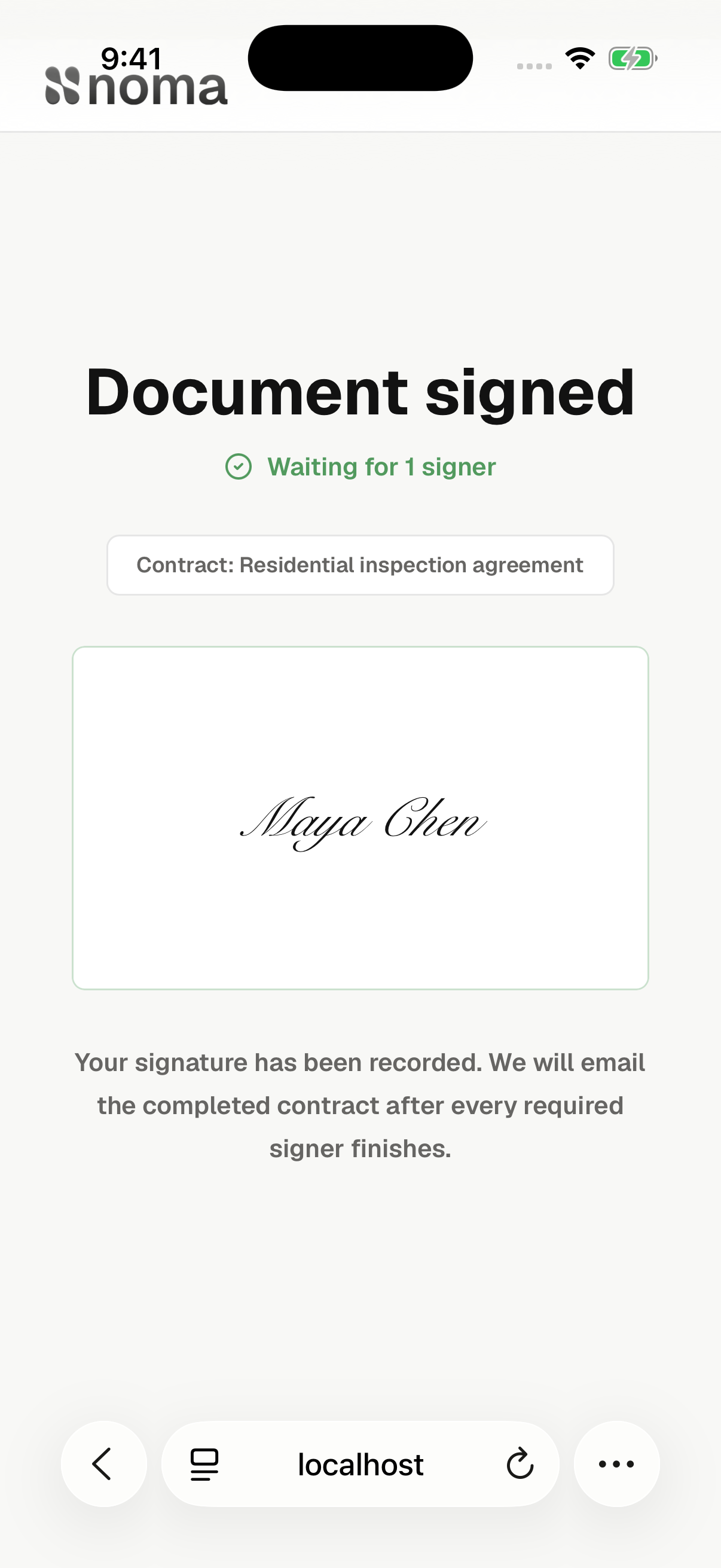
Once everyone finishes and the signed PDF is ready, the client can download it. Noma also emails the completed copy to signers and CC recipients.
Decline a contract
The client opens the decline action, enters a reason, and selects Decline contract. The request stops accepting signatures and shows Declined.
The client must contact your team to resolve the issue. Prepare a new request if the agreement needs changes.
When a link cannot be used
An ordered signer may need to wait for the previous person. Expired, voided, or declined links cannot accept new signatures. The client should contact the sender for help.