
Upload documents
Add PDF or Word files and set their page order.
Add files
Open Set up template in a reusable contract, or the setup step of a one-time request.
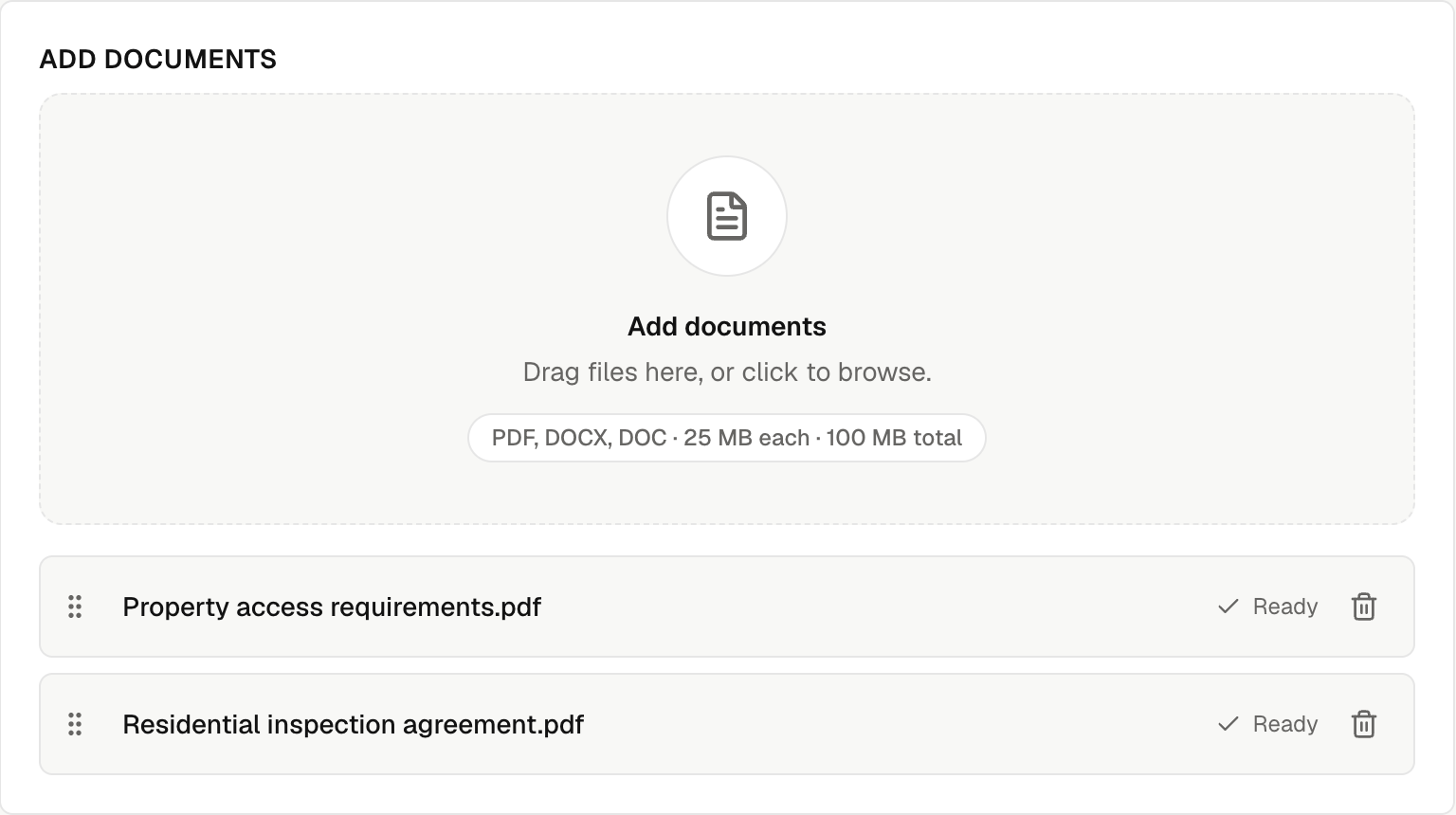
Select Add documents or drop files onto the upload area. A new blank contract name follows the first file until you enter your own name.
| Format | Limit |
|---|---|
| PDF, DOCX, DOC | 25 MB per file, 100 MB total |
Word files become PDFs. Wait until every file shows Ready before continuing. Check the converted pages for changes to fonts, spacing, or page breaks.
Arrange the packet
- Reorder: Drag a file's handle. The file order sets the page order.
- Rename: Select its name, enter the new name, and press Enter.
- Remove: Select its trash icon.
Adding, removing, or reordering files clears placed fields. Check the warning, then place the fields again.
Check or download
Open Preview template or Review & send to check every page. Download PDF downloads the full packet as one PDF, including unsaved document changes in the template editor.
Choose Save contract to save a reusable contract, or Finish later to keep a request as a draft.
If a file shows Couldn't prepare, select Retry or replace it with a readable, unlocked PDF. See Fix signature problems.